
The Products & Inventory section allows store owners to manage all product-related operations, including adding new items, updating existing listings, organizing stock, and enabling product variations. This section ensures that your store’s product catalog is complete, accurate, and optimized for customer visibility.
You can access this section from the Store Management Dashboard by tapping “Products & Inventory”.
In this area you will be able to:
View your all products in “Products Listing“,
Update stock for any product and its variation in “Manage Stock“
Product Listing
The Product Listing screen provides a complete overview of all the products available in your store. From here, you can:
- View all listed products cards with key details such as name, category, and stock with two options:
- Pencil Icon – to Edit any product to update information, images, or inventory
- Trash Icon to Delete any product that is no longer available
- Add New Products to your catalog by tapping the “Add New” button
This centralized view helps you maintain and organize your store’s product offerings efficiently.
Adding a New Product
To add a new product:
- Tap “Add New” to open the Product Details Form, where you’ll configure all settings related to visibility, categories, shipping, pricing, and more.
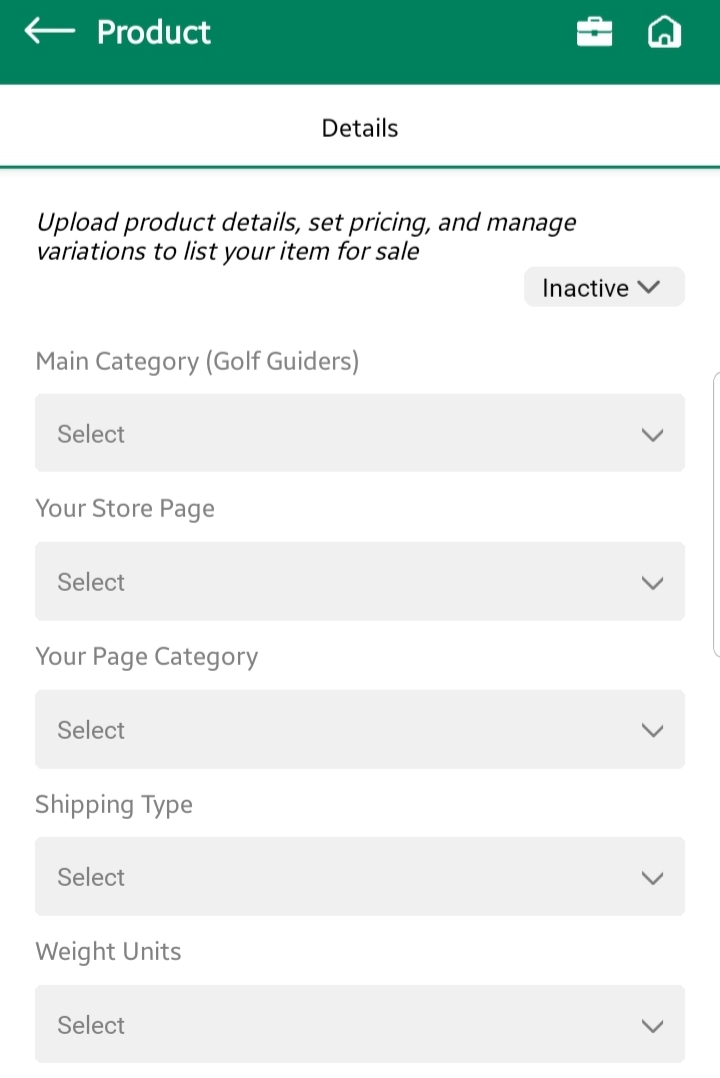
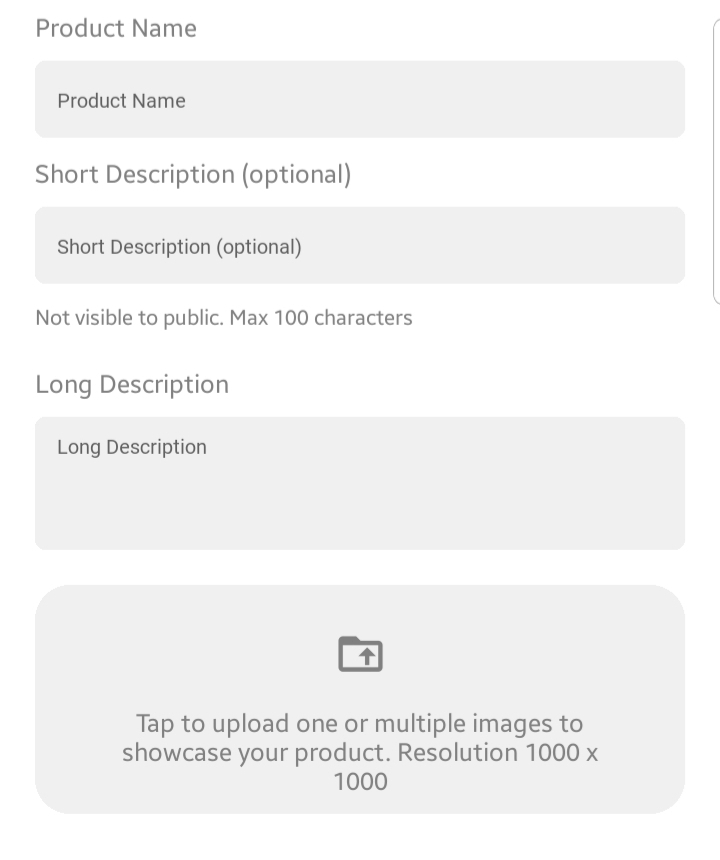
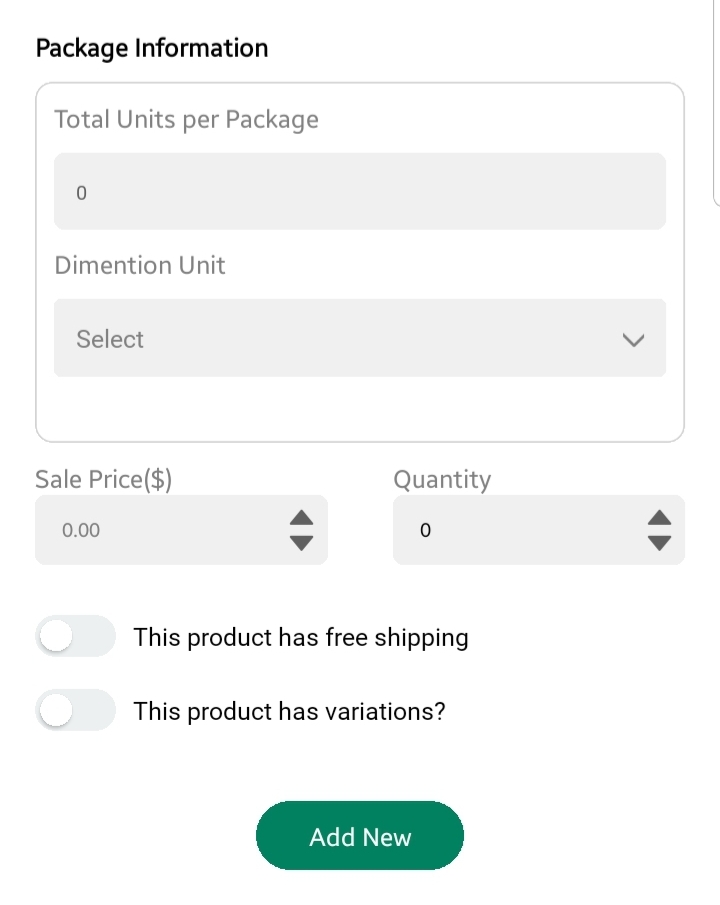
Product Details Tab:
- Product Status (Active/Inactive)
Use the toggle to control whether the product is publicly visible.
🔒 Inactive products will not appear in your public store view.
- Main Category
Choose a category from the official GolfGuiders platform-wide categories to properly classify your product. - Store Page
Select one of your created store pages where this product should appear. - Category (Within Page)
After selecting a page, choose the relevant category under that page to align the product correctly. - Shipping Type
Choose between USPS or FedEx. This choice may affect available dimension units. - Weight Unit
Select from: lbs,oz,g, orkg - Product Name
The official title of your product. - Short Description (Optional)
This is for internal or backend use only and is not visible to customers. - Long Description
A publicly visible, detailed description of your product. - Image Gallery
Upload product images (recommended size: 400x200px)
📌 High-quality images help customers make confident purchase decisions.
- Package Information
- Total Units per Package – How many items are included per sale
- Dimension Unit – (e.g.,
in,cm,m,mm,ft)
⚠️ Dimension Unit field will only be enabled once a shipping type is selected.
- Sale Price – Product price in USD ($)
- Quantity – Number of units available in inventory
- Free Shipping Toggle – Enable if you offer shipping at no cost
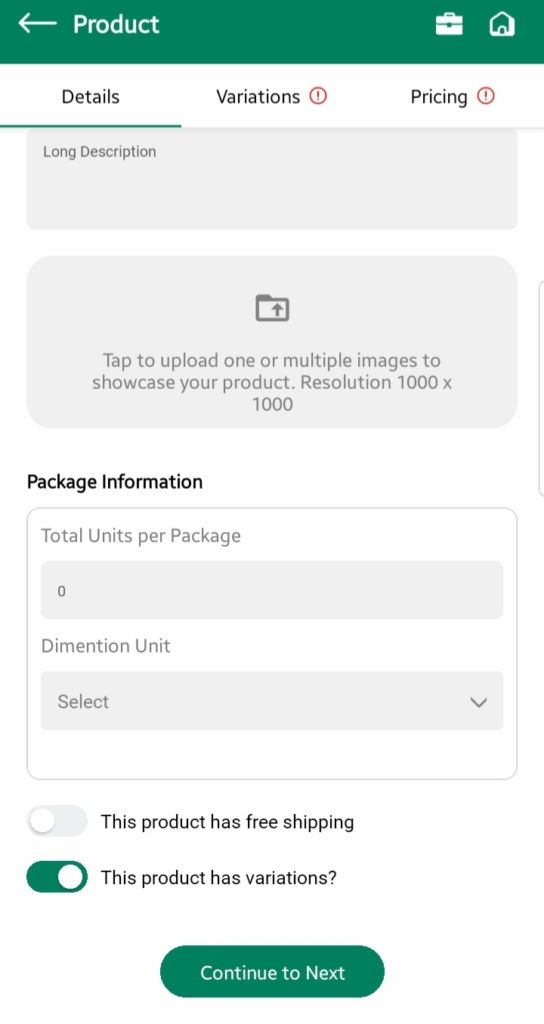
Product Has Variations Toggle
Enable this if your product has variations (e.g., different sizes or colors). Once enabled:
The “Add New” button will change to “Continue to Next”
Two new tabs will appear: Variations and Pricing
Variations Tab (required: if product has variations)
The Variations screen allows you to define different types of your product (like color or size).
Adding a Variation Group
- Tap “Add New”
- Select Group Type: either
ColororSize - Enter a Group Name (e.g., “Color Options” or “Available Sizes”)
Adding Individual Variations
- Tap “Add Variation” within the group
- A variation card will be created where you can:
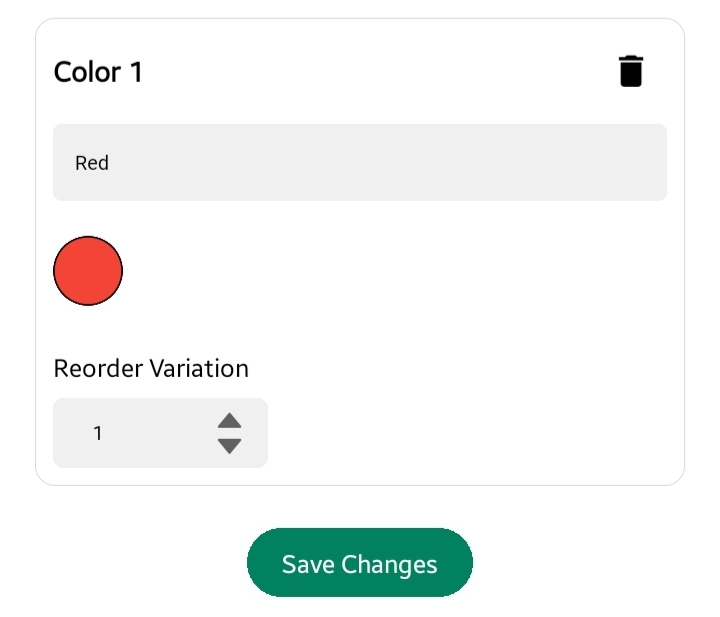
If Group Type is Color:
- Name the variation (e.g., “Red”)
- Tap the color circle to open a palette
- Choose a color using the slider or enter a HEX value
- Set Variation Order (for display sequence)
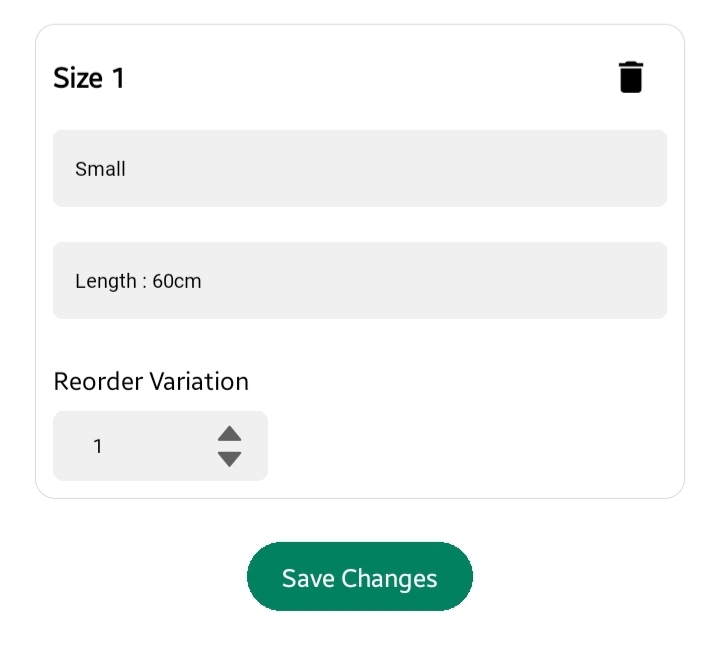
If Group Type is Size:
- Name the variation (e.g., “Length: 120cm”)
- This is a text field, allowing full flexibility for sizing terms
- Set Variation Order
✅ You can add multiple variations under each group (e.g., Red, Yellow in Color — Small, Medium in Size).
🗑️ Each variation and group can be deleted if needed using the trash icon.
Pricing Tab
The Pricing tab allows you to assign prices and stock levels to each variation combination.
Example:
If you’ve added variations:
Color: Red
Size: Small, Medium
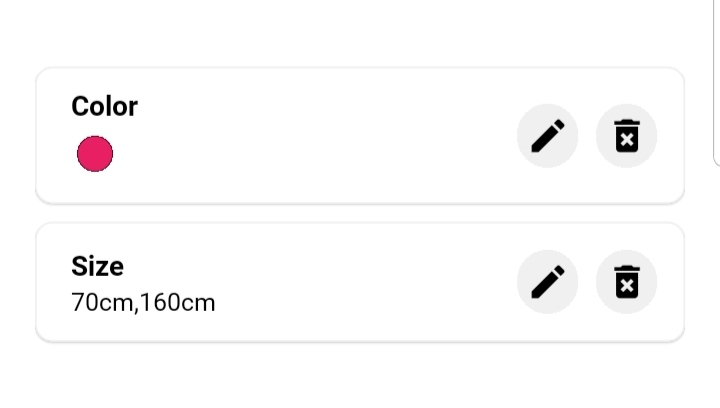
You will see cards like and each card allow you to define its Price and Quantity:
Red – Small
Red – Medium
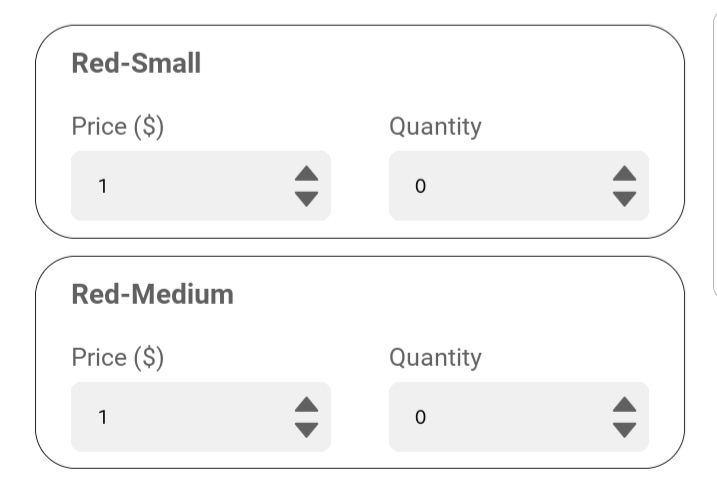
Once all combinations are filled:
- Tap “Add New” at the bottom of the screen
- If all required fields are valid, the product will be created successfully
📌 Ensure every combination has a unique price and stock before saving.
Notes & Best Practices
- Always keep your product descriptions clear and accurate
- Use high-resolution images that match the product in real life
- If using variations, make sure every combination is priced and stocked
- Use consistent naming and category alignment to maintain store clarity
Updating a Product
To update an existing product:
- Go to the Product Listing screen under Products & Inventory
- Locate the product you wish to edit
- Tap the pencil icon (✏️) on the product card
- The product details form will open, where you can:
- Modify product name, descriptions, pricing, stock, images, etc.
- Update categories, shipping, or variation settings if required
- After making changes, tap “Save Changes” to apply the updates
📌 Ensure all required fields are filled correctly before saving.
Deleting a Product
To remove a product:
- From the Product Listing screen, locate the product
- Tap the trash icon (🗑️) on the product card
- A confirmation message will appear
- Confirm deletion to permanently remove the product from your store
⚠️ Deleted products cannot be recovered. Please review before confirming.
Manage Stock
The Manage Stock feature allows you to view and update stock quantities for all products in your store — including products with variations. This section helps ensure that your inventory remains accurate and up to date, preventing overselling or stockouts.
Viewing Products
Upon opening the Manage Stock screen:
- All products are displayed as cards, showing:
- Product Name
- Current Stock Count
- Category
You may also use the search bar at the top to find a specific product by name.
Updating Stock
To restock or update a product:
- Tap the pencil icon (✏️) on the product card
- You will be redirected to the stock update screen, where stock and pricing are managed
Product Variation Handling
Depending on how the product was configured, the stock interface adapts accordingly:
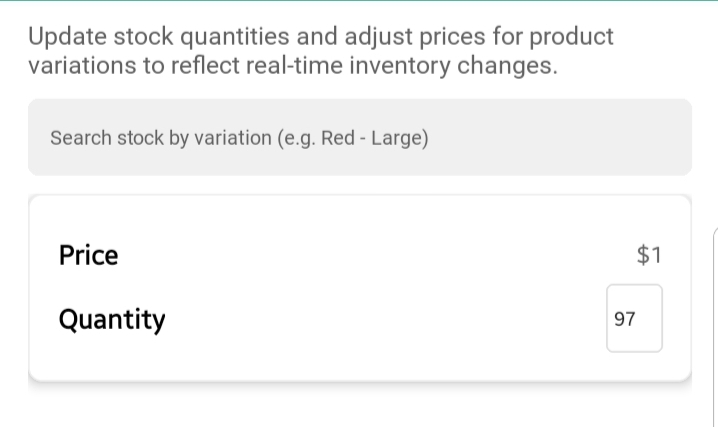
- No Variations
One card appears showing
- Price (fixed)
- Quantity (editable)
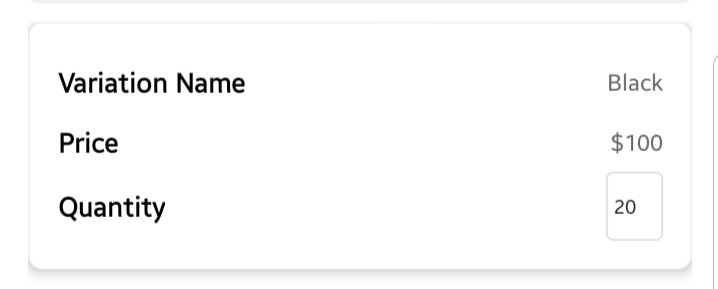
- With Color Variations
Each color is listed as a separate card
Each card shows:
- Color Name
- Price
- Quantity
- With Color and Size Variations
- Each combination appears as a card
Example:
- Black-Small
- Black-Medium
Each Card have its own:
- Price (fixed)
- Quantity (editable)
📝 All fields are directly editable. Once you’ve made the required updates, changes are saved automatically or through the “Save” button (based on your app version).