
The Manage Community module lets users create, manage, and grow their own golf-related spaces within the GolfGuiders platform — perfect for connecting with clubs, professionals, and fans with shared interests.
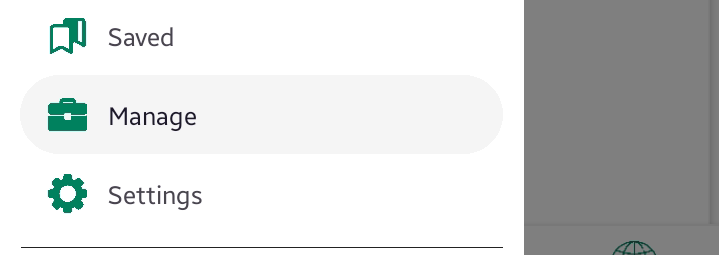
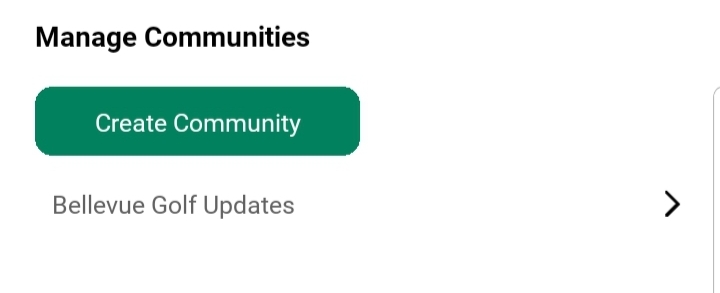
You can create a new community or edit the existing community in the Manage menu
Access
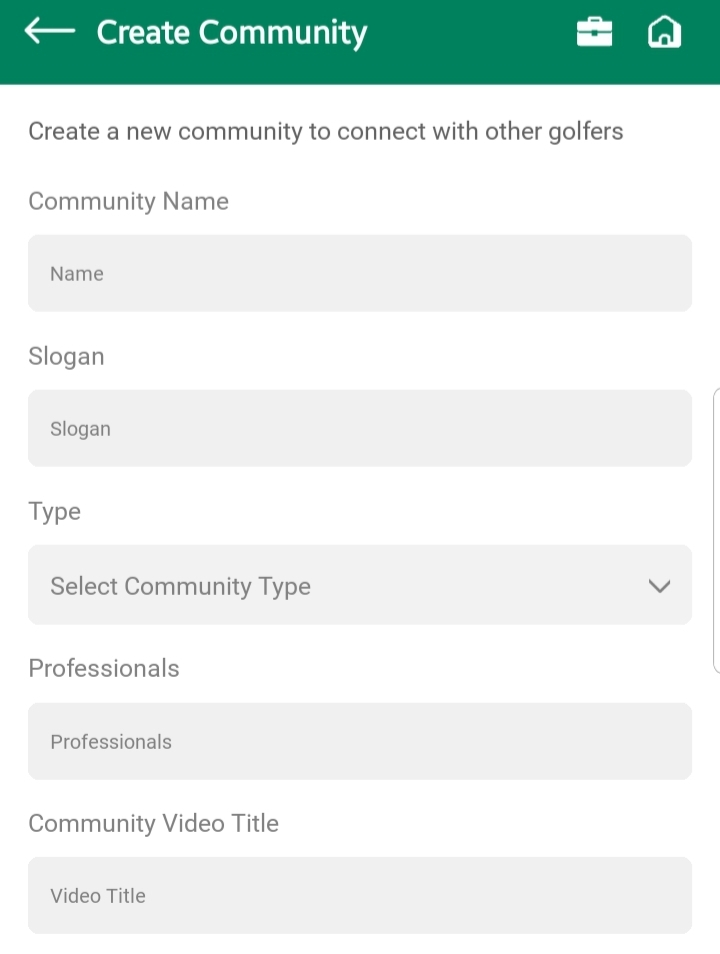
Community Identity:
- Name – The official name of your community (e.g., Lahore Golf Club)
- Slogan – A short phrase or tagline that describes your community’s vibe or goal
- Community Type – Choose how your community works:
- Public – Open to everyone
- Private – Members need approval to join
- Professionals – Overall Professional / experts members in your community – they might be not on GolfGuiders app
Media & Branding:
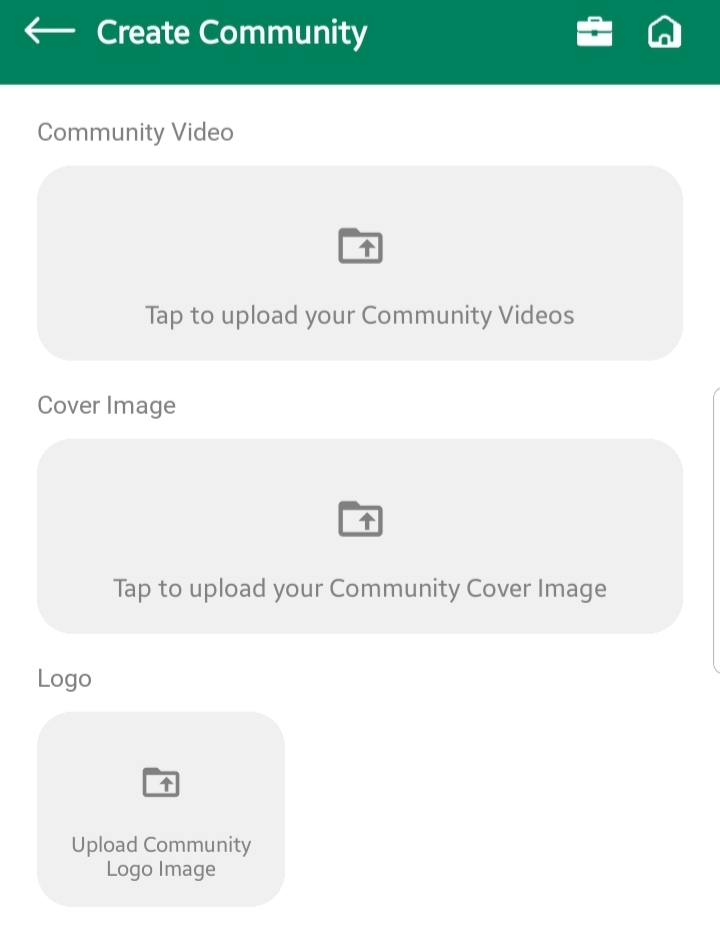
- Logo – A small square image (your community’s icon or identity)
- Community Video Title – A name for the video that introduces or promotes your community
- Community Video – Upload a short intro or promo video (helps make your page more engaging)
- Cover Image – A wide background image shown at the top of your community profile
Description & Info:
- Long Description – A detailed description about the purpose, members, and benefits of the community
- Designation – Your title in this community (e.g., Founder, Admin, Coach)
- Hero Description – A 1-2 sentence intro shown at the top of the community screen
Design & Visibility:
- Event Visible – Toggle ON/OFF to display or hide events related to this community
- Primary Button Color – Pick a color that matches your community theme (used on key buttons)
- Video Visible – Toggle ON/OFF to show or hide the community video on the main profile
- Member Visible – Toggle ON/OFF to show or hide the member list from visitors
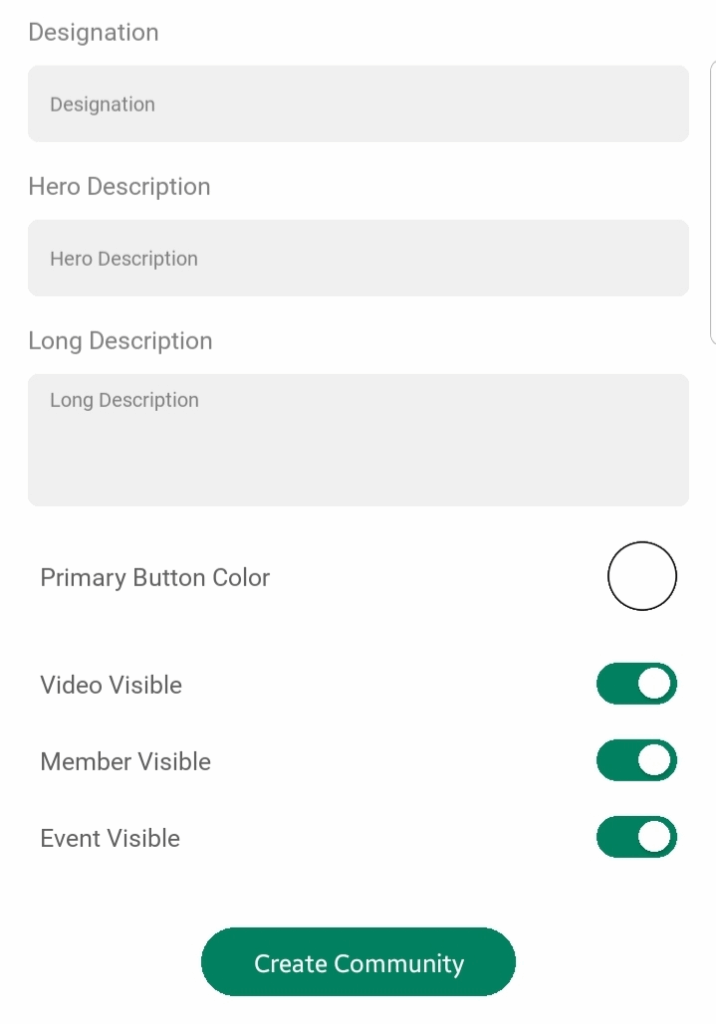
Create Community Button – Finalize and add the new community to the platform
💡 Use clear names and visuals to help users recognize and join your community easily.