
When you tap on the “Edit Community” button from your community’s dashboard, the Create Community form reopens — but this time, pre-filled with your existing community details. You can update any information according to your needs and save to update the changes.
Side Menu > Manage > Tap on a community > Edit Community
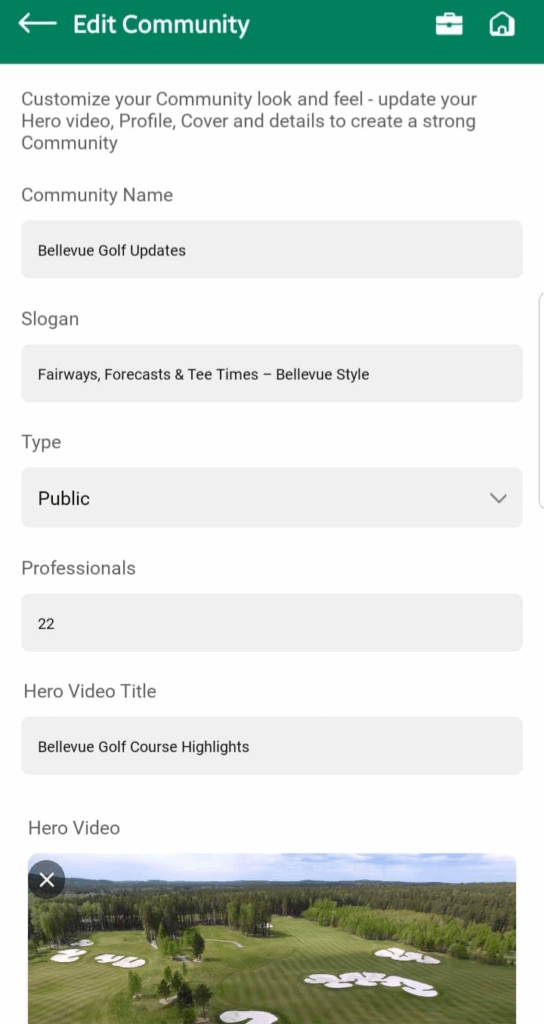
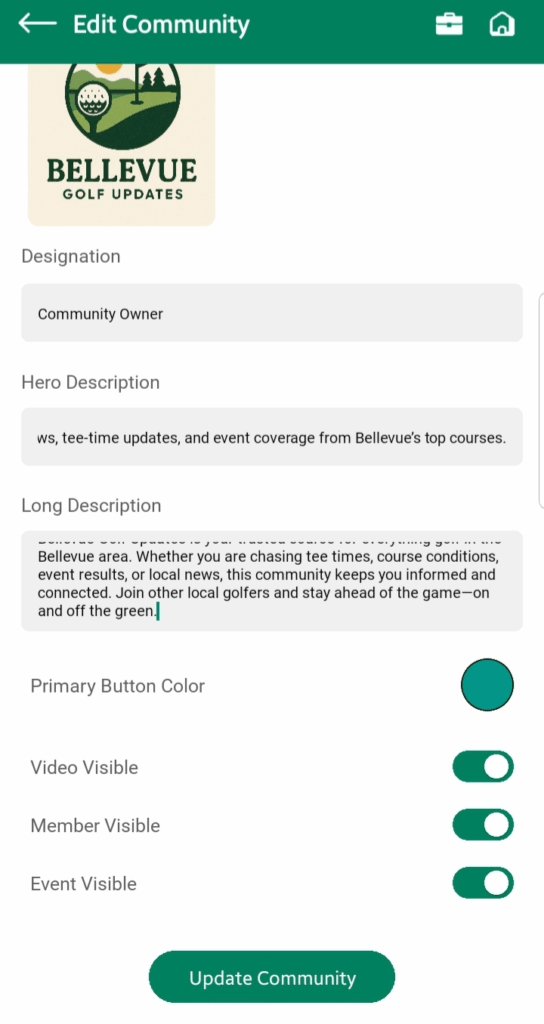
Editable Fields:
You can update the following:
- Name: Community’s display name.
- Slogan: A short line that reflects the purpose or identity of the community.
- Community Type: Choose between:
- Public: Open to everyone.
- Private: Join by request or invite only.
- Professionals: Overall professional or expert members in your community.
– This feild is editable so you can write the total number of professionals in your community even if any of them left or new join, you can just come on this screen and update the count - Designation: Your role or title inside the community.
- Hero Description: A short intro shown at the top of your community profile.
- Long Description: A detailed explanation about your community’s goals, members, or vision.
- Primary Button Color: Pick a brand color that appears on key CTAs.
- Video Title: Headline shown above the community’s intro video.
- Community Video: Add/update your intro video.
- Cover Image & Logo: Update the visual branding of your community.
- Visibility Toggles:
- Video Visible: Show/hide the intro video
- Members Visible: Show/hide members list
- Events Visible: Show/hide upcoming events
Once all updates are done, tap the “Update Community” button to apply updates instantly.