
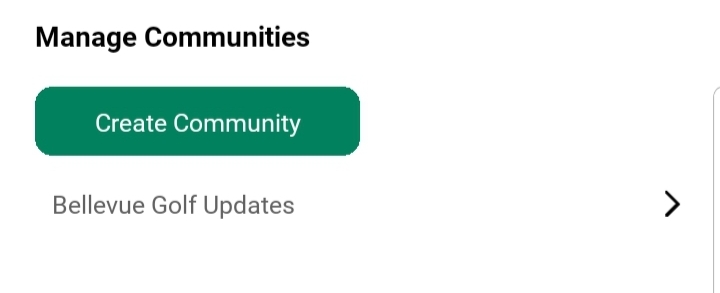
Once you tap on a community you’ve created, you’ll be redirected to its Community Management Screen. This area allows you to update the community, create content for your members, or even remove the community if needed.
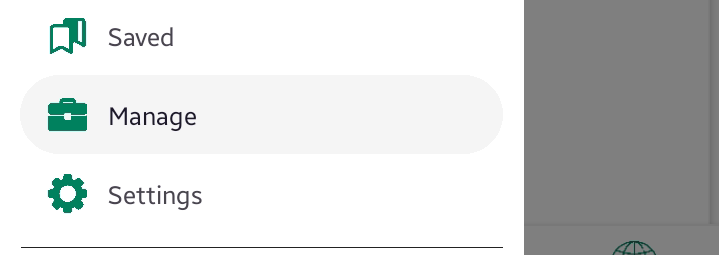
Access:Side Menu > Manage > Tap on your Community
Available Actions:
- Edit Community
Opens the same form used during creation, but all existing details will be pre-filled. You can update any field, such as the name, media, description, or settings. Once updated, tap Save Changes to apply. learn more - Create Feed
Opens a post creation screen. You can post updates, media (image/video), or announcements specifically for your community members. learn more - Create Event
Launches the event creation form, allowing you to schedule golf-related events for your community. Events help in organizing matches, tournaments, or meetups. learn more - League
View leagues and Add new leagues. Leagues group multiple events under one competition format and can be linked during event setup. learn more - Members
lists all community members, join requests and can also invite more users to grow your community. learn more - Delete Community
Permanently removes the community and all its data — including feeds, events, and leagues. A confirmation dialog will appear before deletion.
Notes:
- Always double-check before deleting — this action cannot be undone.
- Only the community creator or assigned admins can view and access these controls.
- Keep your community updated to maintain engagement and trust.