
The Customer Engagement section helps store owners manage how customers interact with their store — through product reviews and special offers. This area plays a vital role in maintaining trust, gathering feedback, and increasing repeat sales.
The section is divided into two tools:
- Reviews and Ratings
- Promotions and Discounts
Reviews and Ratings
This feature allows you to track, filter, and respond to customer feedback for each product in your store. It helps you maintain product quality and address customer concerns or appreciation effectively.
Search Bar
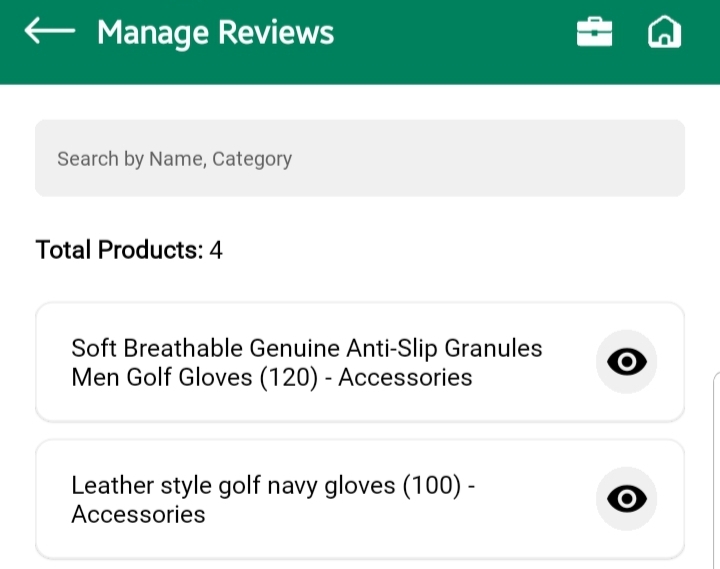
At the top, a search bar allows you to search reviews by:
- Product Name
- Category
This helps you quickly find specific products and see what customers are saying about them.
Product List View
Below the search bar:
- You’ll see the total number of products listed
- Each product appears as a card showing:
- Product Name
- Stock Count
- Category
- Eye Icon to view reviews
Tap the eye icon to open the Manage Product Reviews screen for that specific product.
Review Filter Tabs
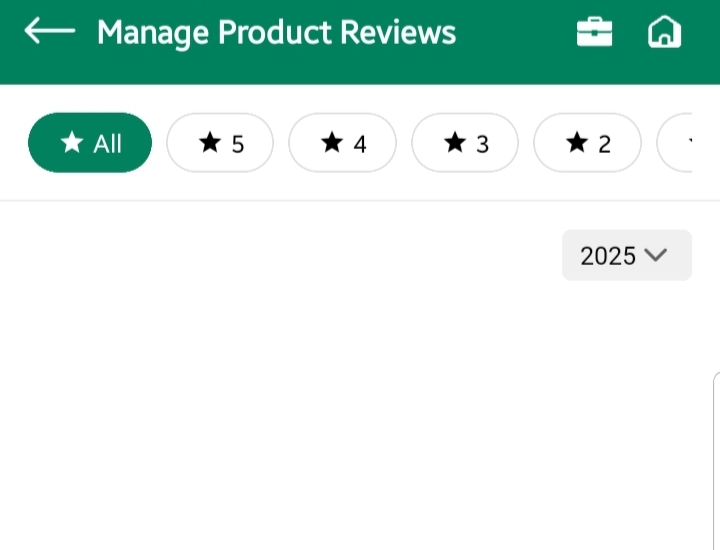
Once inside the Manage Product Reviews screen:
- You’ll see badge-style tabs labeled by star rating:
⭐ All,⭐ 5,⭐ 4,⭐ 3,⭐ 2,⭐ 1 - Tap any tab to filter reviews by that specific star rating
This allows you to focus on either positive feedback or identify products that are receiving poor reviews.
Yearly Filter
Below the rating tabs, there’s a dropdown to filter reviews by year.
This is useful for:
- Reviewing feedback trends over time
- Understanding how products are performing across different seasons or sales periods
Review Cards
Each customer review appears as a card showing:
- Star rating
- Customer’s comments
- Review date
- Additional details, if available (e.g., selected variation)
📌 You can use this space to analyze customer satisfaction, respond accordingly if needed, or take internal notes to improve products.
Promotions and Discount
This section helps you strategically manage all your store’s offers, ensuring the right customers see the right deals, at the right time.
Whether you’re offering a discount on a single product or running a store-wide campaign, this panel gives you the tools to create, edit, and control promotions — from discount value to audience targeting.
Discounts Listing
Here you can:
- Search discounts by name to quickly locate running or expired promotions
- Track how many discounts are currently active
- Edit existing promotions to update value, targeting, or expiry
- Delete outdated offers to keep your promotions clean and relevant
✅ Why it matters: Keeping your discount campaigns updated ensures that customers never see expired or irrelevant offers, maintaining trust and clarity.
Creating a New Discount
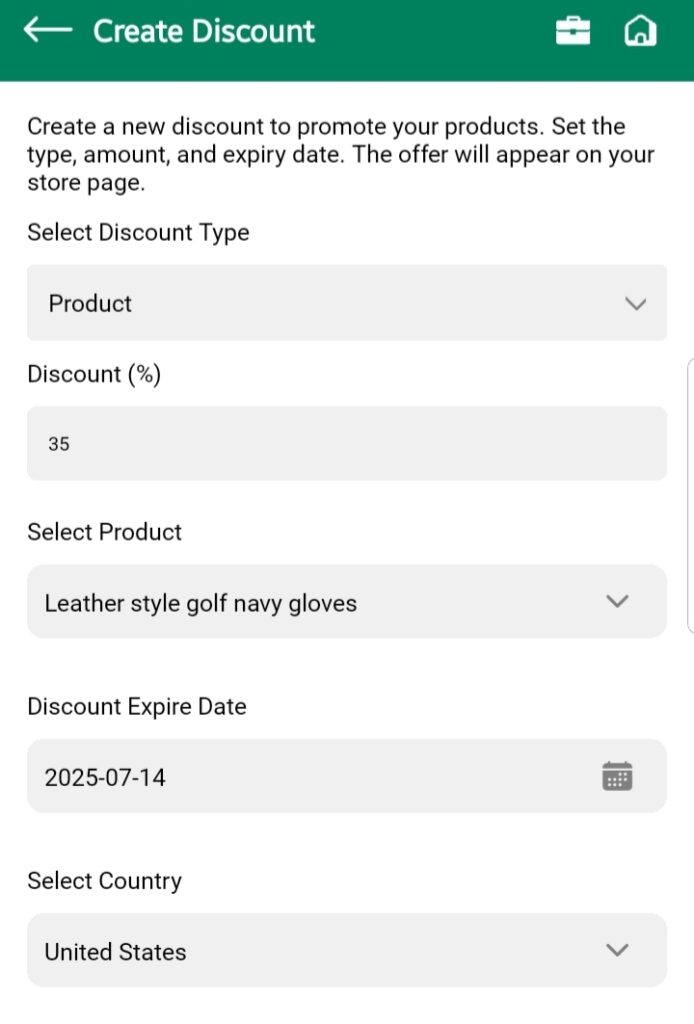
Tap “Add New” to define exactly how your offer works, who sees it, and for how long.
Product Discount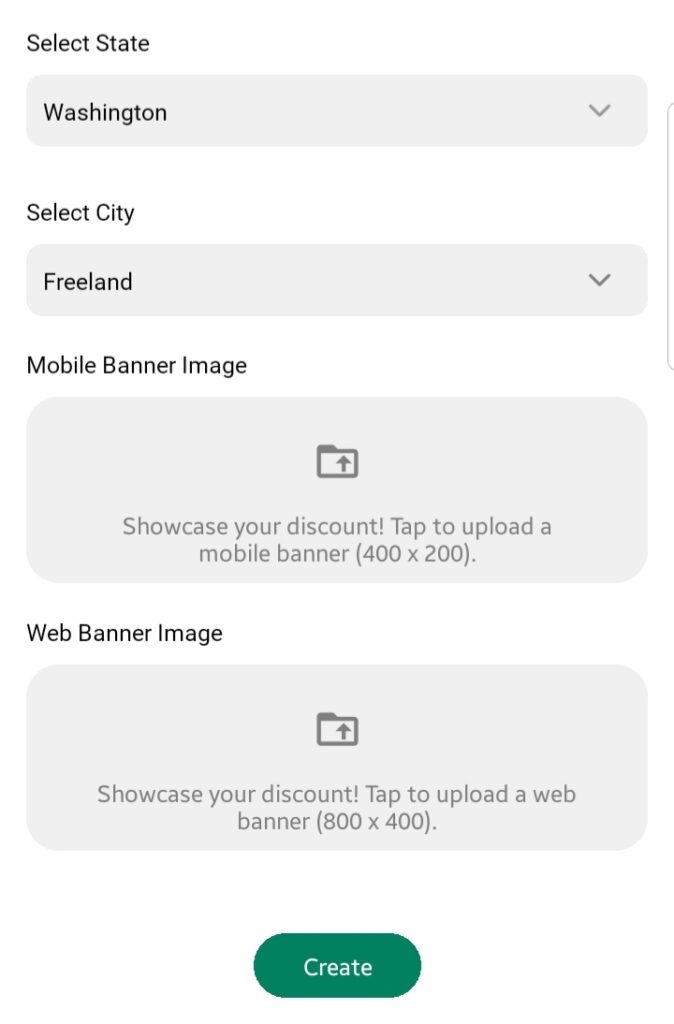
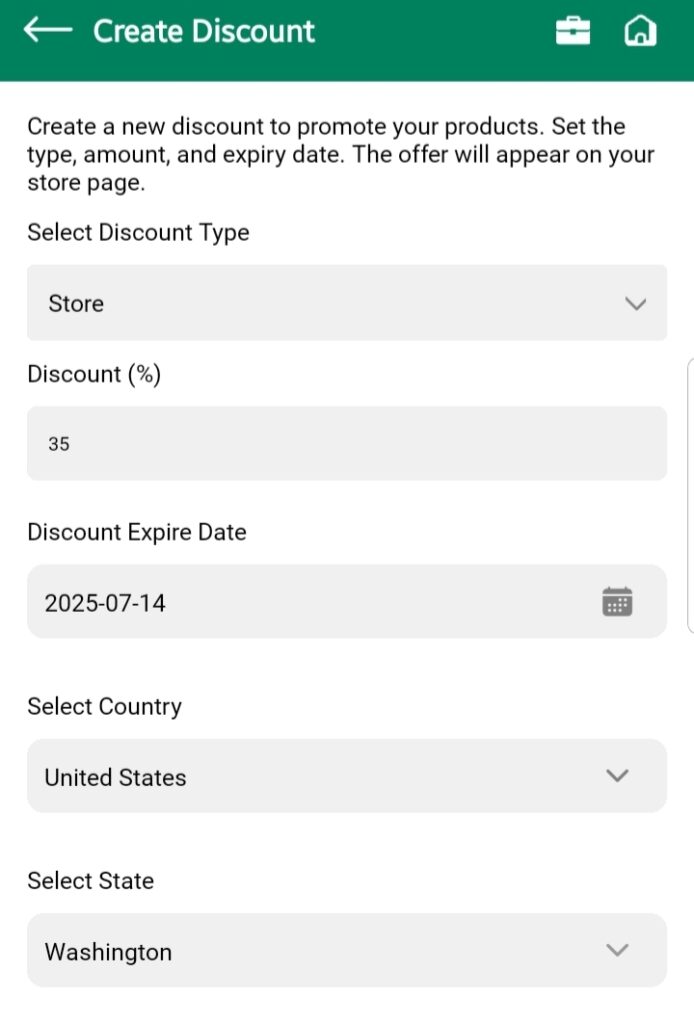
Store DiscountDiscount Type
You choose whether the discount should apply to:
- A single product — Ideal for spotlight sales or clearing inventory
- The entire store — Great for seasonal or event-based campaigns
🎯 Use product-specific discounts when testing pricing strategies or boosting slow-moving items.
Discount Percentage
Set the exact percentage off you want to offer. This defines how much the price will be reduced for customers.
🧠 Keep it attractive but sustainable — a 10–20% discount is ideal for regular promos, while 30%+ should be limited to special campaigns.
Product and Region Targeting
If the discount is product-based:
- Use the searchable dropdown to select the product
- Define the region (country, state, city) where the offer will be visible
📌 This is powerful: You can run local promotions visible only in a specific city or state — great for location-specific campaigns, warehouse clearance, or regional events.
Expiry Date
Select when the discount will automatically expire. This prevents old promotions from lingering and keeps your store looking active and intentional.
Banner Images
Upload separate banner visuals for:
- Mobile App View (400×200)
- Web View (800×400)
These images make your promotion visually appealing, help grab attention, and increase click-through.
💡 Always include banners — even basic ones. It turns a plain discount into a marketable offer.
Discounts Best Practices
- Don’t let expired offers sit — clean them out regularly
- Use regional targeting to test response in different areas
- Rotate banners often to keep promotions fresh
- Always preview the result to ensure your deal looks good across platforms