
This guide will help you navigate the GolfGuiders app and access your store management panel with ease. Whether you’re a first-time store owner or returning to update your listings, this is your first step
Step 1. Launch the GolfGuiders App
Make sure the GolfGuiders app is installed and updated to the latest version.
Then:
- Tap the GolfGuiders icon to open the app.
- If you’re not already logged in, enter your registered email and password.
- Tap Login to access your dashboard.
📝 Note: If you’ve forgotten your password, tap “Forgot Password?” on the login screen and follow the steps to reset it.
Step 2. Open Main Menu
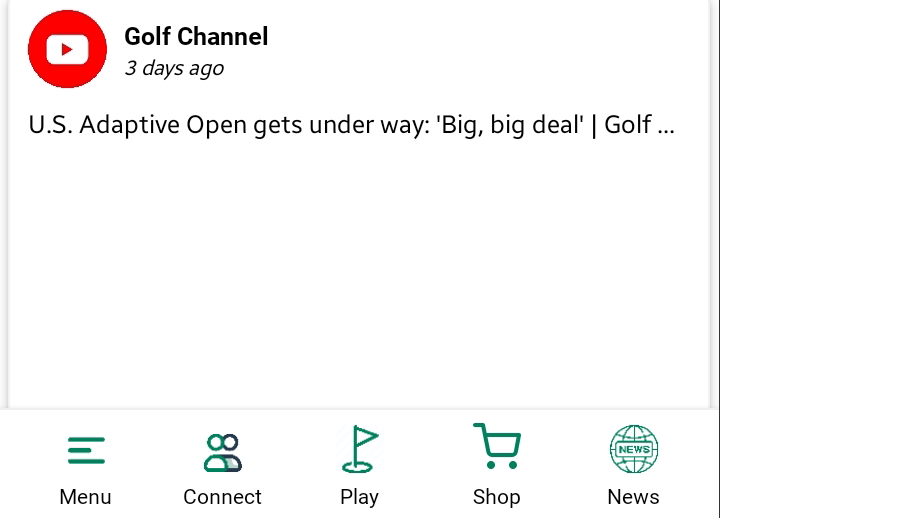
At the bottom of your screen, you’ll see a navigation bar.
Tap the Menu icon (☰ or similar icon) from the bottom left corner of the screen.
This opens the Side Navigation Panel containing links to various sections.
Step 3. Tap on Manage
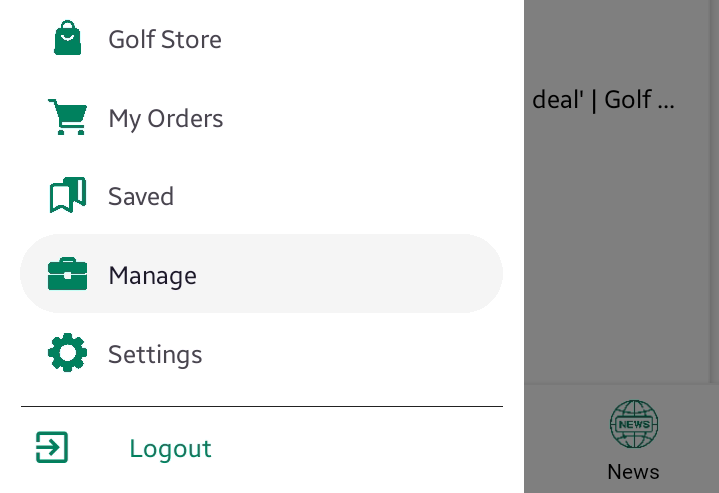
In the side menu:
Locate and tap on the “Manage” option.
This will open the Manage Your Store page, where all the stores linked to your account are listed.
💡 Tip: If you don’t see the “Manage” option, scroll down in the side menu.
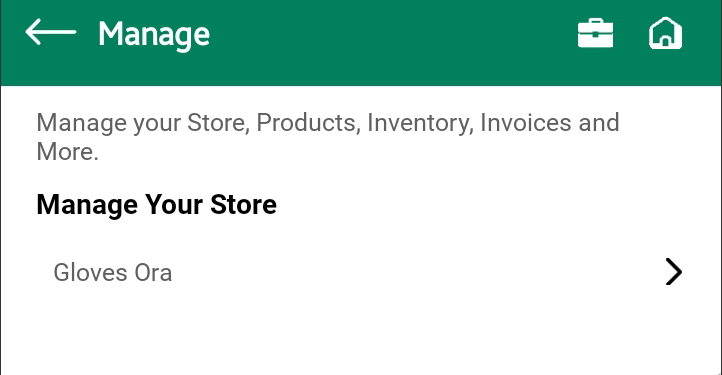
Tap on your Store Name to go to your store’s management interface