
The Blocked Users feature in GolfGuiders gives you full control over your social experience by allowing you to restrict unwanted interactions. Whether it’s for privacy, safety, or personal preferences, blocking ensures a comfortable environment tailored to your needs.
What Happens When You Block Someone
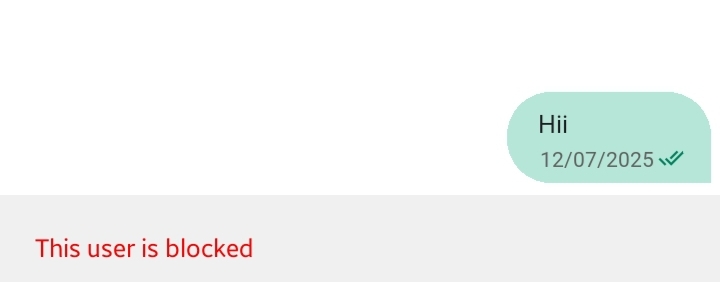
Your interactions, such as previous messages and comments, may remain but will no longer be active between you both.
Once you block a user:
- They will no longer see your profile, posts, or stories, even if your content is set to public.
- They will be automatically removed from your friends list.
- They can no longer send you friend requests or messages.
Blocking is discreet — the other user is not notified when you block them.
How to Block a User
You can block someone via:
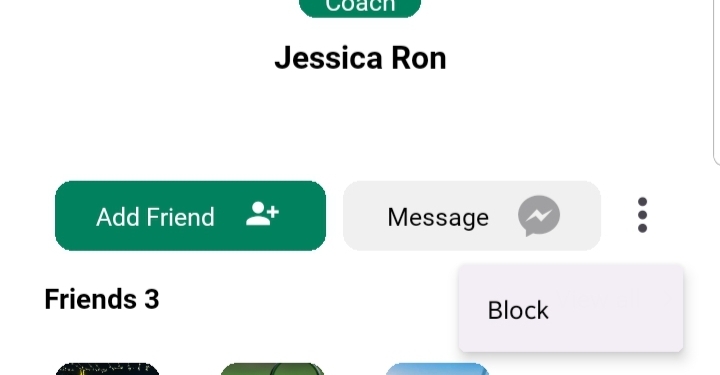
Their Profile
- Visit the user’s profile.
- Tap the menu (⋮) icon.
- Select “Block User” from the options.
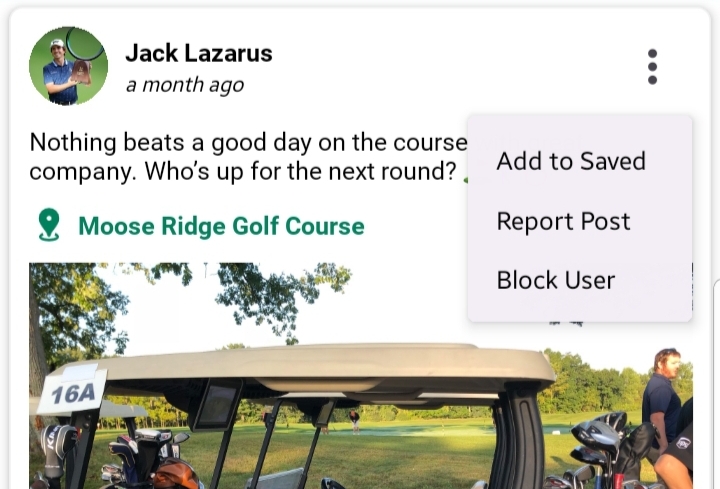
Post Interation:
- Tap the three-dot menu next to a post.
- Select “Block User” to immediately restrict them.
Managing Blocked Users
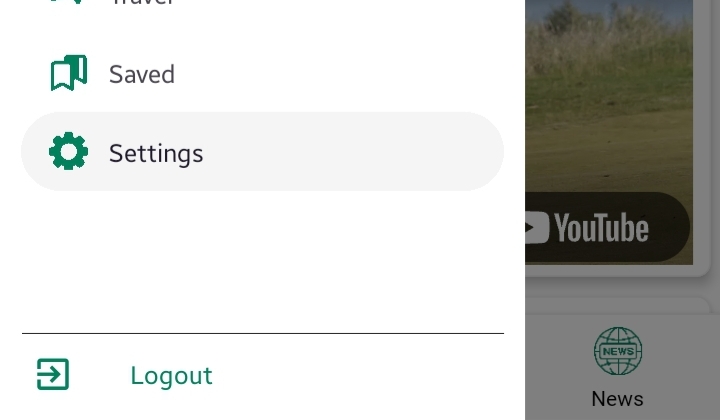
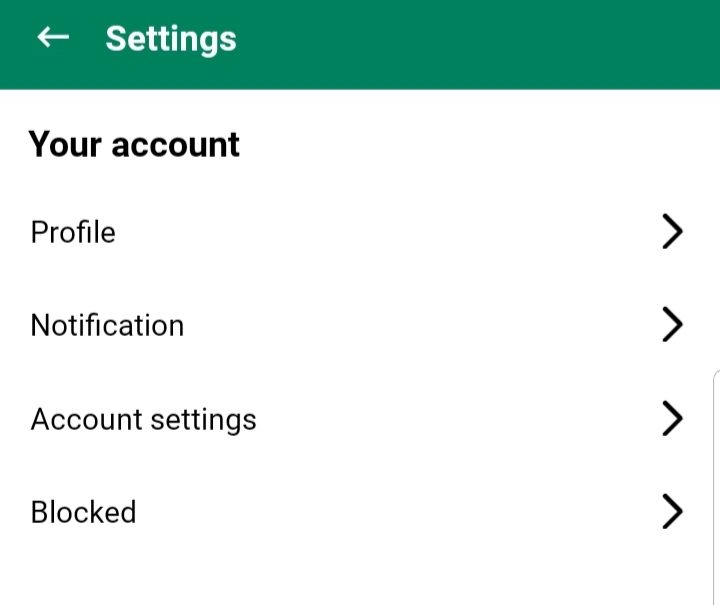
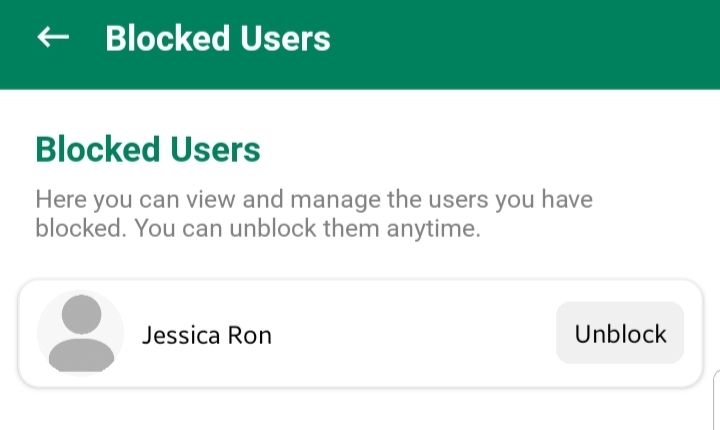
To view or manage your blocked users:
- Go to the “Settings” from the side menu.
- Tap on the “Blocked” link.
- A list of all users you’ve blocked will be displayed.
Here, you can:
Unblock Users:
Simply tap “Unblock” on any user card to restore potential interaction with that person.
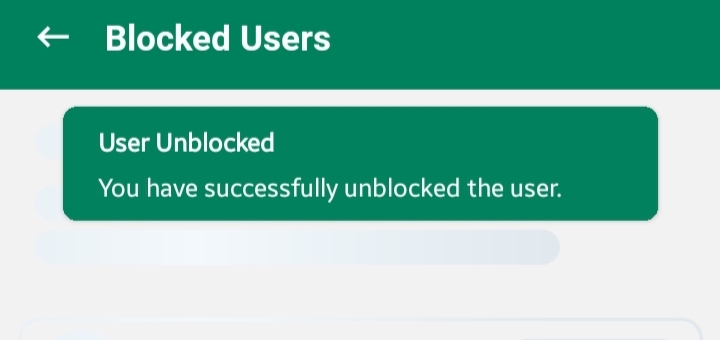
⚠️ Note: Once unblocked, the user can find you again, send friend requests, or view public content.
When to Use Blocking
- When someone is harassing or disturbing you.
- If you want to prevent specific users from viewing your content.
- To maintain privacy or create a more comfortable social circle.
Blocking helps you personalize your experience without compromising on your peace of mind.