
The Starting a New Round feature in GolfGuiders allows golfers to set up a personalized game session with complete control over round preferences, scoring method, and tee markers before starting live GPS tracking on the course. This ensures that each game aligns with your play style and objectives.
How to Start a Round
- Go to the GPS & Course Navigation screen.
- Navigate to the Near Me tab to see a list of nearby golf courses.
- Tap on any Course Card to open a bottom sheet with the following options:
- Start a Round
- Explore on GPS
- Open in Google Maps
- Select Start a Round to proceed to the Round Setup screen.
Round Setup Screen
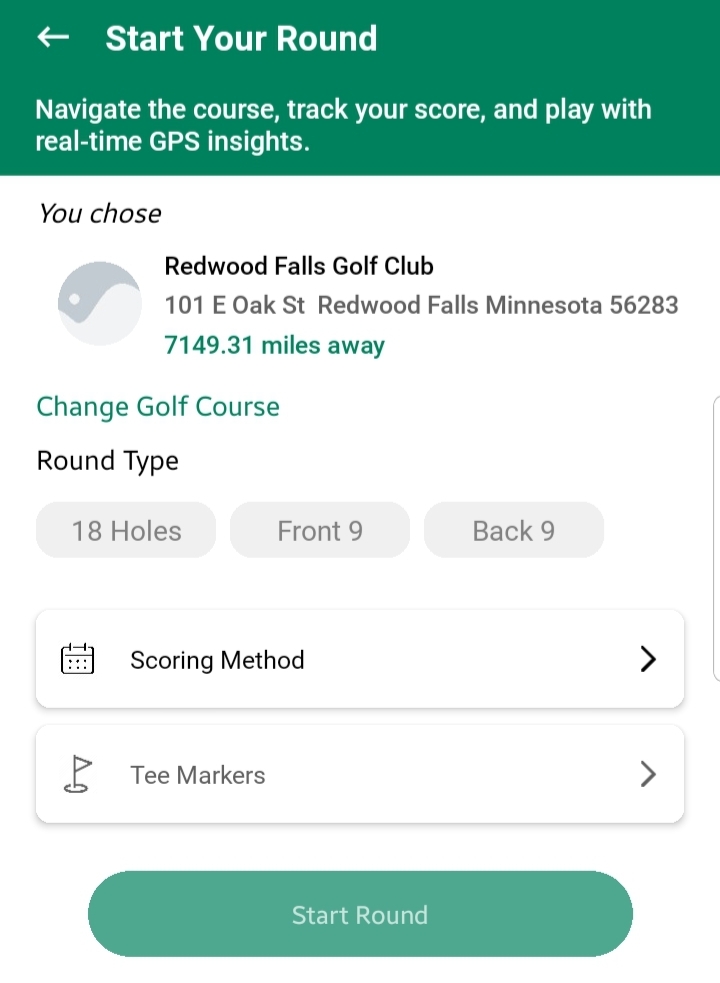
The Round Setup screen provides multiple configurable fields to tailor your round:
1. Course Name & Address
- Auto-filled based on the course you selected.
Note: You can modify the course name or address if needed by tapping the respective field.
2. Round Type
- Choose how many holes you want to play:
- 18 Holes
- Front 9
- Back 9
- Tap to select one option. The selected option will be highlighted.
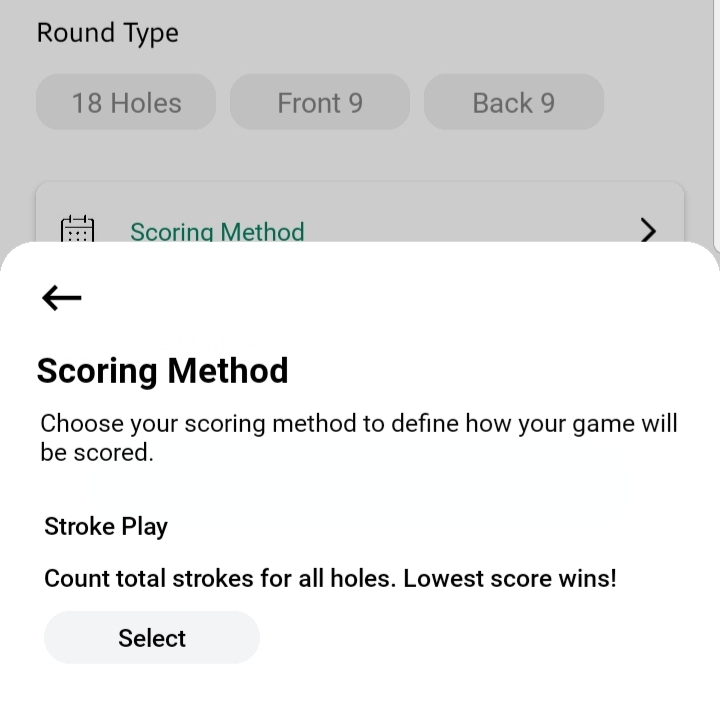
3. Scoring Method
- Initially shows as None.
- Tap the Scoring Method field to open a bottom sheet titled: “Choose your scoring method to define how your game will be scored.”
- Available Options:
- Stroke Play
- This is a traditional scoring method where you count the total number of strokes taken.
- Stroke Play
- Once you tap Select on an option, it will show as Selected, and after closing the sheet, the field updates to your selected method.
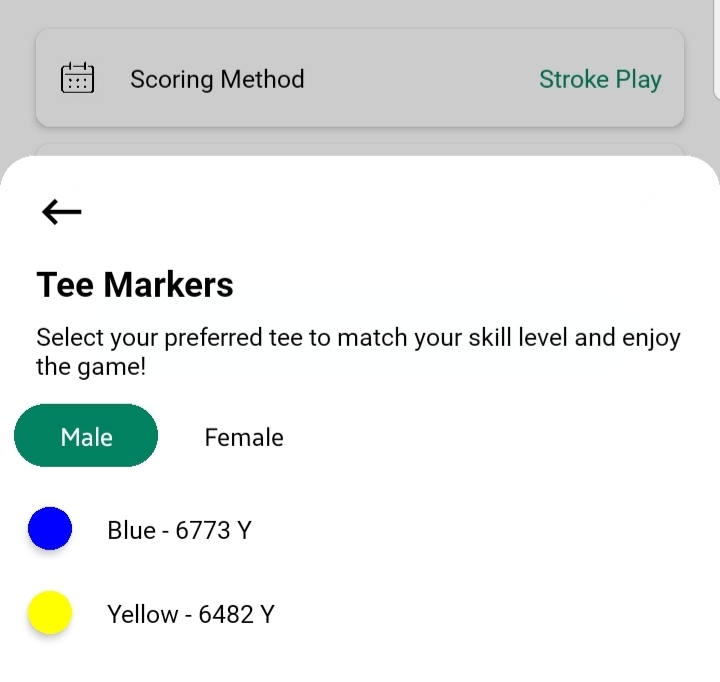
4. Tee Markers
- Initially empty and disabled (depends on scoring method).
- Tap to open a bottom sheet with two tabs:
- Male:
- Blue: 6773 Yards
- Yellow: 6482 Yards
- Female:
- Red: 5580 Yards
- Male:
Select any one marker, and the bottom sheet will close automatically. The selected Tee Marker displays on the setup screen.
the Tee Markers will depends on golf course markers availability
Once all fields are filled — Course Name, Round Type, Scoring Method, and Tee Markers — the Start Round button becomes enabled.
Tap this to begin the round.
What Happens After Starting
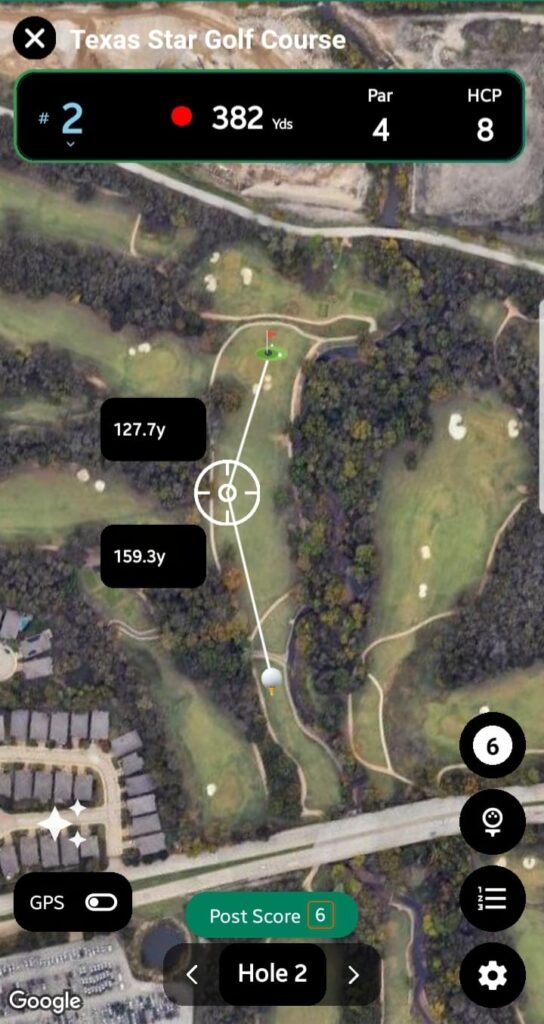
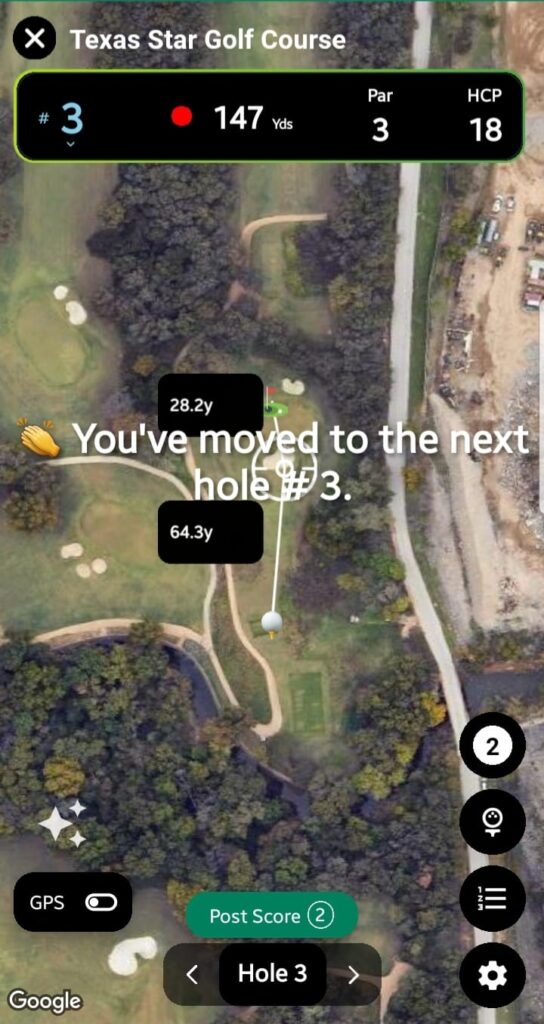
You are navigated to the GolfGuiders Map (App’s GPS Map), where:
- The map loads the golf course layout.
- A marker is placed to calculate distances:
- From your current location to the marker (e.g., 215.9 yards).
- From the marker to the hole (e.g., 156.7 yards).
- You can tap anywhere on the map to reposition the marker to visualize and plan your shots.
Tracking Hits and Posting Score
After playing each hole:
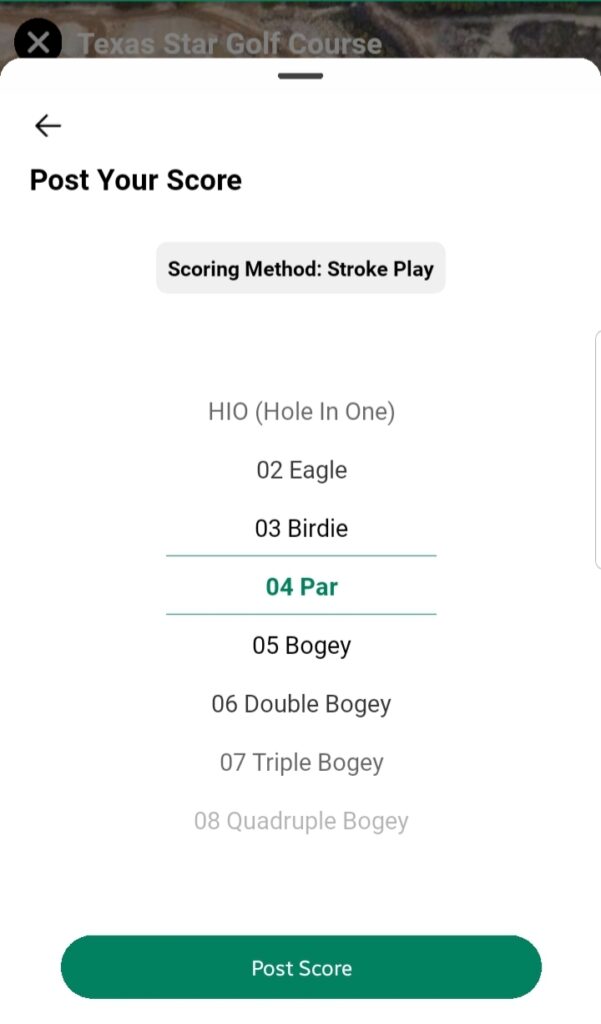
- Tap Post Score from the bottom-center of the screen to log the number of hits taken to complete the hole.
- A bottom sheet appears showing:
- A numbered list (01 to 08) with point names like Par, Birdie, Triple Bogey, etc.
- An Other option to enter a custom number of hits (min 1, max 20).
- Once a score is selected, tap Post Score.
- A toast notification confirms:
“You move to next hole #X”
This continues until the last hole of your selected Round Type (9 or 18).
Completing or Exiting the Round
Finishing the Round
- After the final hole, the map closes automatically.
- You’re directed to the Round Finished Screen displaying the scorecard based on:
- Front 9
- Back 9
- Full 18 Holes
- Scoring method applied
Exiting Mid-Game
- Tap the X (Close) icon on the top-left of the map.
- A prompt appears: “Are you sure you want to leave?”
- Options:
- Pause: Save the game progress. The round moves to My Rounds tab as In Progress and can be resumed anytime by tapping Continue.
- Finish: Ends the game immediately. The scorecard will only show scores up to the last completed hole. Remaining holes remain empty. The round status will show as Completed.
Summary
- You have full control over round customization before starting.
- The scoring process is interactive, easy to update per hole.
- Flexibility to pause and resume games as per convenience.
- The final scorecard is generated automatically based on your progress.