
The Creating a Golf Buddy Post feature enables you to organize golf sessions by inviting other players to join you at a specific golf course. Each post can be customized with relevant details to help others understand the meetup plan.
How to Access
- Open the Sidebar Menu.
- Tap on Golf Buddy.
- On the Golf Buddy screen, you’ll see your existing posts along with a Post Create Bar/Ribbon at the top.
Tap the Bar: “Got something to say?” to start creating a new Golf Buddy post.

Golf Buddy Post Fields
When creating a Golf Buddy Post in GolfGuiders, you have access to several customizable fields that help you provide clear, engaging, and informative details about your planned golf session. Each field enhances visibility, participation, and personalization of your post.
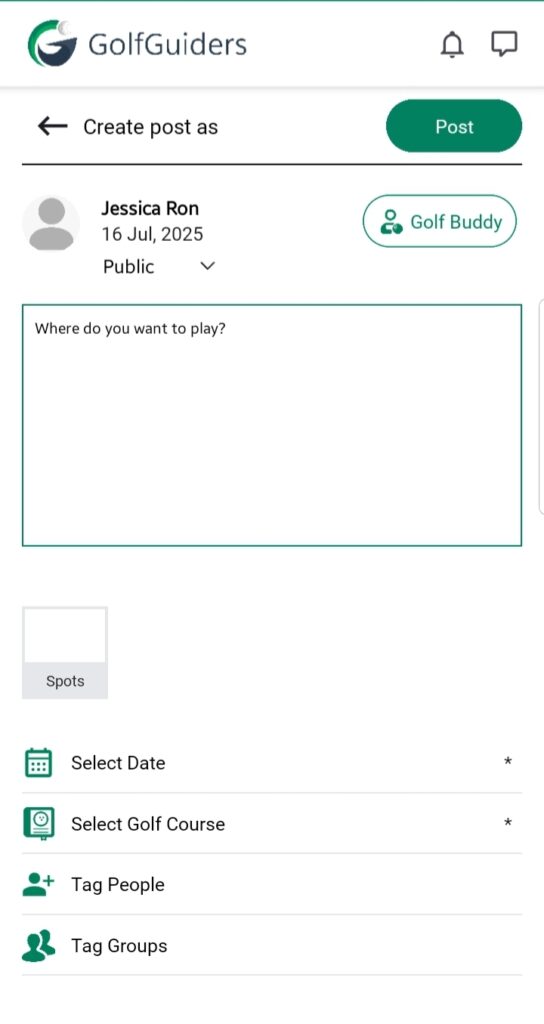
Visibility
Control who can see your post:
- Public: Everyone can view and join.
- Friends: Only your connections can see and join.
- Private: Only tagged users can view and request to join.
Description
Briefly describe your golf plan, objectives, or any special instructions.
Spots
- Define how many participants can join your session.
- Helps set expectations on availability and group size.
Date From – Date To
- Specify the start and end date/time for the session.
- Allows participants to know the timeframe of your availability.
Golf Course
- Pin the exact golf course location for the session.
- Ensures participants know where the game will be held.
Tag People / Groups
- Tag friends or fellow golfers to directly notify and invite them.
- Tag groups to notify users in groups
Why These Details Matter
- Improves engagement by providing complete information.
- Helps interested golfers quickly assess if the session suits their schedule and preferences.
- Makes your post stand out in the feed for better visibility.
By utilizing all these fields effectively, your Golf Buddy posts will be more structured, engaging, and clear to potential participants.
Publish
Once all fields are filled in, tap the Post button to publish your Golf Buddy post. It will then appear:
- In the Feeds/Circle for others to discover.
- In the Golf Buddy screen categorized in Today or Upcoming based on the selected date.
Tips
- Add clear and attractive descriptions to encourage more players to join.
- Ensure the golf course location is accurately pinned for easy navigation.
- Tagging people increases the visibility and engagement of your post.
After creating the post, others will see a Join button and can send a request to participate in your session.