
The Managing Buddy Requests feature allows Golf Buddy post creators to review, accept, or decline requests from users who want to join their golf session. This ensures that you maintain control over who participates in your scheduled rounds.
How to Access View Buddies
- Locate your Golf Buddy post in:
- Feeds/Circle
- Golf Buddy Section under Today or Upcoming
- Tap View Buddies button from your post.
Inside View Buddies
When you open View Buddies, you’ll see list of users who have sent requests
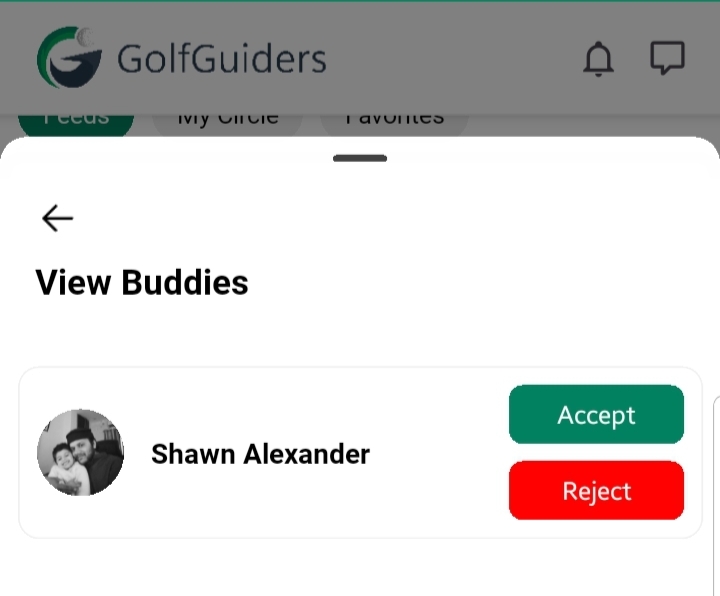
- Each user is displayed with their name and profile information.
- Two action buttons:
- Accept: Approve the user to join your game.
- Decline: Reject the request.
Action Outcomes:
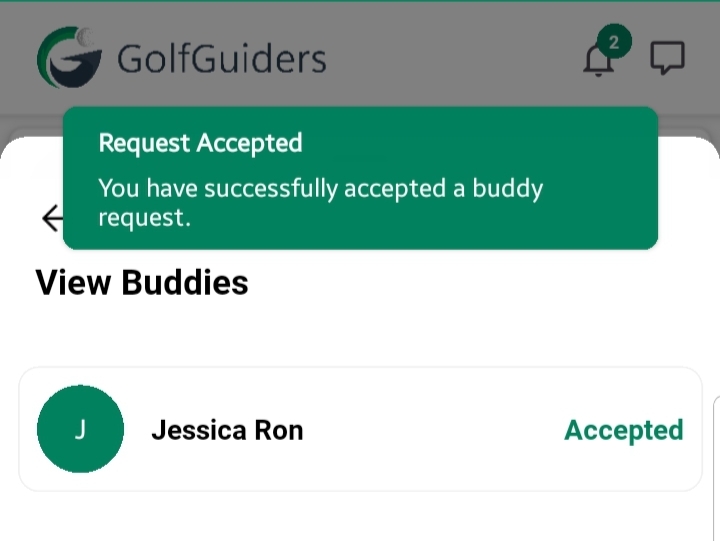
Upon Accepting, the user:
- Is added to your buddy list for that post.
- Receives a notification of acceptance.
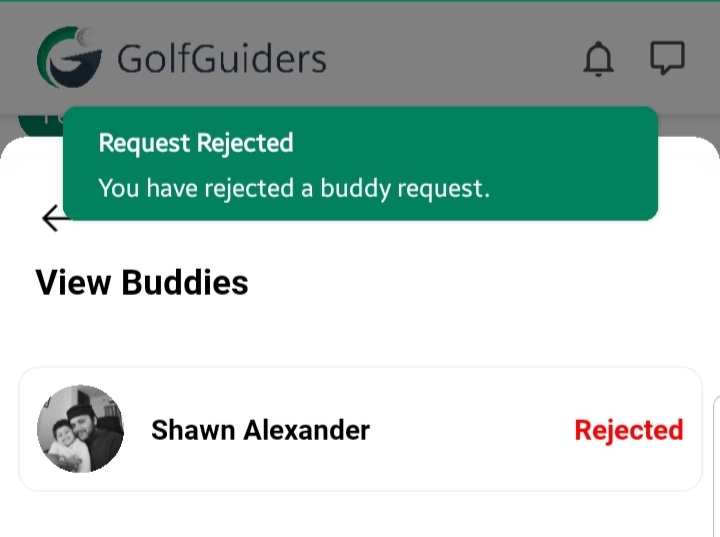
Upon Declining, the user:
- Receives a notification that their request was declined.
- Will no longer see the option to join that specific post.
Key Points
- Only post creators can manage buddy requests.
- Once a spot is accepted, it counts toward the Spots limit set during post creation.
- You can revisit View Buddies anytime to manage new or pending requests.
By effectively managing your buddy requests, you ensure a well-organized and enjoyable golfing experience with participants of your choice.