
The Feeds screen serves as the primary social environment within the GolfGuiders app. It is the first screen users encounter after logging in and offers a centralized platform to view and engage with content shared by others in the GolfGuiders community. Whether you’re a golfer, coach, or enthusiast, the feed offers a seamless experience to stay informed, interact with peers, and explore dynamic golf-related updates.
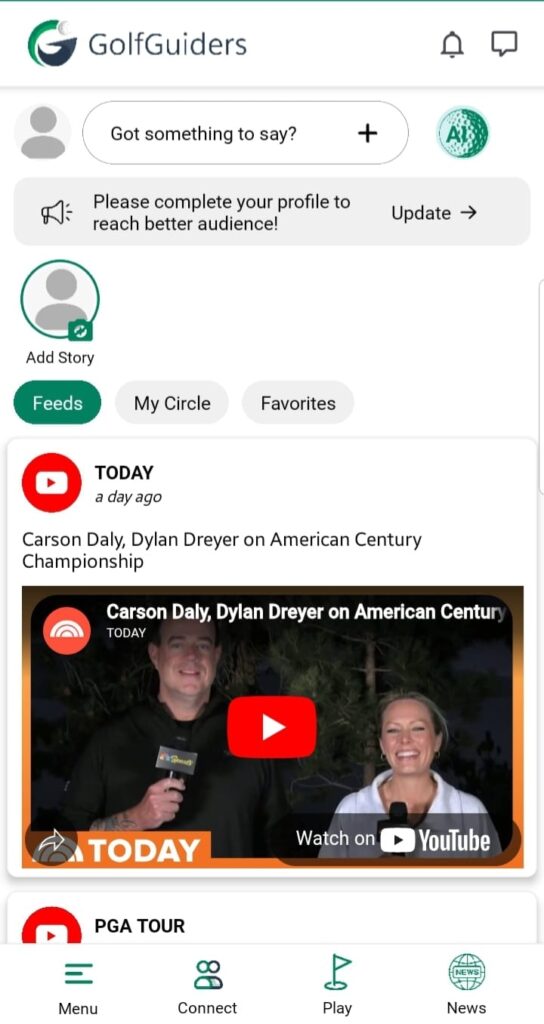
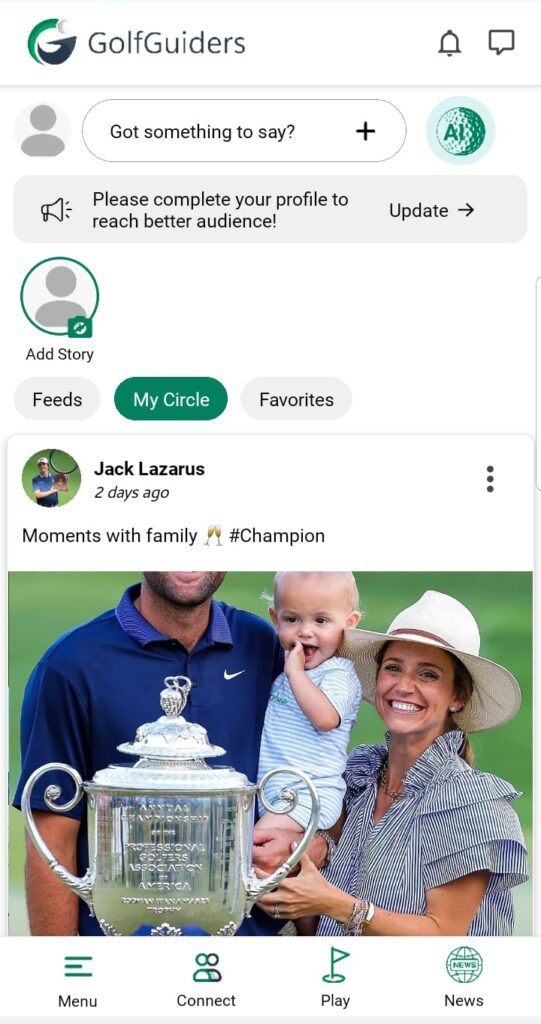
The feed aggregates real-time posts, golf media, and quick-access tools to help users remain engaged and active across the platform.
Upon accessing Feeds, users are presented with a scrollable timeline of content, which may include:
Filtering the Feed
Just below the post creation bar, users can filter the type of content displayed in their feed:
- Feeds: Displays all public content and platform-wide posts
- My Circle: Shows posts only from approved friends and connections
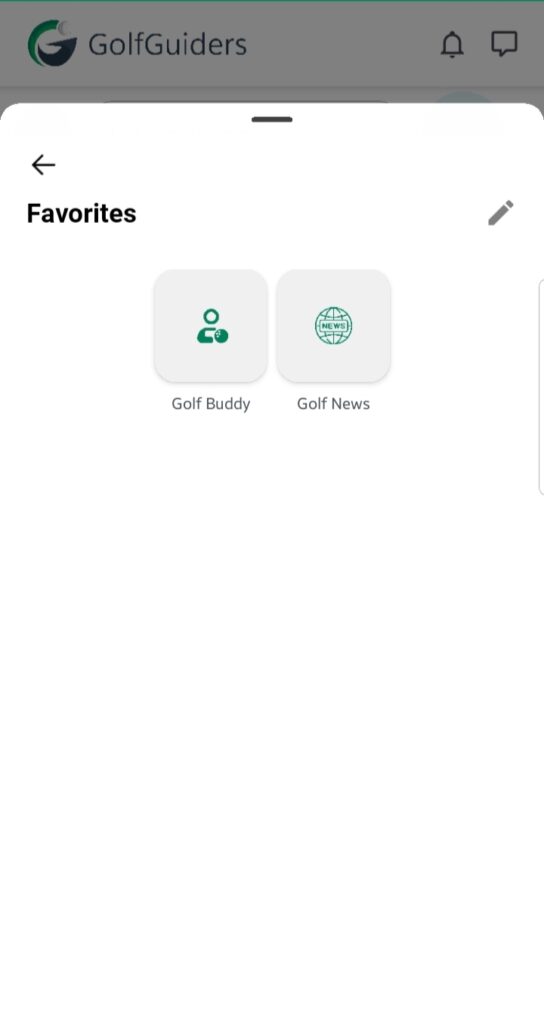
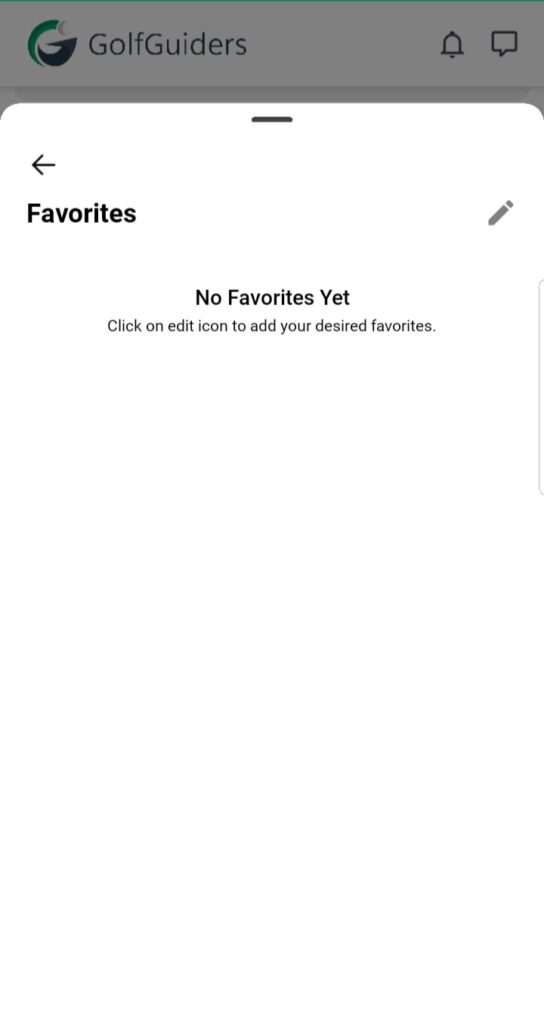
- Favorites: open bottom sheet to view/edit favorites links
This filter system ensures users have full control over their feed experience based on preference.
View and Engage with Posts
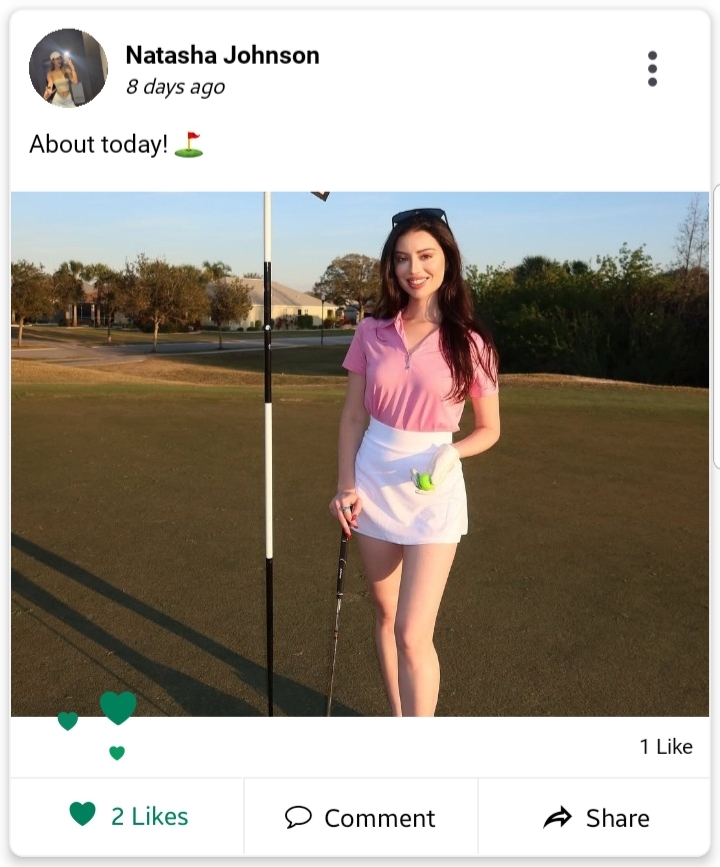
Users can scroll through a continuously updated stream of posts. Posts can originate from public users, friends (“My Circle”), or platform-generated golf content. For each post, users can:
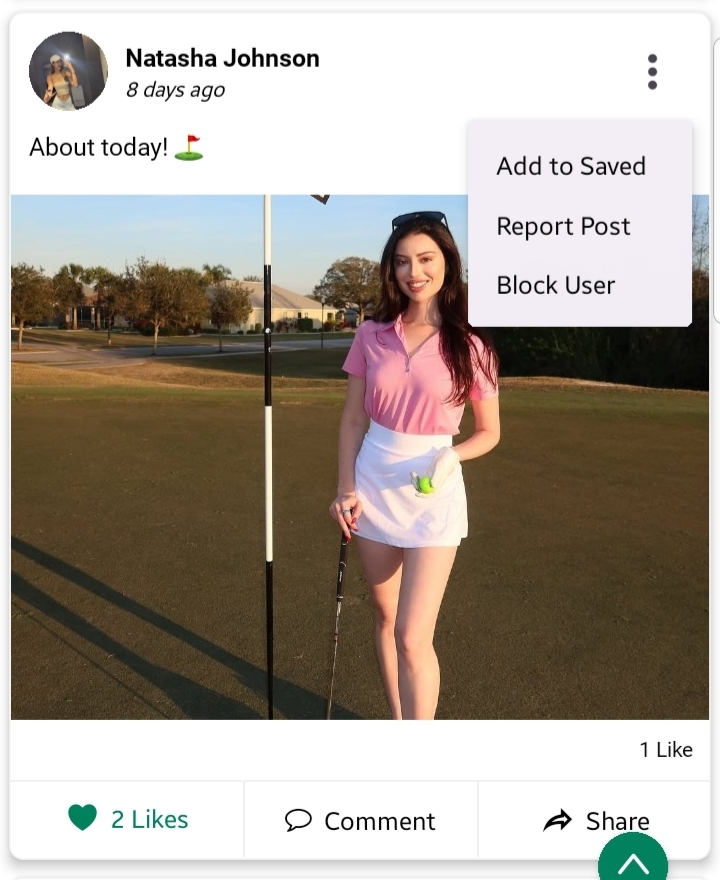
- Like posts to show appreciation
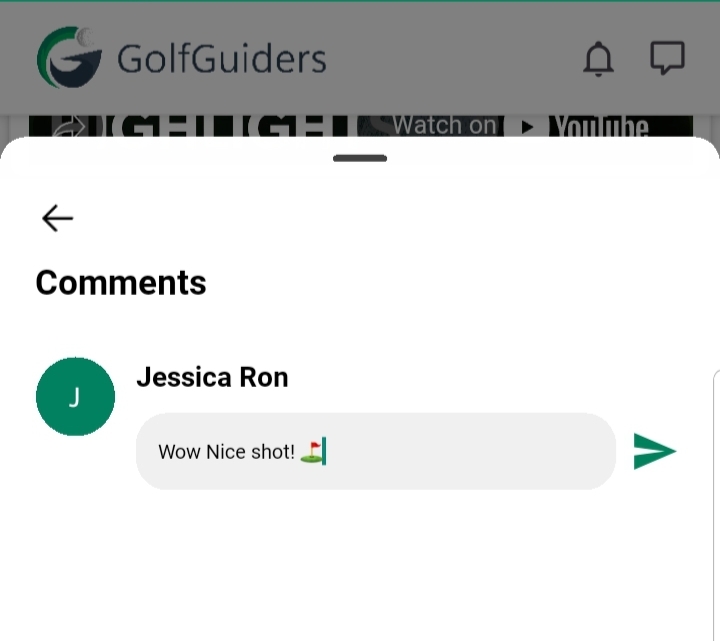
- Comment to join the conversation
- Reply to existing comments and like them
- View likes and comments count to gauge engagement
- Share posts privately or publicly with other users
- Save posts for future reference (accessible via Sidebar > Saved)
- Favorite posts to bookmark them (accessible via Sidebar > Favorites)
- Edit/Delete their own posts
- Block the post author if needed
- Report the post if it violates platform guidelines
📅 Saved and favorited posts are easily accessible through the app’s sidebar under their respective sections.
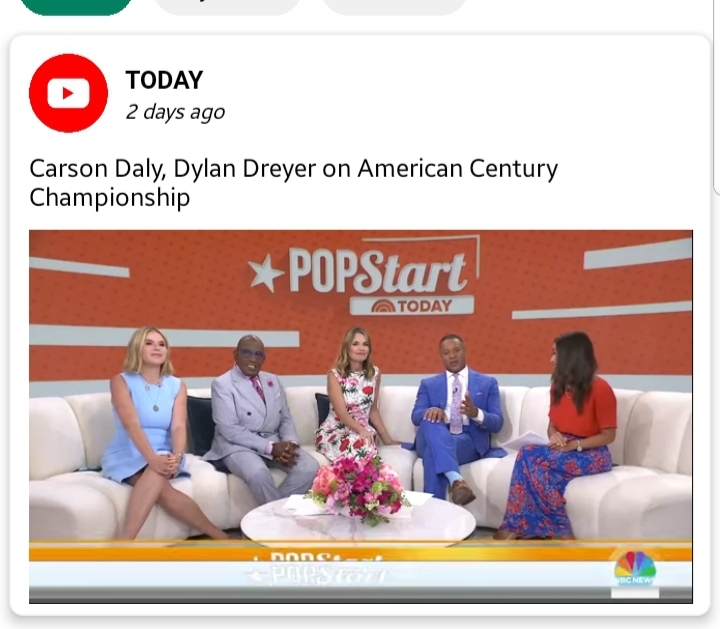
⚠️ Interactions are not available on Golf News videos — these are view-only media posts that can be played but not liked or commented on.
Golf News (Read-Only Content)
Some feed posts may include curated golf news content from platforms like YouTube. These media blocks are embedded directly into the feed and offer users the ability to watch videos directly.
- These posts are non-interactive: users cannot like, comment, or save them
- Golf News is also accessible separately under the News module
📌 Golf News provides valuable updates from across the golfing world, streamed directly into your feed experience.
Favorites
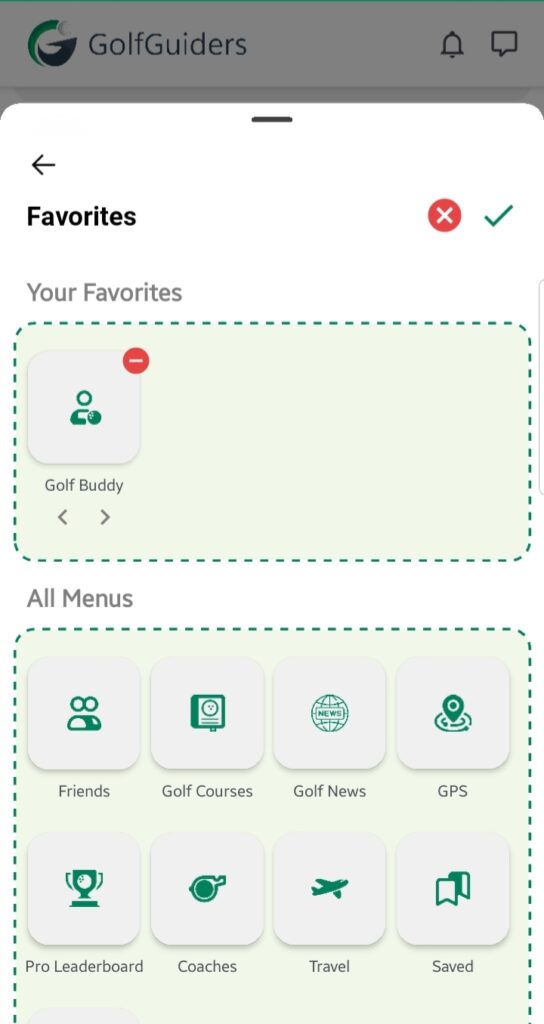
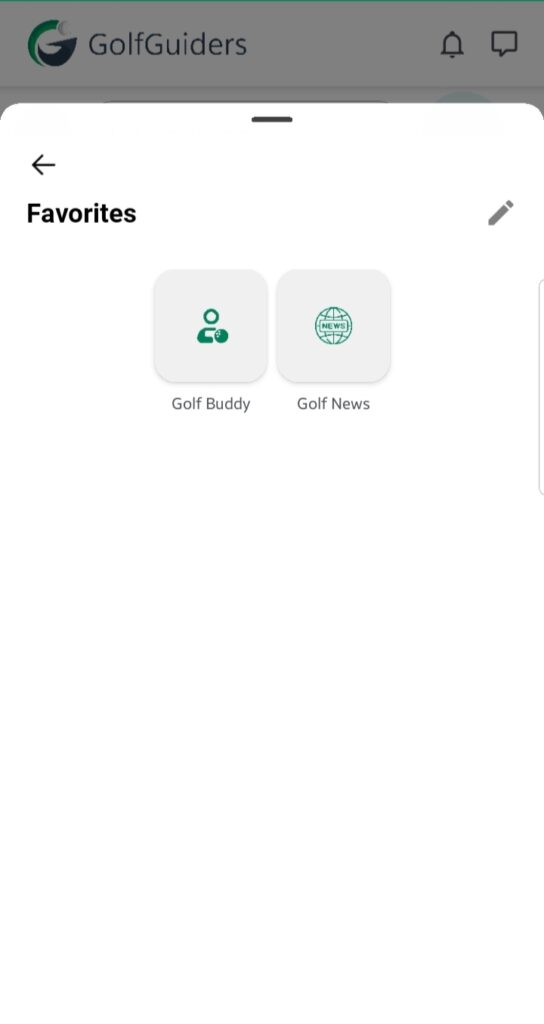
GolfGuiders allows users to create a personalized navigation block by favoriting common app destinations:
- Tap the Favorites badge in the feed
- A bottom sheet opens, tap the pencil icon to add/edit the shortcuts like Friends, Coaches, Golf News, GPS, Travel, Saved Posts, and Settings
- Tap to select or deselect any number of links
- Tap ✔Check icon to update your quick access list
- Selected links are now added to your “Your Favorites” block and are easily accessible anytime
📅 Quick Links streamline user access to frequently used features without navigating away from the feed.
AI Chatbot
From the Feeds screen, users can also launch the built-in AI Chatbot to ask questions, receive assistance, or explore platform-related guidance.
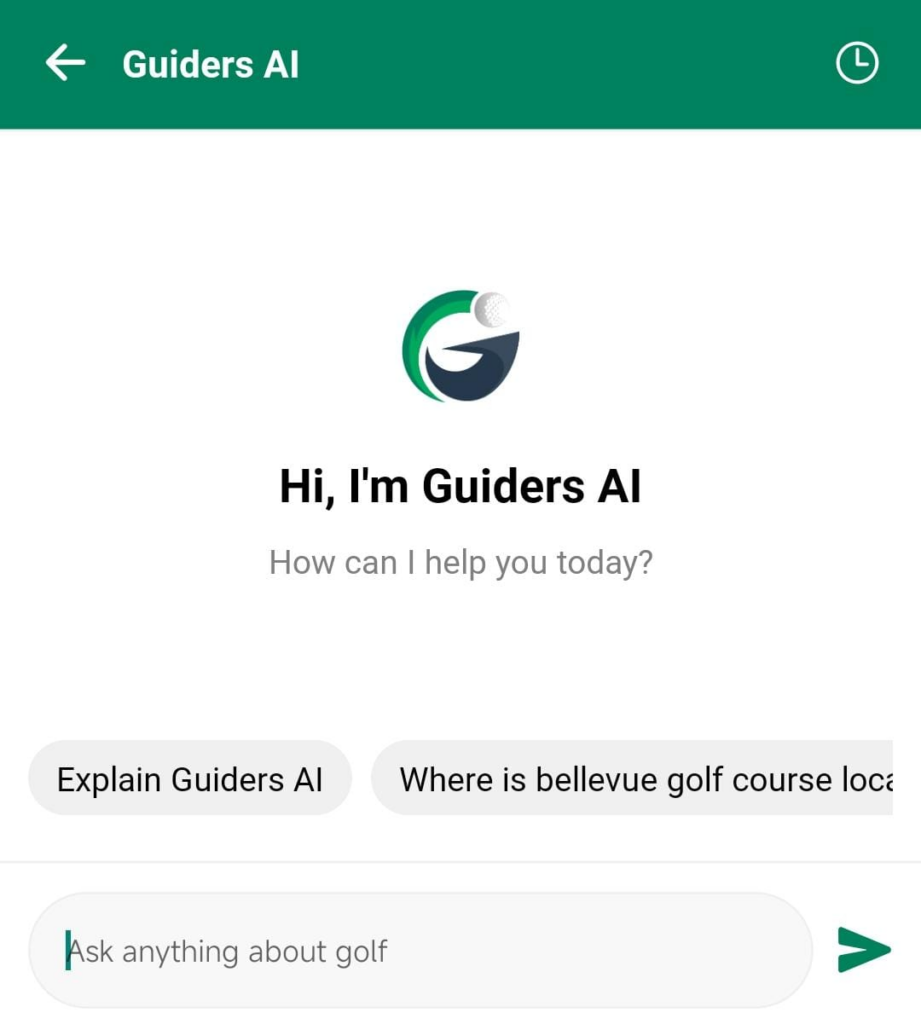
🔗 The chatbot is your virtual assistant for all things GolfGuiders. This feature is discussed in detail in the AI Chatbot Module.
Navigational Access from Feeds
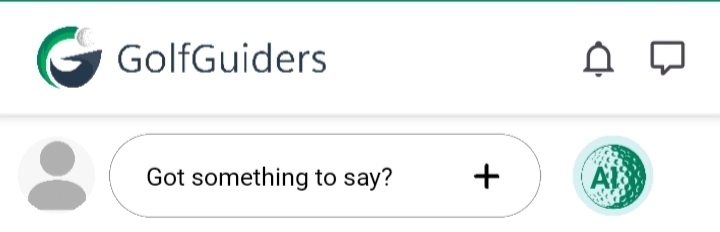
Feeds is also a gateway to many other core features of the app. From this screen, users can quickly:
- Create a Post (covered in the “Posts” topic)
- View and Post Stories (covered in the “Stories” topic)
- Access AI Chat Bot (covered in the “Golf AI” module)
- Use Bottom Navigation Bar:
- Menu – Opens the sidebar
- Connect – View/send friend requests and suggested users
- Play – Start a round at a selected golf course
- Shop – Browse the GolfGuiders online store
- News – Read golf-related articles and watch news content
- Top Bar:
- Notifications – View alerts for likes, comments, connections, and more
- Messenger – Access chats and conversations with friends
Best Practices
- Interact regularly to stay active in the community
- Filter feeds to focus on what matters most
- Use “Save” and “Favorite” to organize posts of interest
- Respect platform guidelines while commenting or posting
Summary
Feeds are the central interaction hub within GolfGuiders. From engaging with community posts and viewing golf news to customizing quick access and filtering views, the feed experience is designed to keep you informed, connected, and in control. Explore, interact, and personalize your journey in the golf world — all from a single screen.