
The Session Details screen provides an in-depth view of a specific training session between a golfer and a coach. Both coaches and golfers can access this screen to monitor session progress, review participant information, and maintain session notes.
Access
- For Coaches:
Navigate to Coaches > Sessions, and tap any session card from available tabs, if they received and approved any requests from golfers. - For Golfers:
Navigate to Coaches > Sessions, and tap any session card from available tabs, if their session request is approved by coach.
The Session Details screen is divided into two primary tabs:
Progress Tab
Provides a comprehensive overview of session specifics and progress tracking.
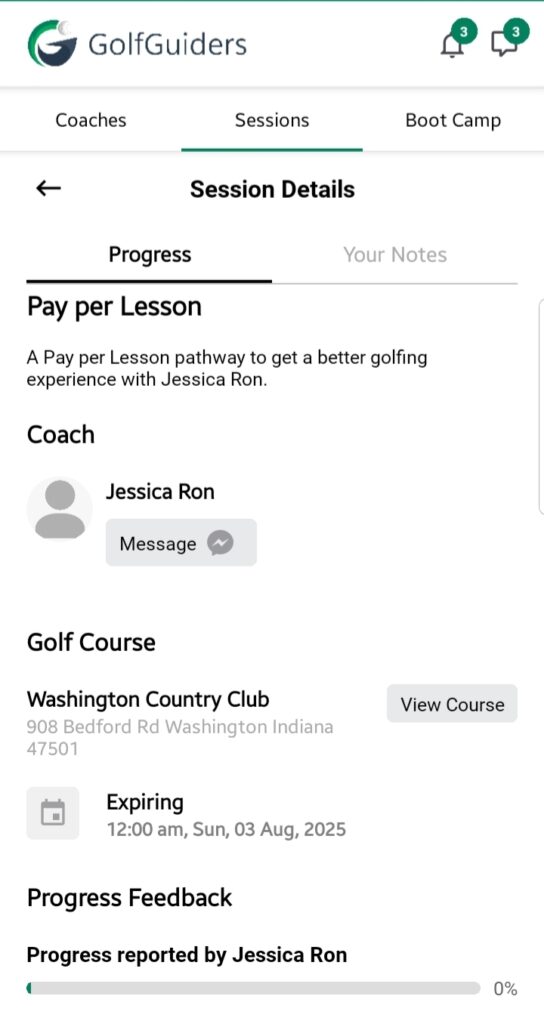
- Rate Type:
Displays the payment model chosen for the session:Pay Per LessonorPay Per Hour. - Session Overview:
A brief description of the session focus, such as techniques to be learned or skills to be improved. - Participants:
- In Group Sessions: Displays a list of golfer profiles participating in the session.
- In One-on-One Sessions: Displays the single golfer’s profile.
- Golf Course:
Displays the name and address of the selected golf course.
Includes a View button that opens the location in the in-app GPS for navigation and exploration. - Expiration Info:
Indicates the session’s validity, showing:- Remaining Time
- Session End Date
- Progress Feedback:
A visual progress bar that reflects training improvements or milestones.
Also displays the name of the person who last updated the progress status — either the coach or the golfer.
Notes Tab
A dedicated area for session-specific notes that are private between the golfer and the coach.
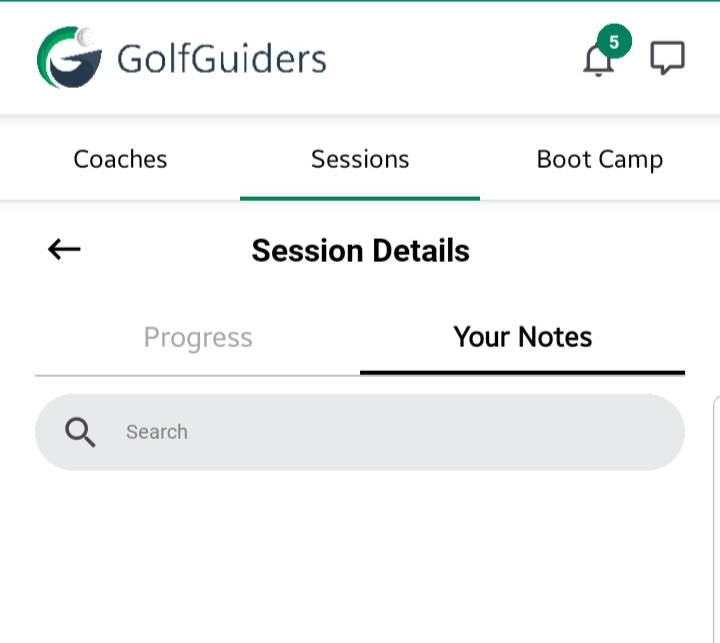
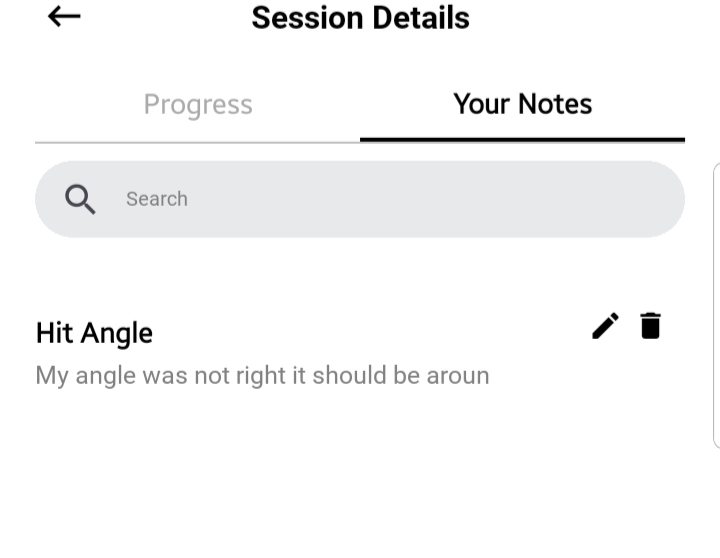
- List of Notes: Each note card includes:
- Title
- Description
- Edit (Pencil Icon): Modify note contents.
- Delete (Trash Icon): Remove the note permanently.
- Add Note (+ Button): Tap to open a dialog for adding a new note:
Fields: Title, Description
Create Button: Saves the note to the list.
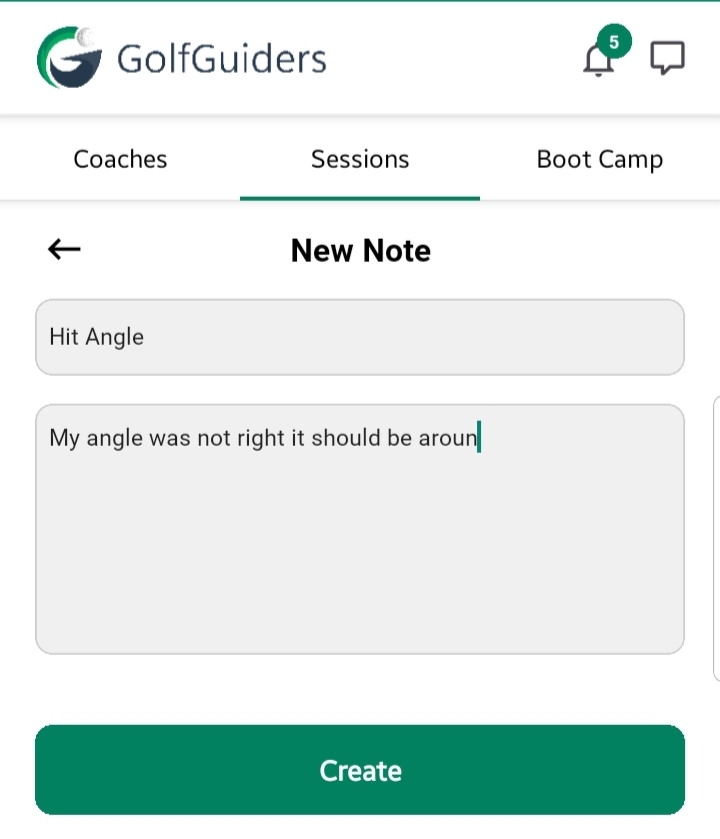
These notes remain private for golfer and the coach, any of them wont be able to access or view each others notes
Use notes to record session takeaways, feedback, strategies, or personal observations.
Best Practices
- Regularly update the Progress Feedback to keep track of development.
- Utilize the Notes Tab to document key learnings and session summaries.
- Coaches can use this space to outline post-session recommendations for the golfer.