
The Create Feed feature allows a community owner to post updates, announcements, discussions, and media directly within their created community. This is a key tool to keep members informed, involved, and active.
How to Access
- Go to Side Menu > Manage
- Tap on any community you’ve created to go to its Manage Community screen
- On the Manage Community screen, tap Create Feed
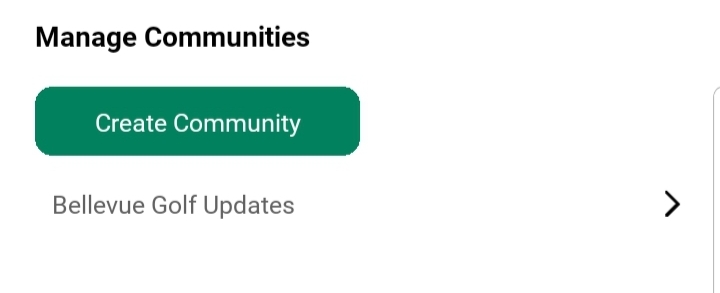
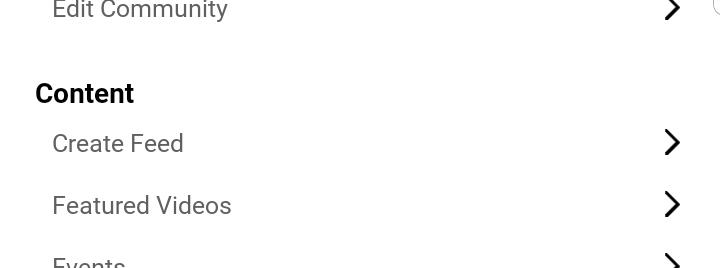
Post Creation Interface Includes:
You can create as many posts as you want in your community feed. Whether its only text, only media or combinition of both
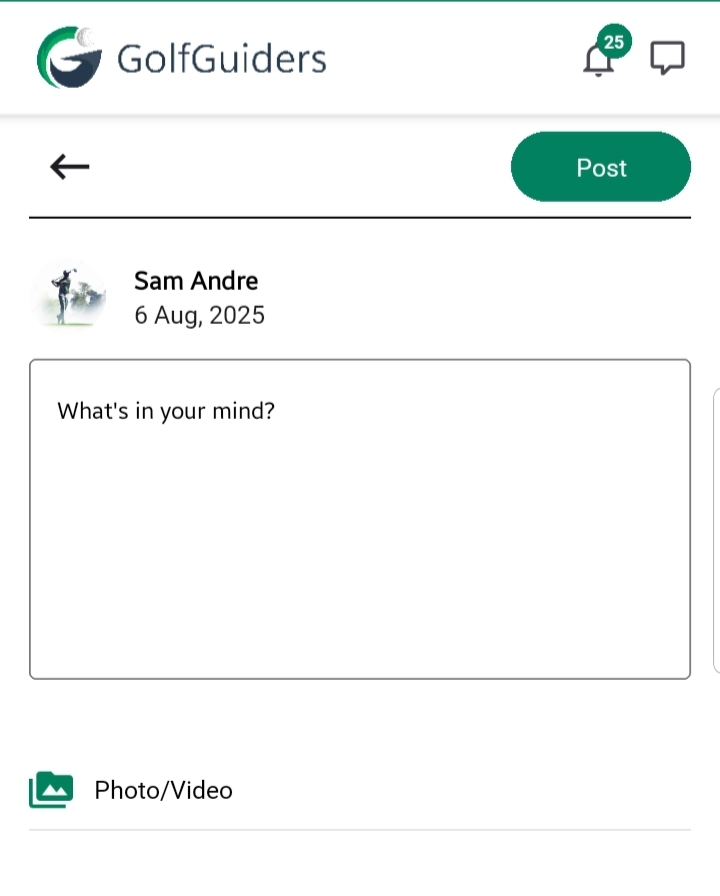
- Post Description
A multiline textbox where the community owner can write their message. This can include:- Announcements
- Event reminders
- Invitations
- General thoughts or golf-related discussions
- Upload Media
Option to upload images and/or videos to support the content of the post. This makes posts more visual, engaging, and easier to understand.
Post Visibility
The visibility of a post depends on the Community Type set during creation:
- Public Community
Anyone using the GolfGuiders platform will be able to view the feed posts—even non-members. - Private Community
Only approved members of the community will be able to view the posts. Non-members cannot see any feed content.
You can change community type whenever you want, by Editing Community details
Posting Permissions
- Only the Community Owner can create feed posts using the Manage Community panel.
- Regular community members or followers cannot post in the feed directly.
- This ensures that all content posted within the community is curated and relevant.
Best Practices
- Keep your description clear, concise, and relevant to your community’s purpose.
- Use media to enhance your message—especially for tutorials, recaps, or celebrations.
- Avoid spamming. Only post when you have valuable content to share.
- Be respectful and follow platform guidelines—especially when using media.