
The Filtering Posts feature in the Golf Buddy section helps you easily manage and view your Golf Buddy posts based on their scheduled dates. This ensures you can quickly access sessions happening today or plan ahead for upcoming golf rounds.
Where to Access
- Open the Sidebar Menu.
- Tap on Golf Buddy.
- At the top of the Golf Buddy screen, you’ll see three filter tabs:
- Today
- Upcoming
- My Groups
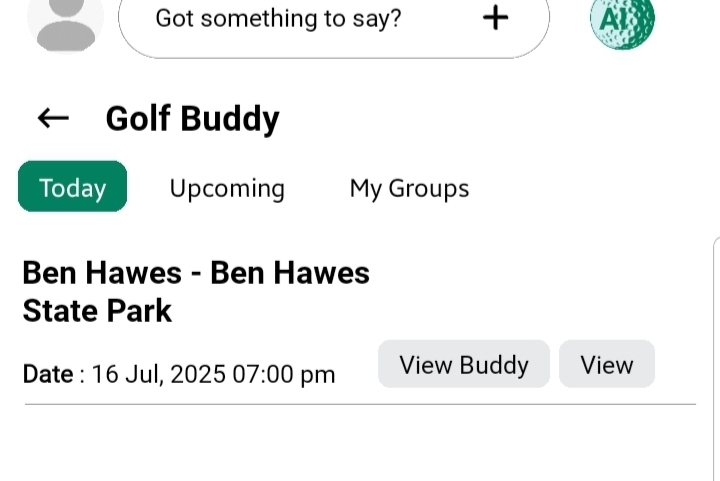
Today Tab
- Displays all Golf Buddy posts (created or joined) that are scheduled for today’s date.
- This helps you keep track of immediate sessions that you need to attend or manage.
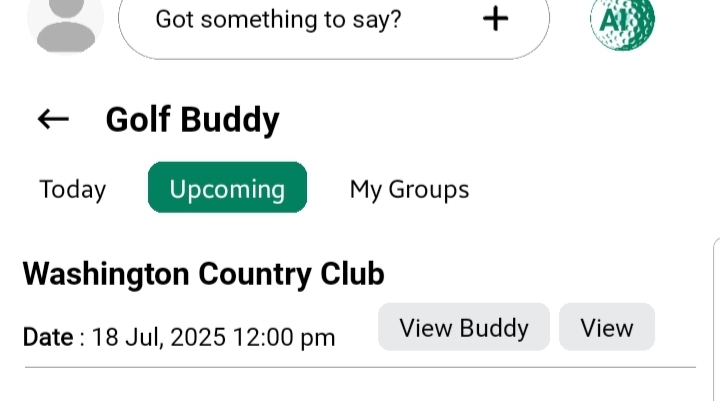
Upcoming Tab
- Displays all your Golf Buddy posts (created or joined) that are scheduled for future dates.
- Allows you to view and prepare for sessions well in advance.
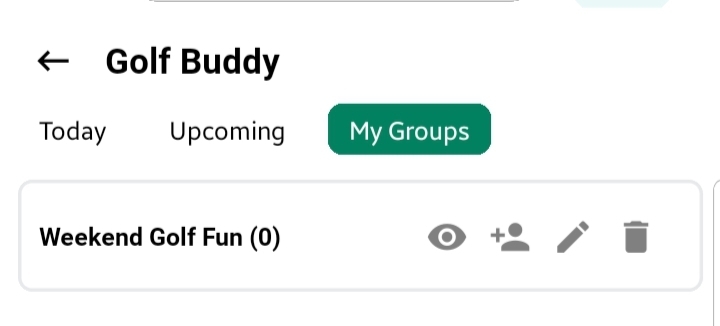
Groups Tab
Displays list of your groups
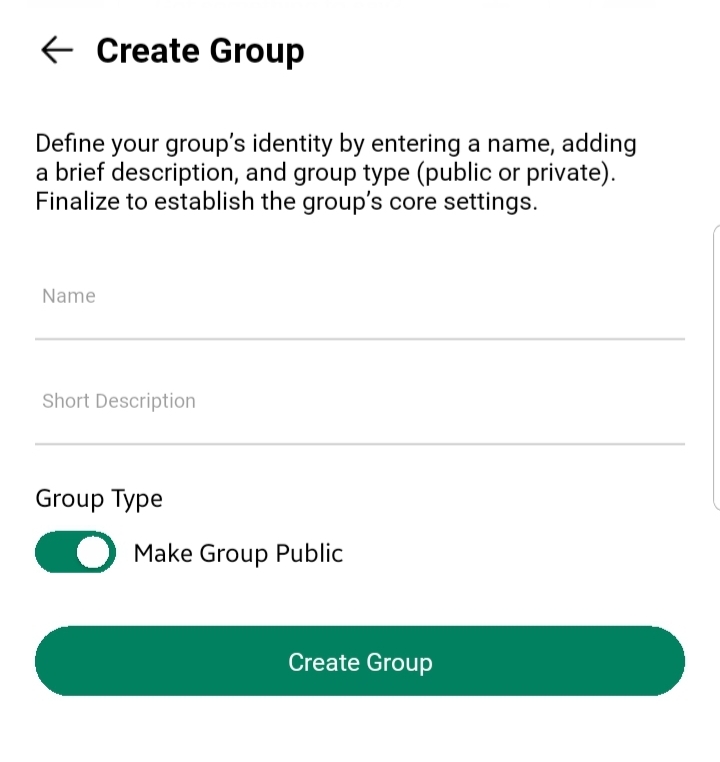
- (+) icon from the bottom-left corner of the screen to create a new group
- Give a name to your group i.e. Weekend Golfing
- You can toggle visibility of the group
On: you will be able to tag group in post
Off: you will not be able to tag this group
- (🖍) pencil icon to edit / update any Detail i.e Name, Description, or visibility
- Trash icon to remove any group
- user icon to add users in group
Add Members in Group:
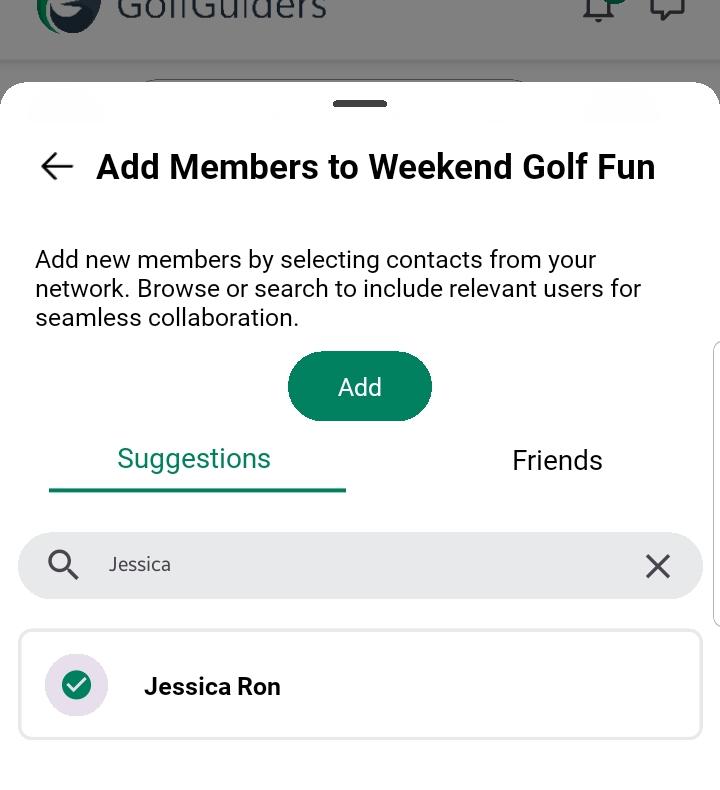
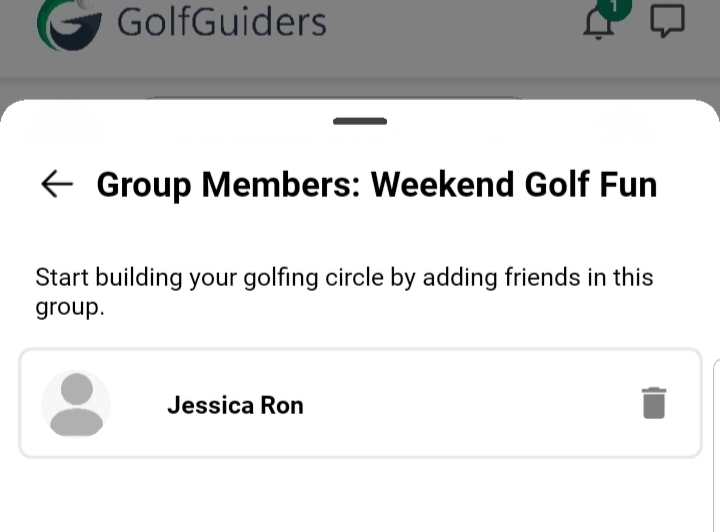
- you can tap user icon to open a bottom sheet with list of distance users and your friends
- tap as many users you want in your group
- when done, then tap “Add” to add all of them in your group
- you can also remove any member just by tapping trash icon from their card
Adding users in group will not notify them, this feature is for you to send notification of your updates with only those people who are added in the list
Key Benefits
- Stay organized with a clear view of your golf commitments.
- Never miss a session that’s happening today.
- Easily plan for future games with the Upcoming filter.
By using these filters, you can manage your golfing schedule efficiently without missing out on any sessions you’re part of.