
The Explore on GPS feature in GolfGuiders allows you to visually explore any selected golf course through the app’s built-in interactive map. It provides real-time course insights, hole navigation, weather conditions, and precise distance calculations to help you plan your game effectively.
How to Access
- Navigate to the GPS Navigation screen.
- Tap on any Course Card under the Near Me tab.
- Select Explore on GPS from the bottom sheet options.
- You will be directed to the GolfGuiders Map, automatically focused on the selected golf course layout.
Map Features
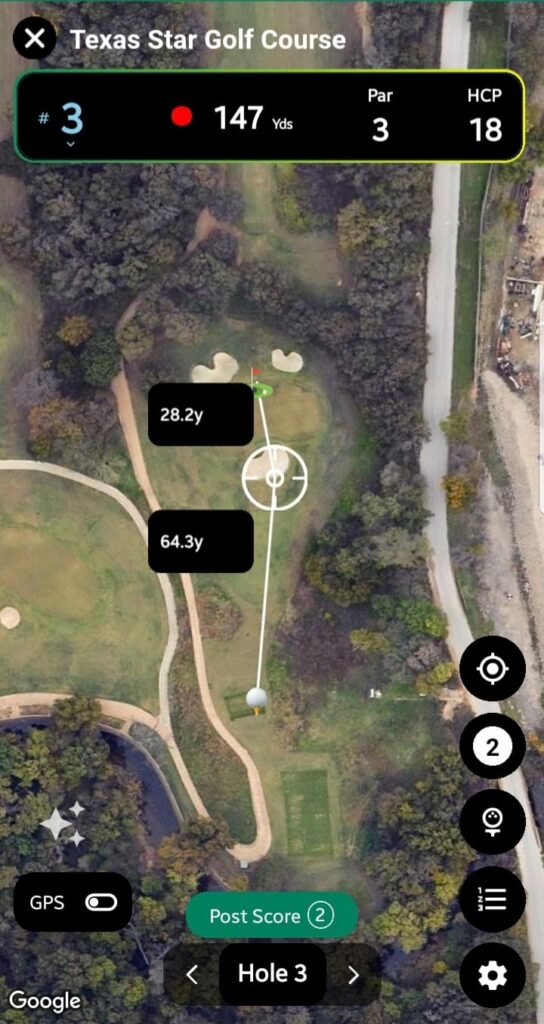
📍 Hole and Ball Visualization
- The course map graphically highlights:
- The current hole location
- The ball position
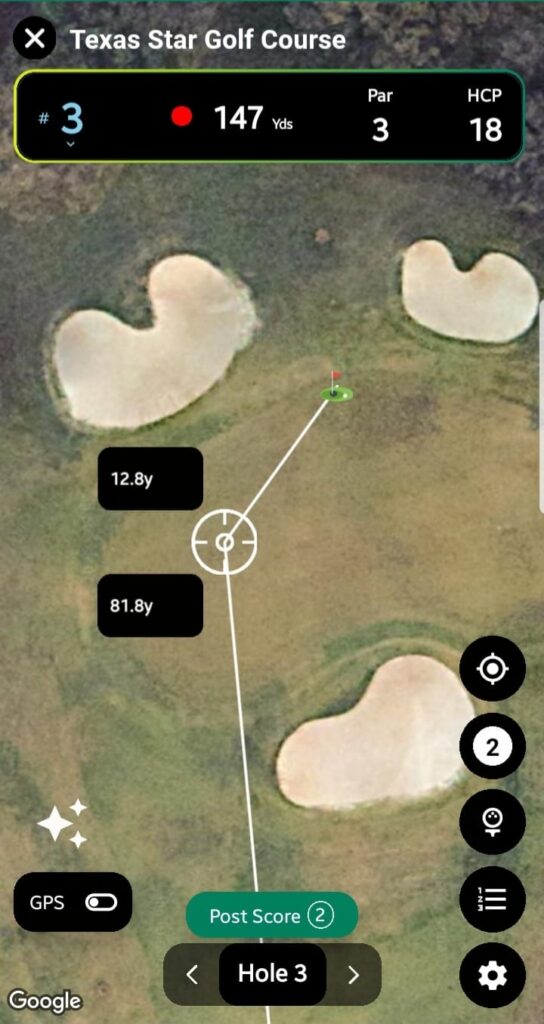
- Tap anywhere on the map to place or reposition the Aim Marker, which updates:
- Distance from ball to marker
- Distance from your current location to the marker (when location tracking is enabled)
Top Bar Information
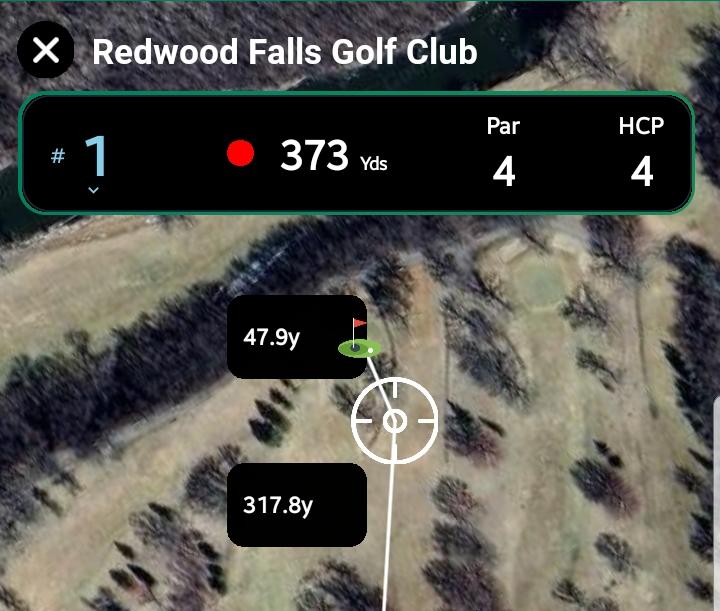
The top bar displays key details about the selected hole:
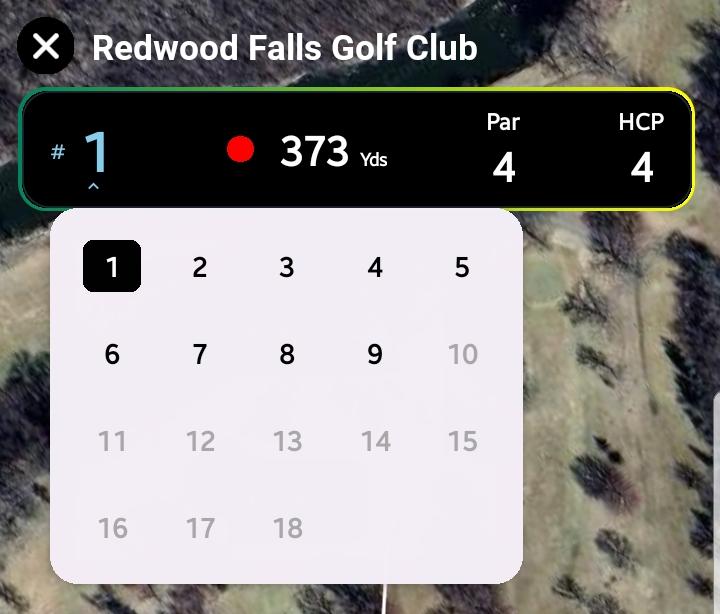
- Hole Number:
A dropdown to switch between holes 1 to 18. Selecting a hole repositions the map to that hole’s location. - Tee Marker Distance:
Shows the total yardage for the selected hole. - Par:
The expected number of strokes to complete the hole. - HCP (Handicap):
Displays the difficulty rating of the hole.
Location Toggle
- Positioned on the bottom-left corner of the map.
- Toggle On/Off to:
- View your real-time location.
- See distance from your location to the ball.
- See distance from your location to the aim marker.
Action Buttons (Bottom-Right Stack)
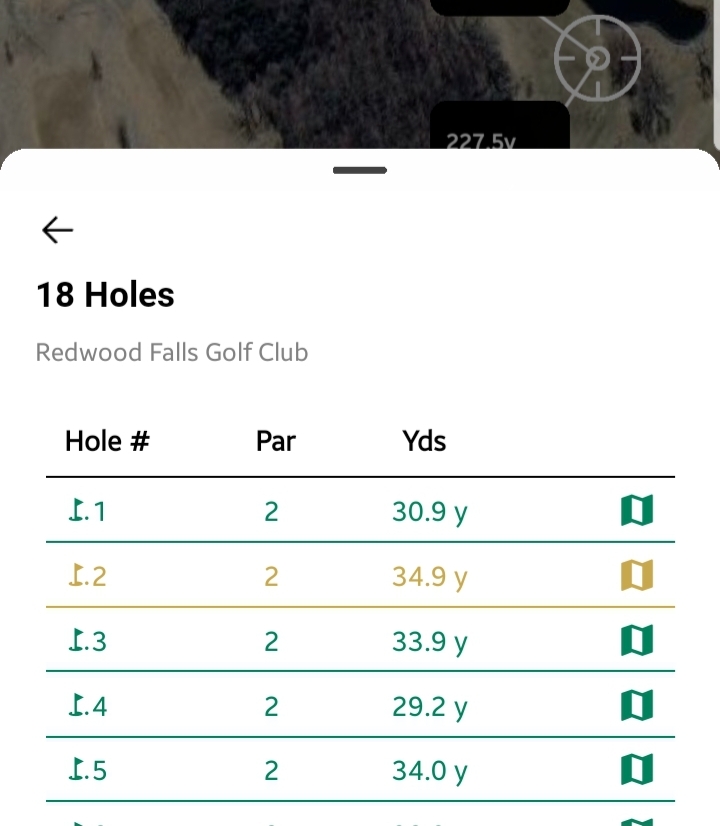
Hole Layout:
Opens a bottom sheet listing all hole numbers with their distance from your current location.
Tapping a hole updates the map focus to that hole.
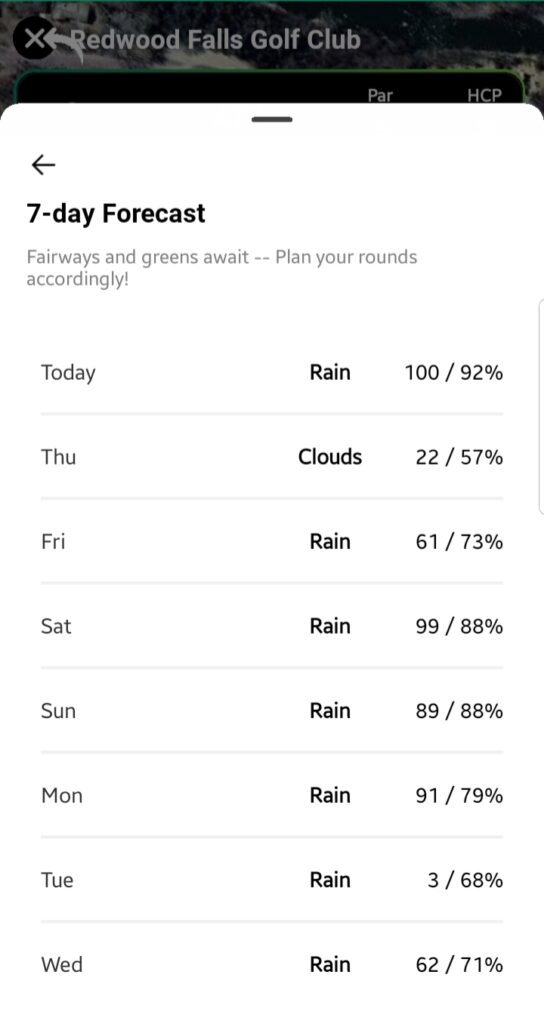
7-Day Forecast:
Opens a bottom sheet displaying a 7-day weather forecast, showing temperature and “rain / clouds percentage” data.
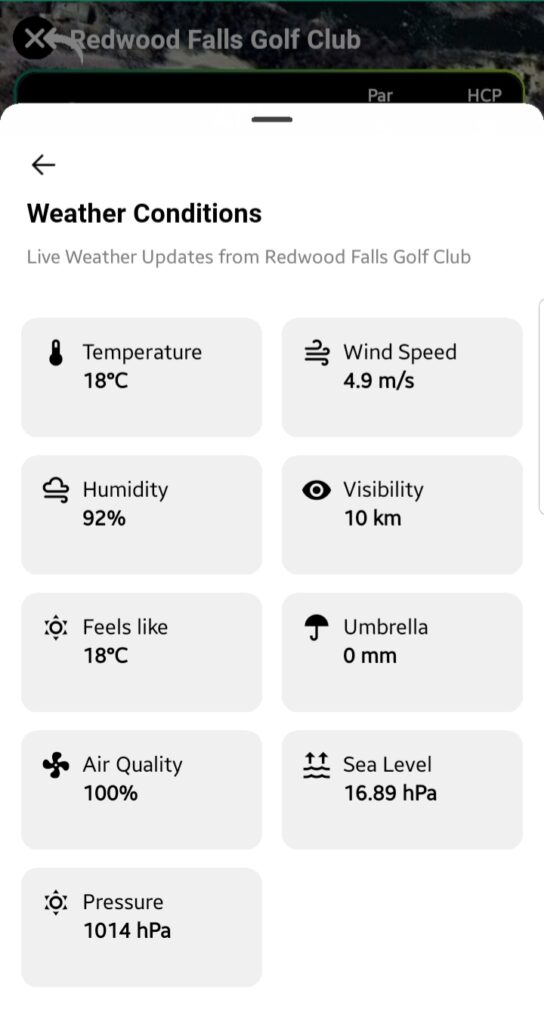
Weather:
Opens detailed weather information, including:
- Temperature
- Wind Speed
- Humidity
- Visibility
- Umbrella Index
- Air Quality
- Sea Level Pressure
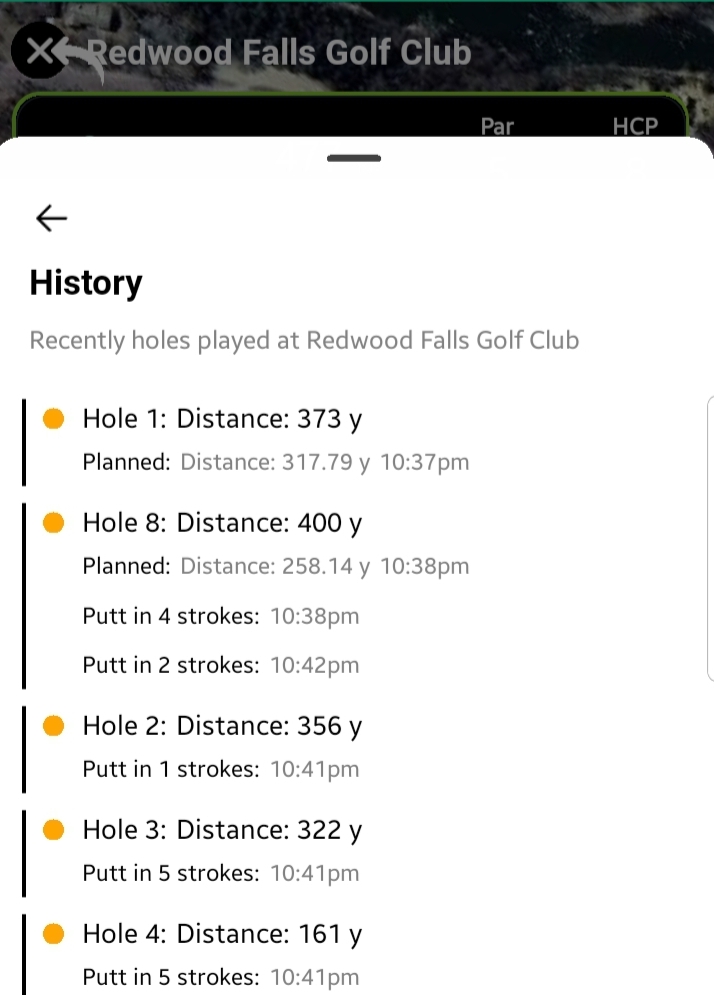
History:
Opens a bottom sheet with a log of every interaction made, such as:
- Zoom actions
- Toggling location on/off
- Hole changes
- Planned distances
- Timestamps
- Zoom In (+)
- Zooms the map view closer for detailed inspection.
- Zoom Out (-)
- Zooms the map view out for a broader course overview.
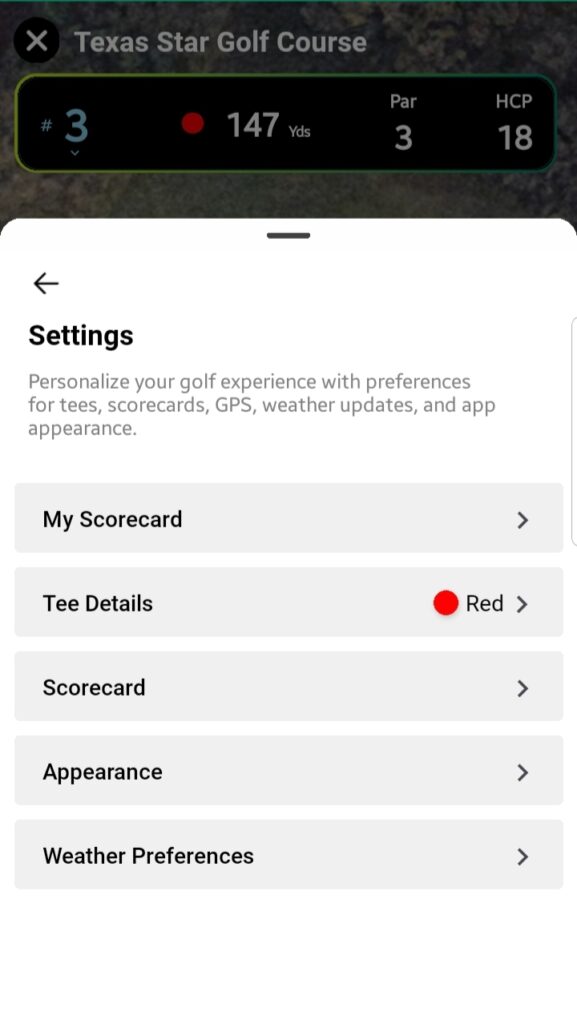
- Settings (Gear Icon)
Opens a bottom sheet with the following options:
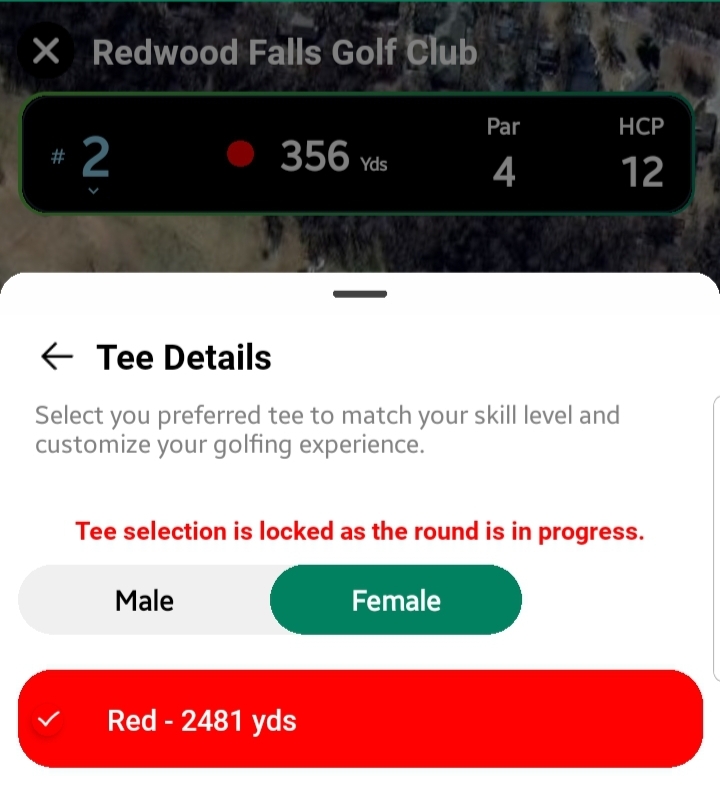
Tee Details
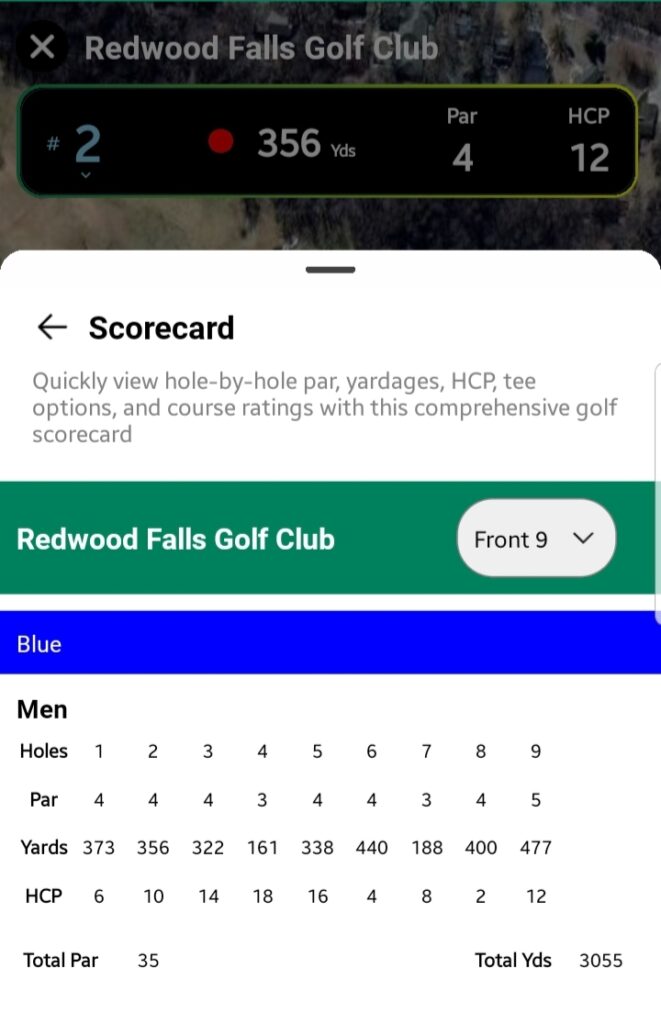
Scorecard Appearance Settings:
Toggle visibility for:
- Zoom controls
- Hole Layout
- Weather
- 7-Day Forecast
- History
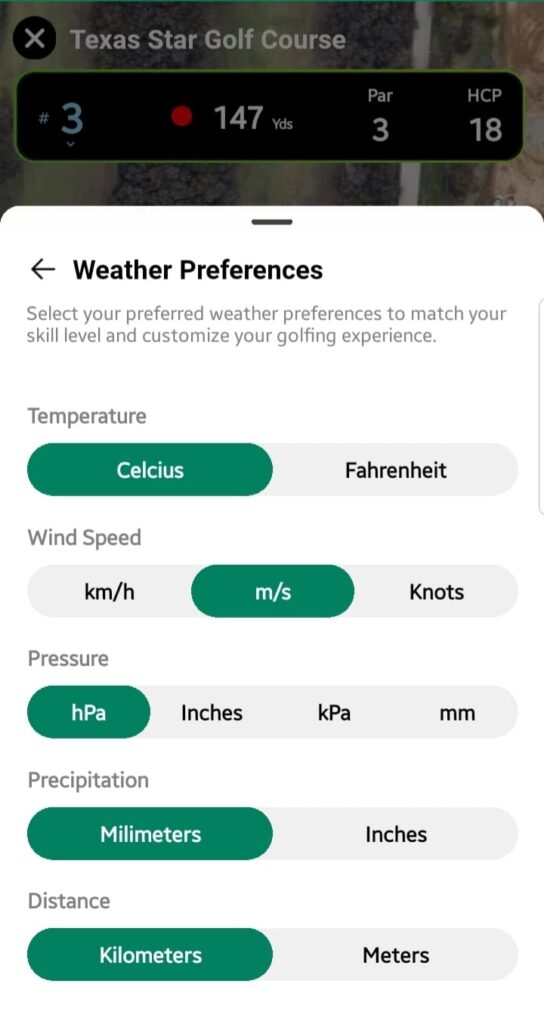
Weather Preferences:
Customize measurement units:
- Distance: kilometers, meters
- Temperature: Celsius / Fahrenheit
- Wind Speed: km/h, m/s, knots
- Pressure: hPa, inches, kPa, mm
- Precipitation: millimeters, inches
User Tips
- Customize Your View: Adjust appearance settings to show or hide specific tools based on your preference.
- Use Weather Data: Check weather and forecast before planning a visit to ensure optimal playing conditions.
- Track History: Utilize the History log to review your exploration steps or changes made on the map.
Summary
Explore on GPS is a powerful visualization tool within GolfGuiders, providing a comprehensive view of any golf course. It empowers golfers to plan strategies, evaluate distances, and monitor conditions — all within an intuitive and interactive map interface.