
GolfGuiders provides a dedicated Notification Settings panel where users can customize their notification preferences to control which alerts they receive and how they are delivered.
Access Notification Settings
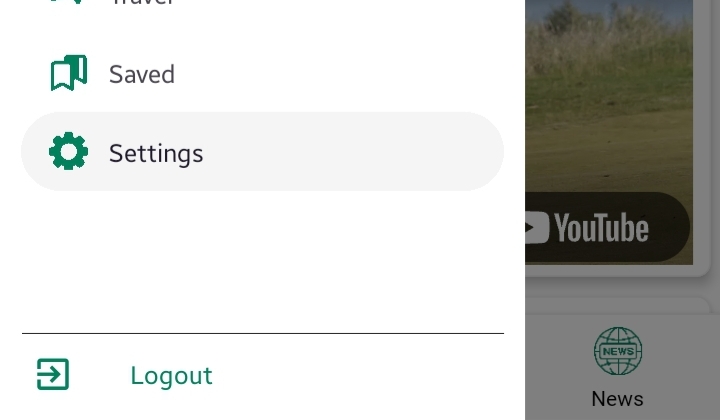
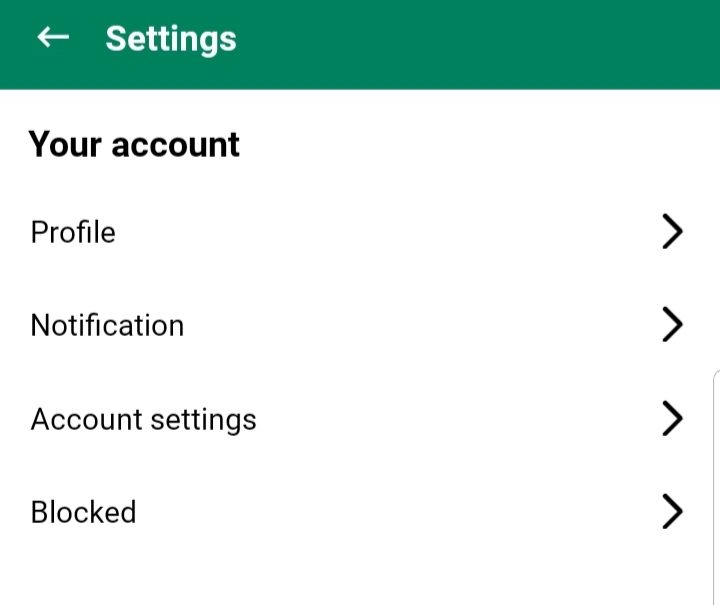
- Open the GolfGuiders app.
- Tap the Sidebar Menu (☰ icon) to open the navigation drawer.
- Select Settings from the menu options.
- Tap on Notifications Settings.
This will open a detailed panel where all available notification categories are listed with toggle controls.
Available Controls
- Toggle On/Off: Enable or disable notifications for specific categories such as:
- Friends
- Golf Buddy
- Buddy Requests
- Chat Messages
- Tournaments
- Social Interactions (Likes, Comments, Shares)
- Notification Types: Choose your preferred delivery method:
- Email Notifications
sends a notification to your provided and verified email address - Push Notifications
Delivered to your device’s notification panel, if app is closed or running in the background.
Show popup on the screen, when using the app - Sms
sends a notification on your sim, if phone number if provided and verified
- Email Notifications
Benefits of Custom Settings
- Receive updates that are relevant to your activities.
- Minimize unnecessary alerts to avoid distractions.
- Tailor the experience to suit your engagement style.
Managing your notification preferences ensures that your interaction with GolfGuiders remains smooth, focused, and fully aligned with your interests.