
The Booking Calendar is a dedicated feature designed for coaches to manage and publish their session availability. It helps coaches define when, where, and how they are available for training, making it easier for golfers to request sessions that align with the coach’s schedule.
Access
- Navigate to your Public Profile, if you’re a Coach.
- By tapping you avatar from anywhere (i.e. Posts, comments, “What’s on your mind?” ribbon)
- By tapping “View Profile” from side menu
- And Tap Edit Profile > Booking Calendar button to manage your availability.
Add Availability
Coaches can add multiple availability slots across any month by tapping (+) icon button from the bottom-right corner of the screen.
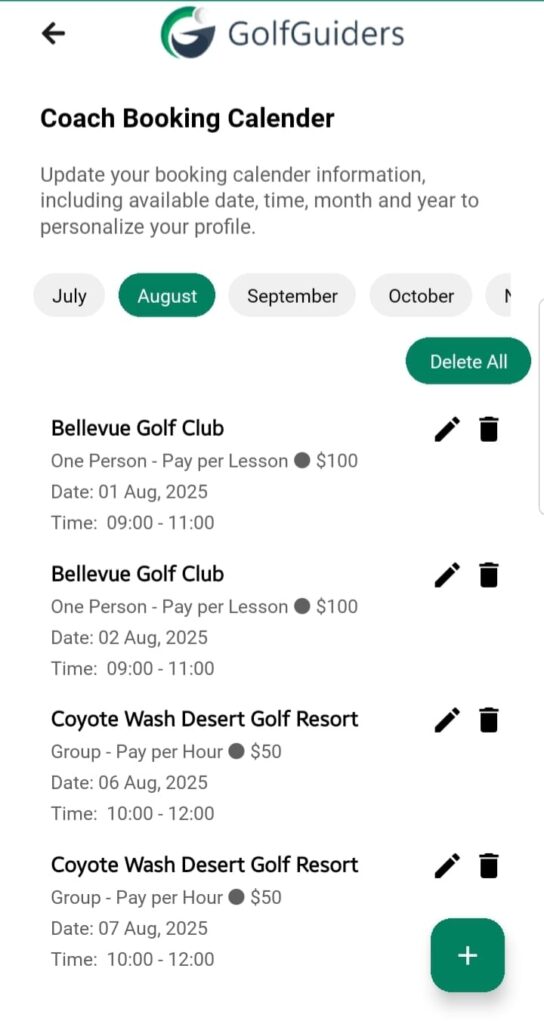
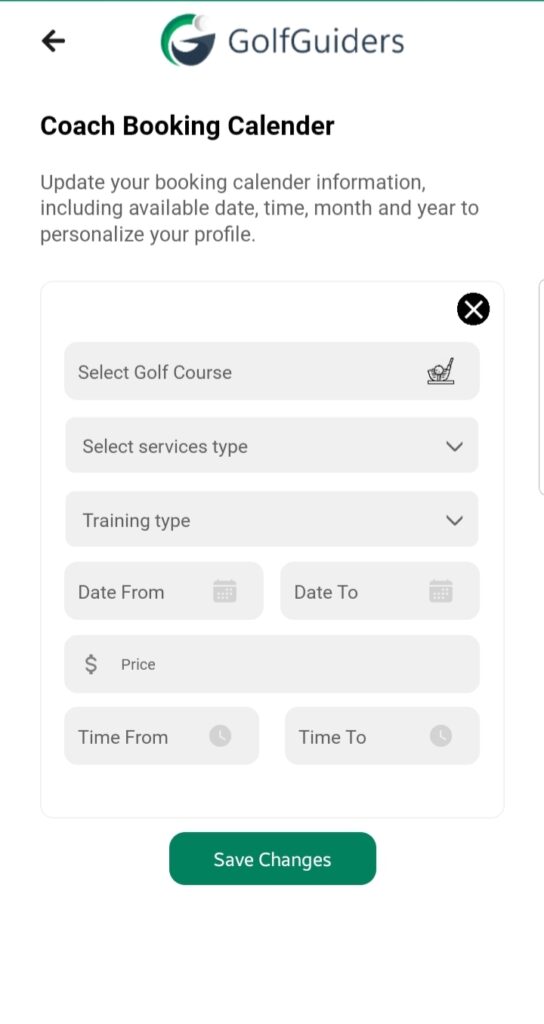
- Golf Course:
- Select from the golf courses where you have verified experience.
- A bottom sheet lists eligible courses for selection.
- Training Type:
- Choose between:
- One Person: For one-on-one coaching.
- Group: For multiple participants.
- Choose between:
- Price:
- Enter any reasonable price according to your service type
- Service Type:
- Select the payment model:
- Pay Per Hour
- Pay Per Lesson
- Select the payment model:
- Select Date:
- Choose the exact dates you are available.
- Availability is saved per date, allowing flexibility across different days.
Note: You can add multiple availability cards for various dates, each with distinct settings of golf course, training type, and rate type.
Monthly Navigation
- Browse availability month-wise using the month tabs at the top of the calendar view.
- If a month has no availability set, the screen will remain empty until slots are added.
Availability Visibility to Golfers
- Golfers see only the dates, golf courses, training types, and rates that match your defined availability.
- If a golfer selects a mismatched training type or rate, no available slots will appear.
Example:
If you set availability for One Person + Pay Per Lesson, golfers choosing Group + Pay Per Hour will not see those dates.
better to add both versions according to your availability
Managing Availability
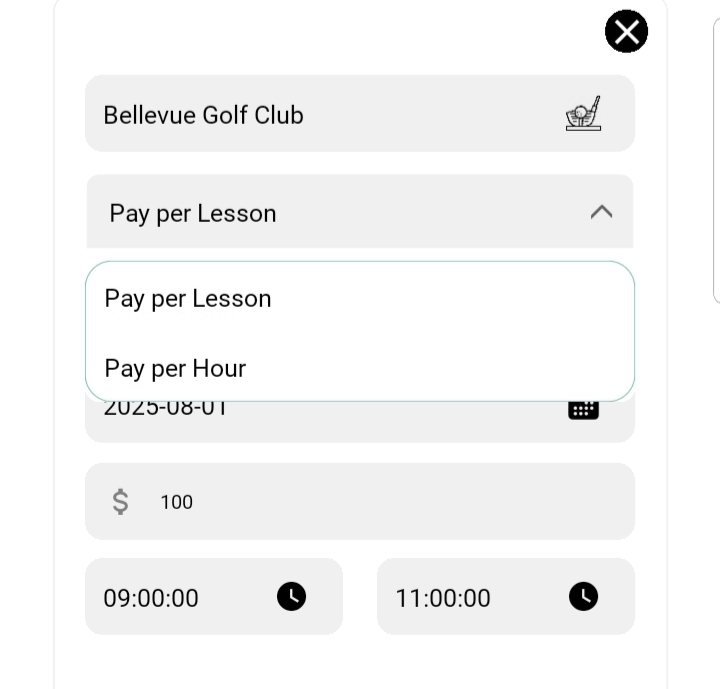
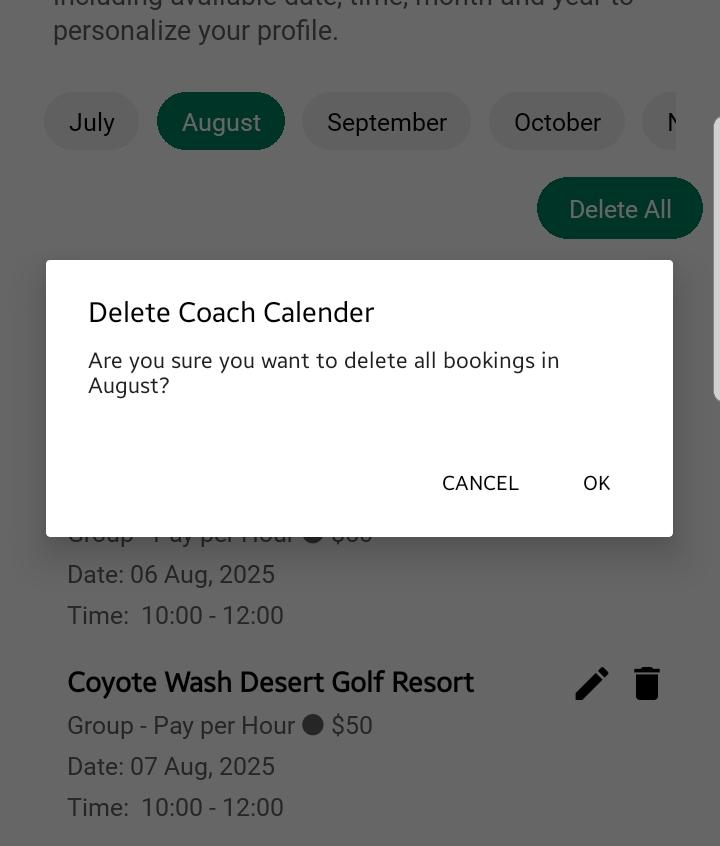
- Edit Availability: Tap on an existing availability card to edit the details.
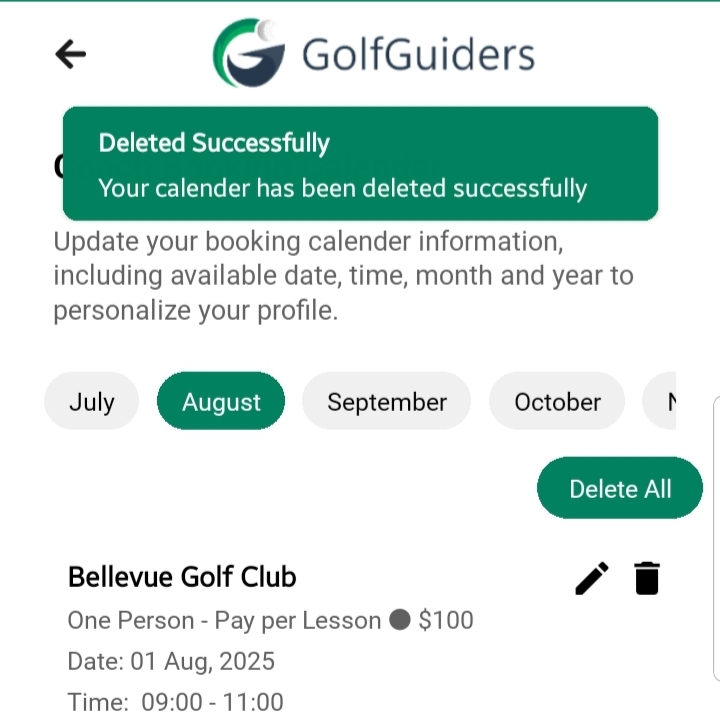
- Remove Availability: Delete slots that are no longer valid or if your schedule changes.
- Delete All: You can also tap “Delete All” from any month’s tab if you want to remove all availabilities at once from a month.
Best Practices
- Regularly update your availability to keep your schedule active and appealing to golfers.
- Provide a range of dates and options to cater to different golfer preferences.
- Use clear distinctions in training type and service type to avoid confusion.
- Try to add your availability for both training type and service type
By effectively using the Booking Calendar, coaches can ensure a smooth booking experience for golfers while maintaining control over their time and session types.