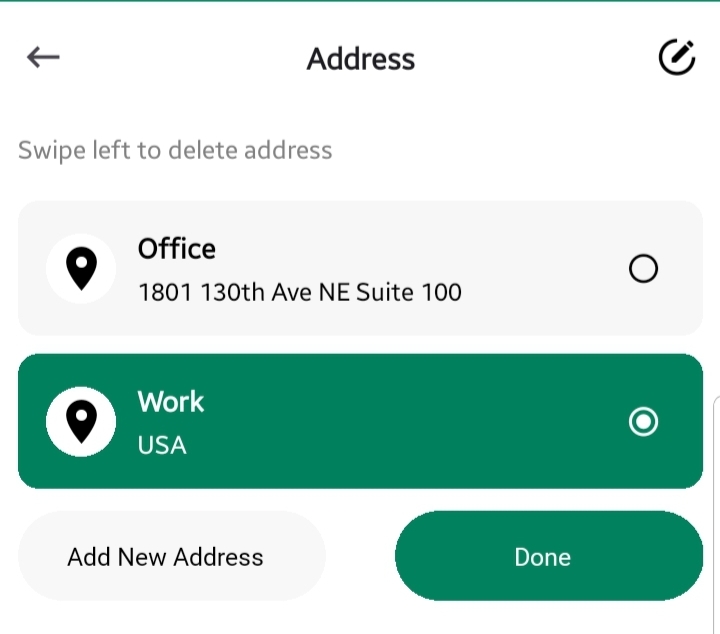
Managing your addresses in GolfGuiders ensures your orders are shipped to the correct location and your payment information is verified accurately.
You can manage all your saved addresses from the Address Management screen, accessible during the checkout process whenever you tap the Edit (pencil) icon on your shipping address or uncheck the box “Same as shipping address” to be able to manage your billing addreses.
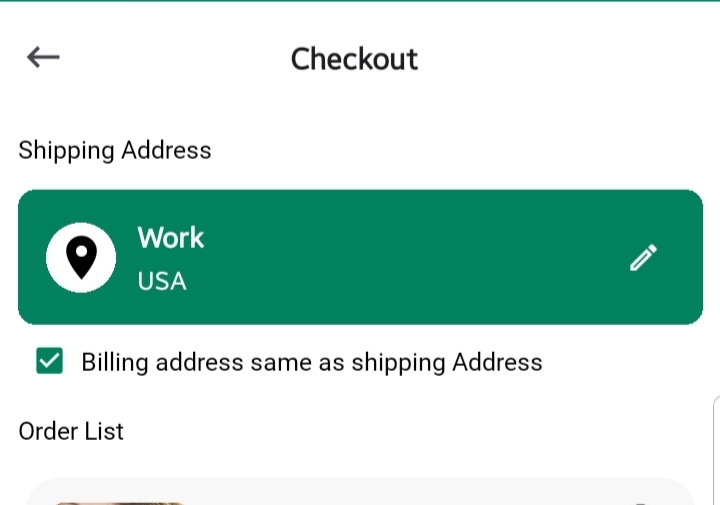
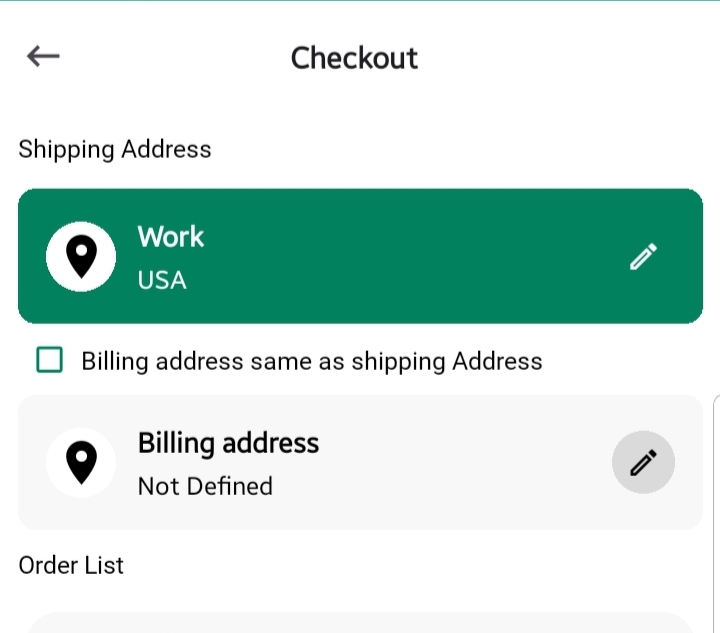
Billing Address and Shipping Addresses are saved separately
Address List
When you enter the Address Management screen, you’ll see:
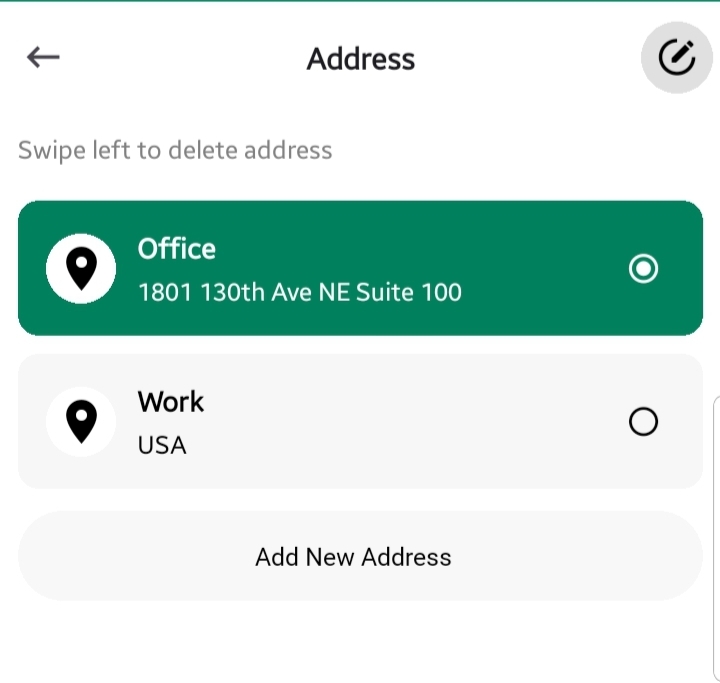
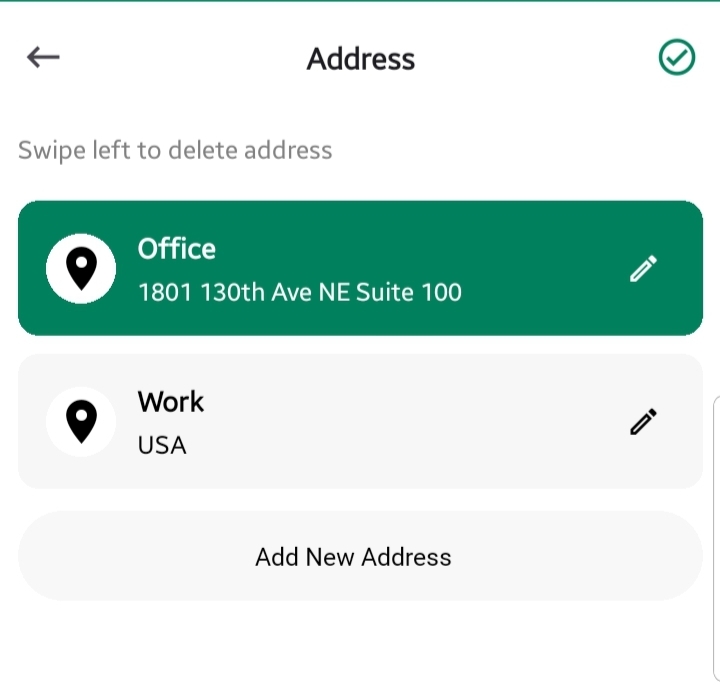
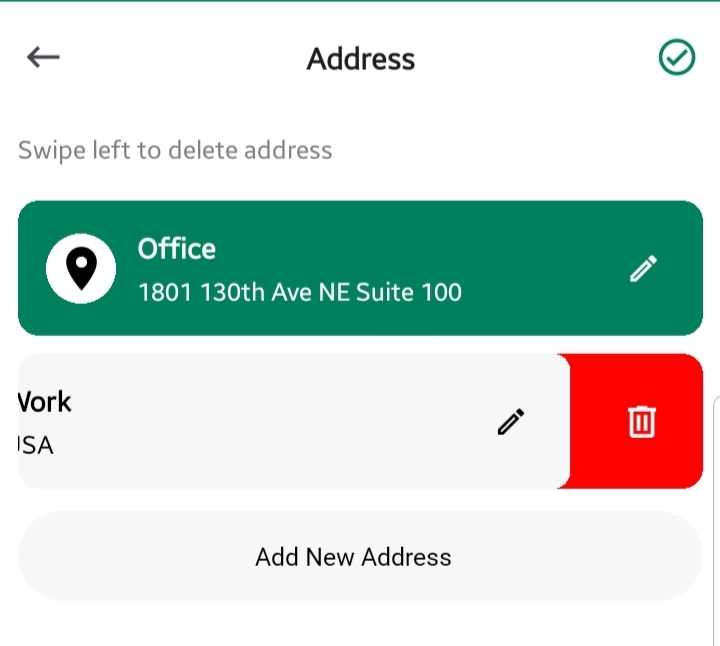
- A list of all saved addresses, each shown as a card containing:
- Address Name
- Full Address
- A Radio Button to select it as the preferred shipping or billing address
- A Pencil Icon to edit the address (appears when editing mode is enable)
- A Trash Icon (appears when editing mode is enable and you swipe left) to tap and delete the address.
You can only select one address at a time for shipping or billing
Add Address
To add a new address:
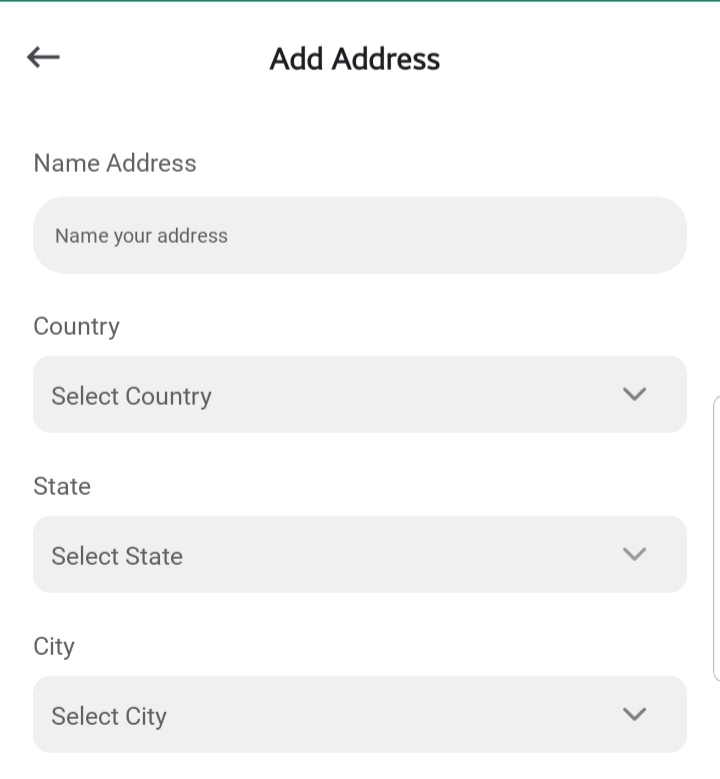
- Tap the Add New Address button at the bottom of the address list.
- Fill out the form:
- Address Name: Label your address (e.g., Home, Office)
- Country: Select from dropdown
- State
- City
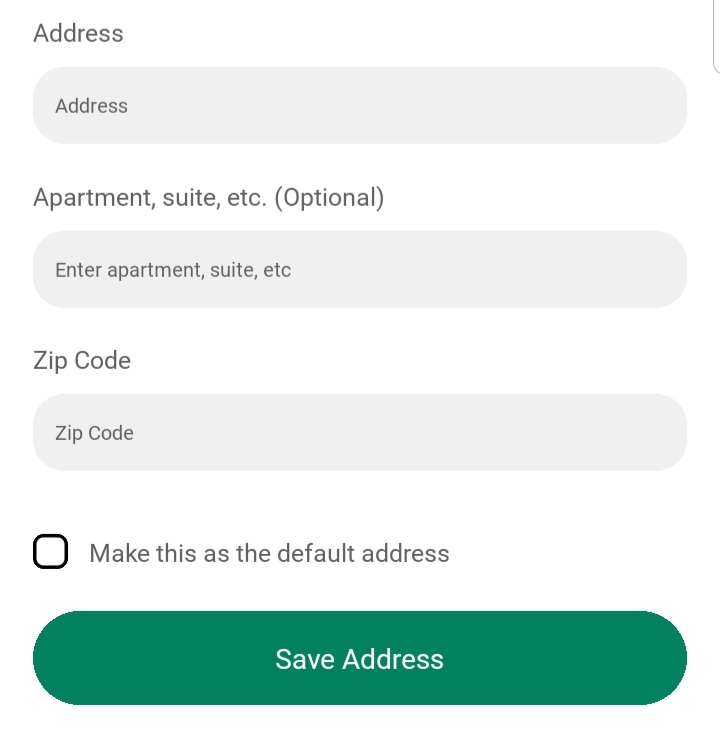
- Full Address
- Apartment/Suite (Optional)
- Zip Code
- Mark as Default Address: Optional checkbox to make this your primary shipping address.
- Tap Save Address to add it to your list.
Edit Mode
Enable: Tap the pencil icon from top-right corner of the screen
Disable: Tap the check icon from the top-right corner of the screen
Finalize Address Selection
After selecting or adding the desired address:
Tap Done to confirm your selection.
You’ll be returned to the Checkout screen with your chosen address populated.