
Overview
The Store Profile and customization section allows store owners to personalize their storefront, define essential business details, and manage informational pages. This ensures a professional and customized shopping experience across both the mobile and web platforms.
To access this section:
You will find three major components:
Store Customization
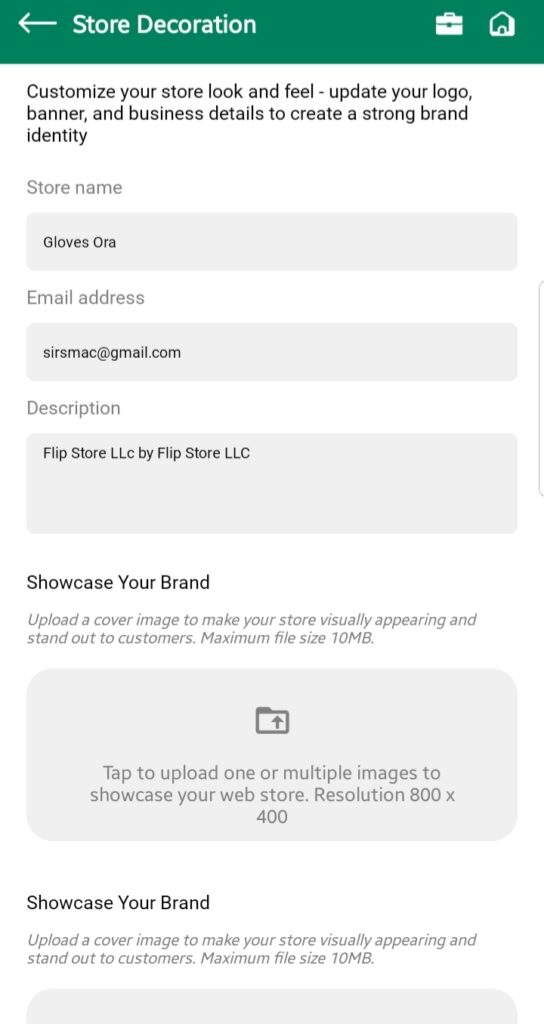
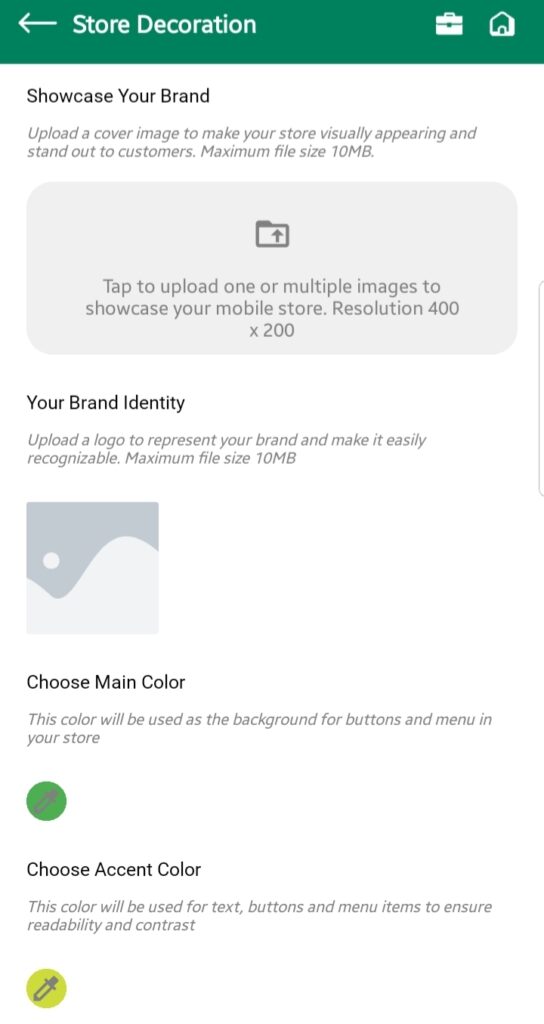
This screen allows you to update your store’s branding and contact details through a structured form. It ensures that your store reflects your brand identity and provides essential contact and visual information to your customers.
Information Required for your Store:
- Store Name
The display name of your store that appears across the platform. - Store Description
A brief summary of your store’s offerings, mission, or highlights. This is shown on your store’s public profile. - Email Address
A valid email that customers or GolfGuiders can use to contact you. This should be an active, monitored address. - Showcase Your Brand
You are required to upload two separate cover images:- For Mobile App Store – Optimized for in-app viewing
- For Web App Store – Wider format for the web version of your store
- Your Brand Identity
Your brand’s logo. It must be a clear and appropriately sized image. This logo is used throughout your store’s interface. - Main Color
This is the dominant color theme used across your storefront, including buttons, headers, and key UI elements. - Accent Color
Used for highlights, CTAs (call-to-actions), and other supporting UI elements. It should complement the main color.
Once all fields are completed, review and save changes to apply updates across both the web and mobile storefronts.
Set Up Warehouse
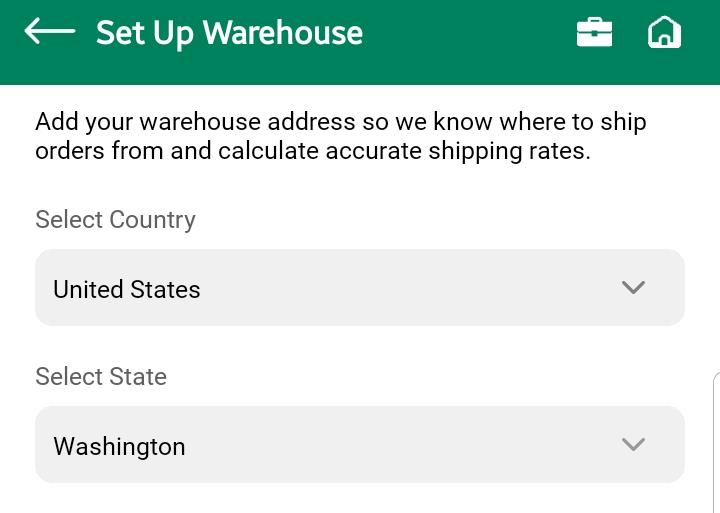
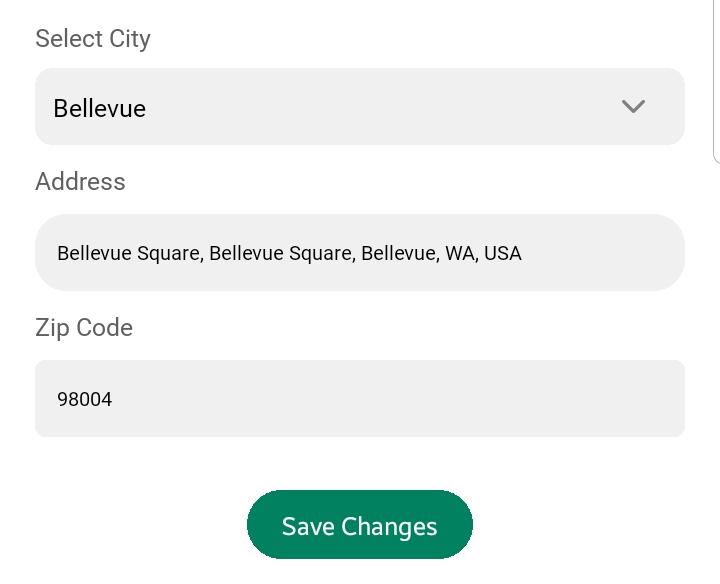
Warehouses are physical or designated locations from which your orders will be shipped or fulfilled. Setting this up ensures accurate shipping rates, availability tracking, and delivery timelines.
Required Information:
- Country
The country where your warehouse is based. - State
The state or province within the selected country. - City
The city where the warehouse is located. - Street Address
A complete street-level address including building number, street name, etc. - Postal Code
The correct zip/postal code for the address.
Note: Ensure all warehouse details are accurate and match your actual shipping location. Incorrect details may result in failed deliveries or miscalculated shipping estimates.
After entering the information, tap “Save Changes” to confirm your warehouse setup.
💡 You can only assign one warehouse per store. If you require multiple dispatch points, please contact GolfGuiders support for advanced options.
Store Pages
This section allows you to create and manage static pages within your store — such as About Us, Shipping Policies, FAQs, and other custom content pages — and organize them into categories.
Viewing Store Pages
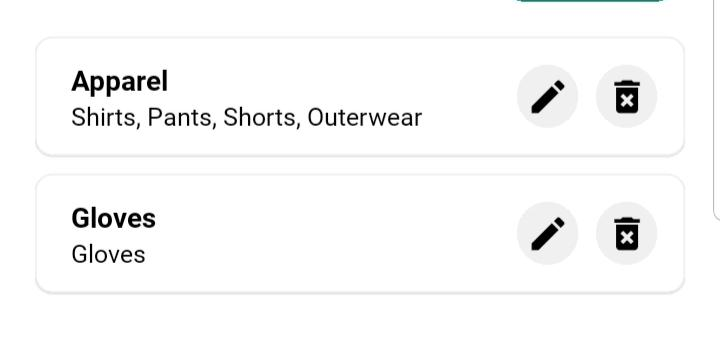
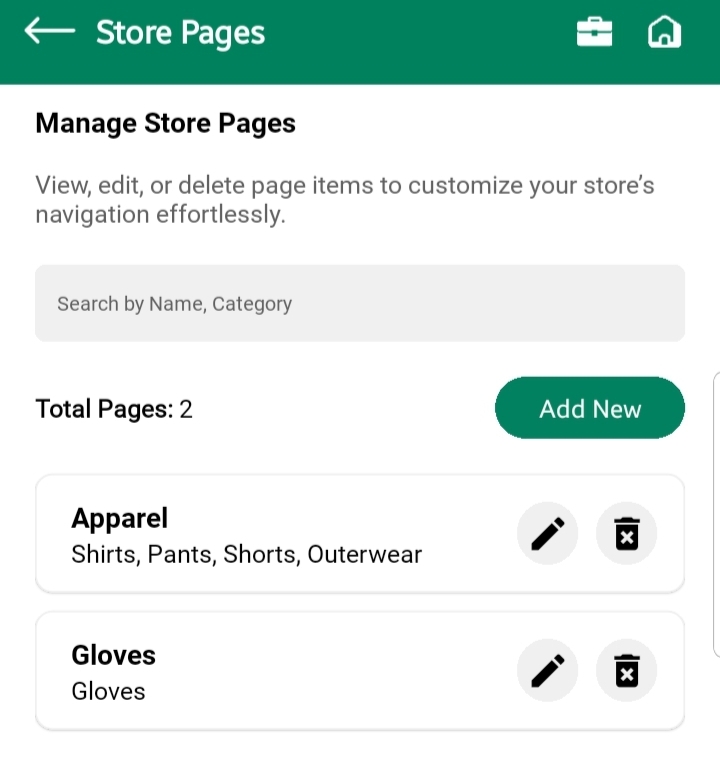
All existing store pages are displayed as cards showing the page name, category, and order. Each card includes management options on the right:
Pencil Icon – Opens the page settings in edit mode
Trash Icon – Permanently deletes the page along with it’s categories
Add New Page
To add a new custom page:
Tap “Add New” button to go to the New Page Screen.
You can fill in all the required data to add a page with or without category in your store
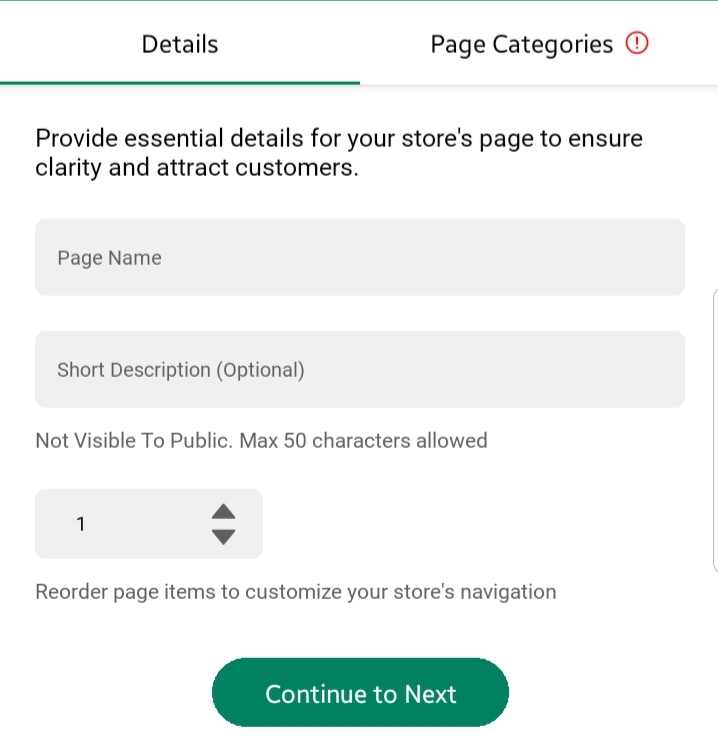
Fill in the page creation form:
Page Name (required)
Description (optional)
Page Order (numeric value to control display order)
Tap “Continue to Next”
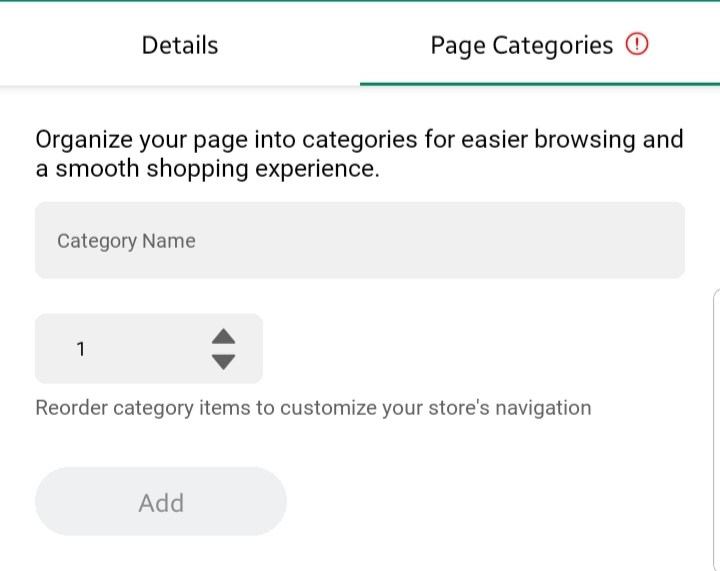
Here you can add one or more categories to organize your page:
- Enter the Category Name
- Set the Category Order
- Tap “Add” to include it in the category list
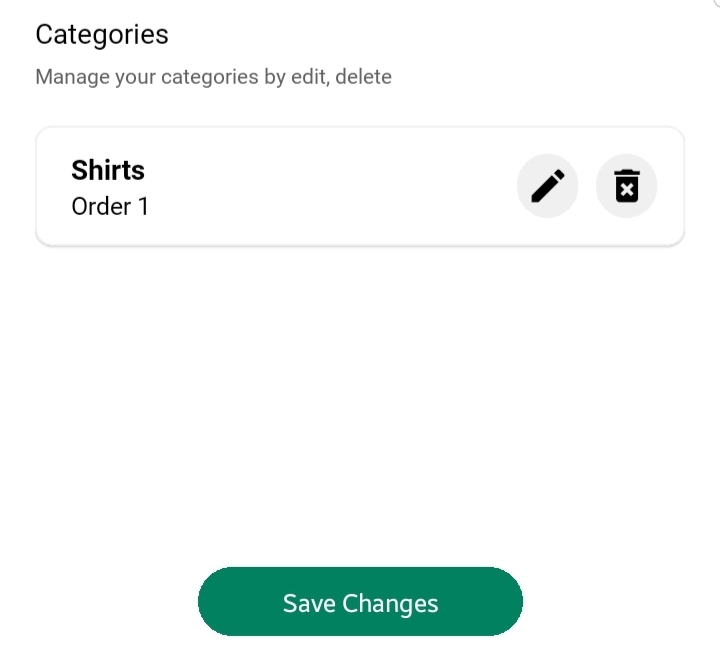
Once complete, tap “Save Changes” to finalize and return to the main Store Pages screen.
Editing or Removing Pages and Categories
- On the Store Pages screen, use the pencil icon to update any page or category.
- Use the trash icon to delete a page or its associated categories.
Important: Deleting a page or category is irreversible. Please confirm before removing content.
Summary
The Store Profile and Decoration section allows you to:
- Customize your store branding
- Set up operational dispatch locations
- Create and organize informative pages for customer interaction
Maintaining accurate and professional settings in this section helps establish brand trust, improve user experience, and streamline store operations.