
The Create Tournament feature allows any GolfGuider user — golfer, coach, or general member — to host a local tournament. The organizer can invite other users as Co-organizers or Players (whether they are friends or not). All invited participants receive both an in-app and email notification.
Access
- Navigation: From the Sidebar Menu, select Play Tournament.
- On the Tournament Screen, tap the Create Tournament button located at the top.
Note:
This feature has recently received improvements in UI, functionality, and user flow.
We are currently aligning the documentation with these updates and will share the revised version shortly.
All feilds are required in order to create a tournament each field is explained below:
Organizer
If you’re creating a tournament then you’re the organizer of that tournament and this can’t be changed. Organizer can:
- edit tournament before start
- delete tournament whenever
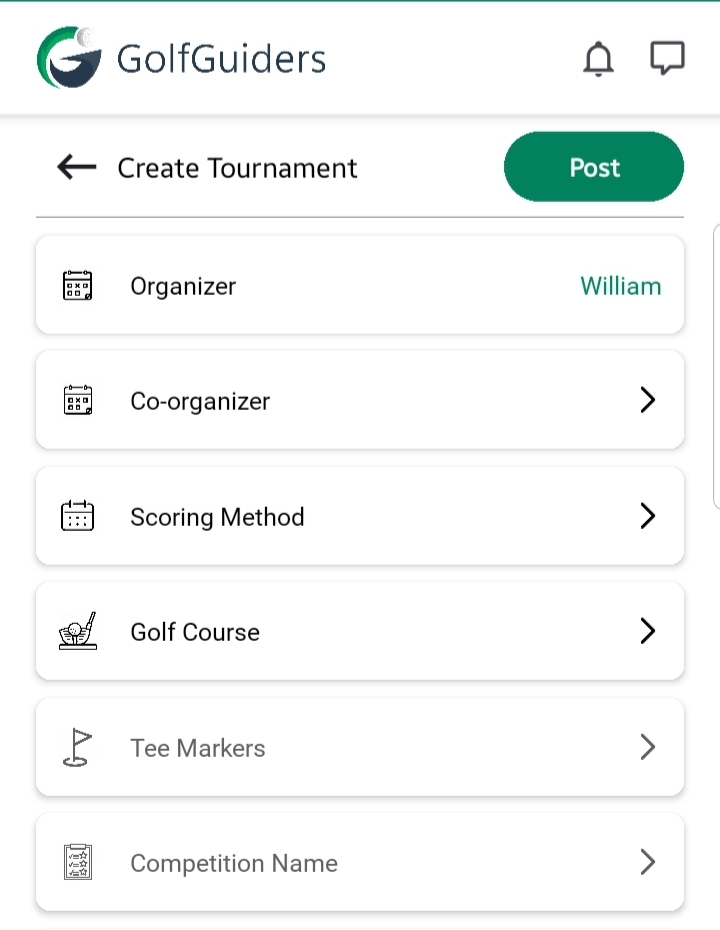
Co-organizer
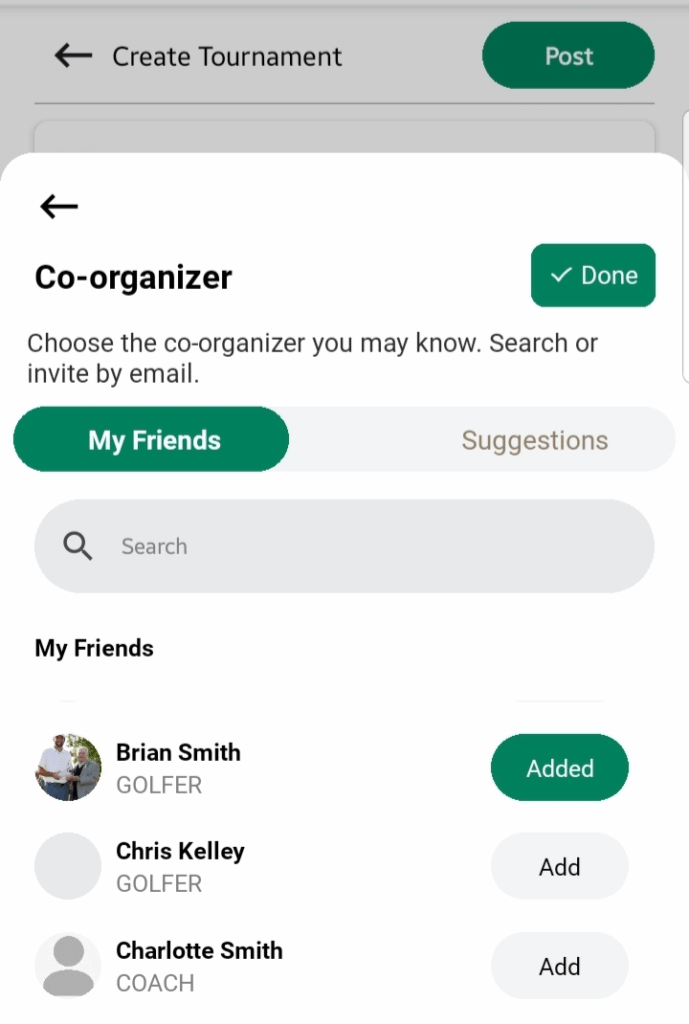
You can add co-organizers in your tournament, they almost do everything like organizer but they can’t edit or delete any tournament. Tap “Done“, after selecting all co-organizers to send them notification when posted
Scoring Method
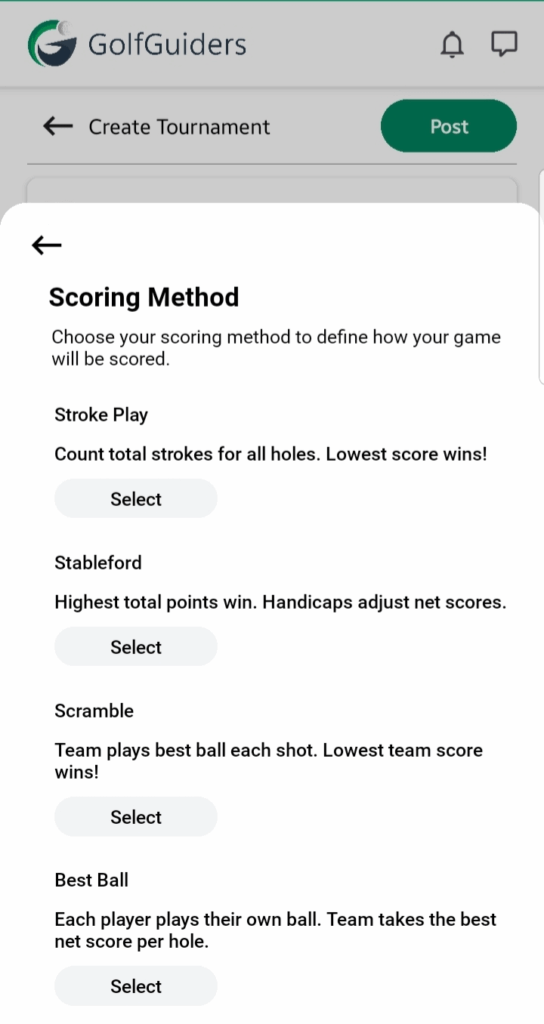
Stroke Play – The total number of strokes taken is counted.
Stableford – Points awarded based on the number of strokes relative to par.
Scramble – Teams select the best shot for each stroke and play from that position.
Best Ball – Each player plays their own ball; the best score per hole counts for the team.
You can learn more about scoring method
Golf Course
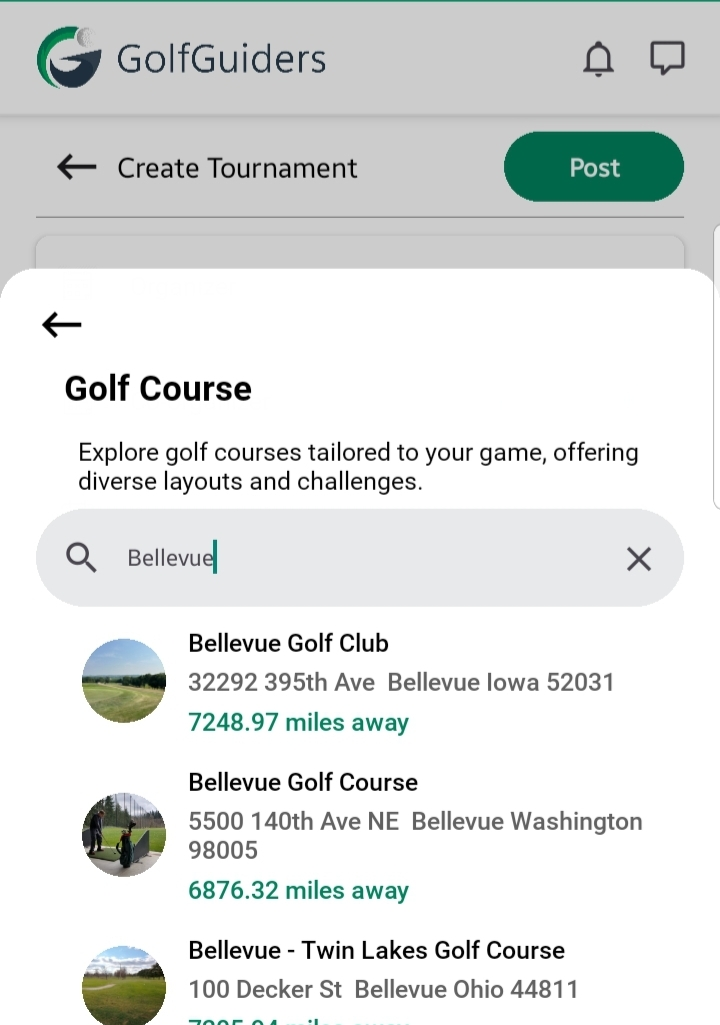
Select a golf course for your tournament from nearby options or search for one as per your convenience.
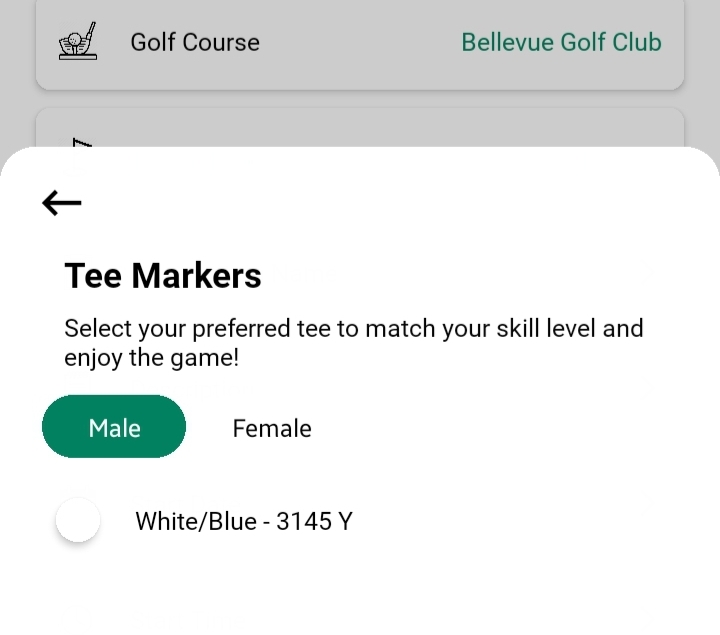
Tee Markers
Tee markers indicate starting positions on the course, often color-coded for difficulty.
- Male / Female Tabs
- Each tab lists available tee markers.
Name & Description
These fields are requried for creating a tournament, you can choose a name and add description as any notes, rules or theme about the tournament so the players can read and understand the tournament for a fair game play.
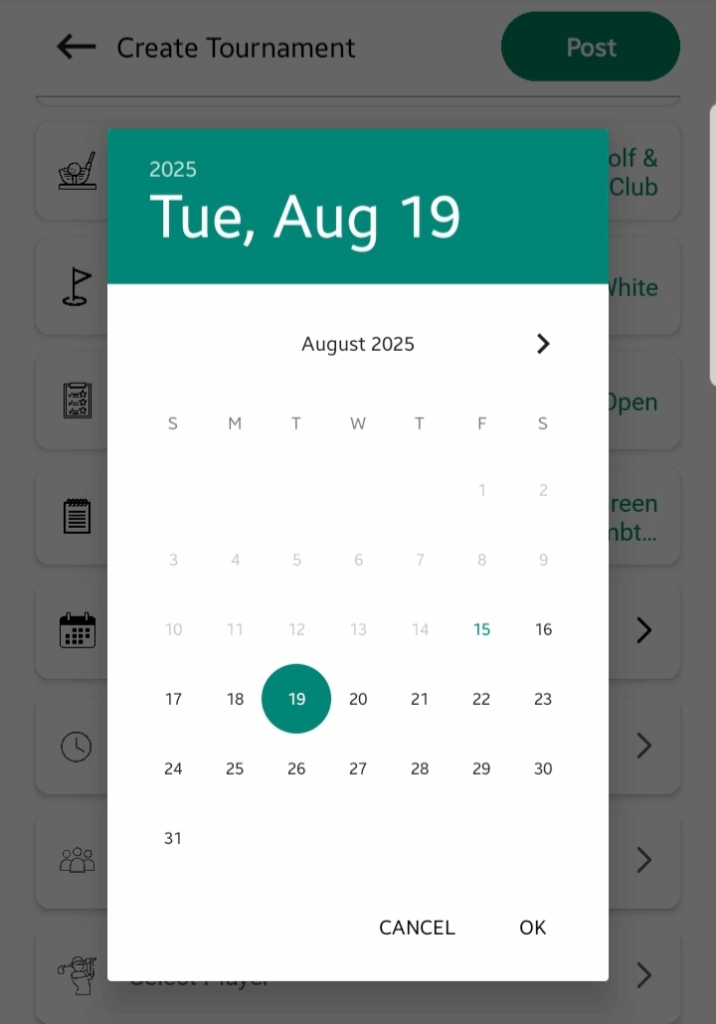
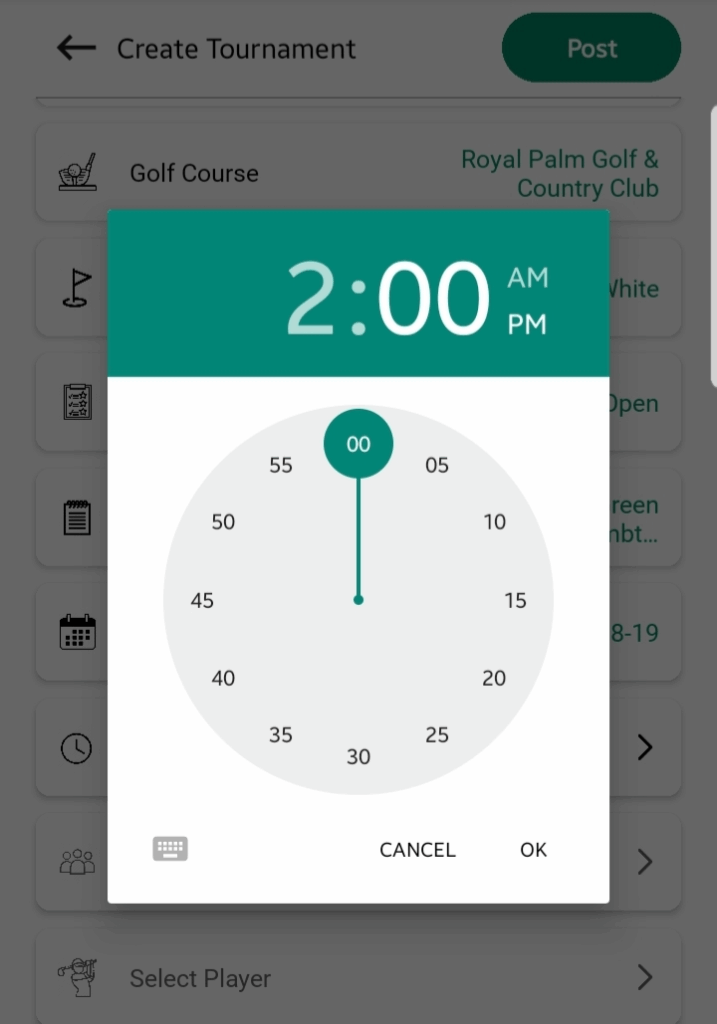
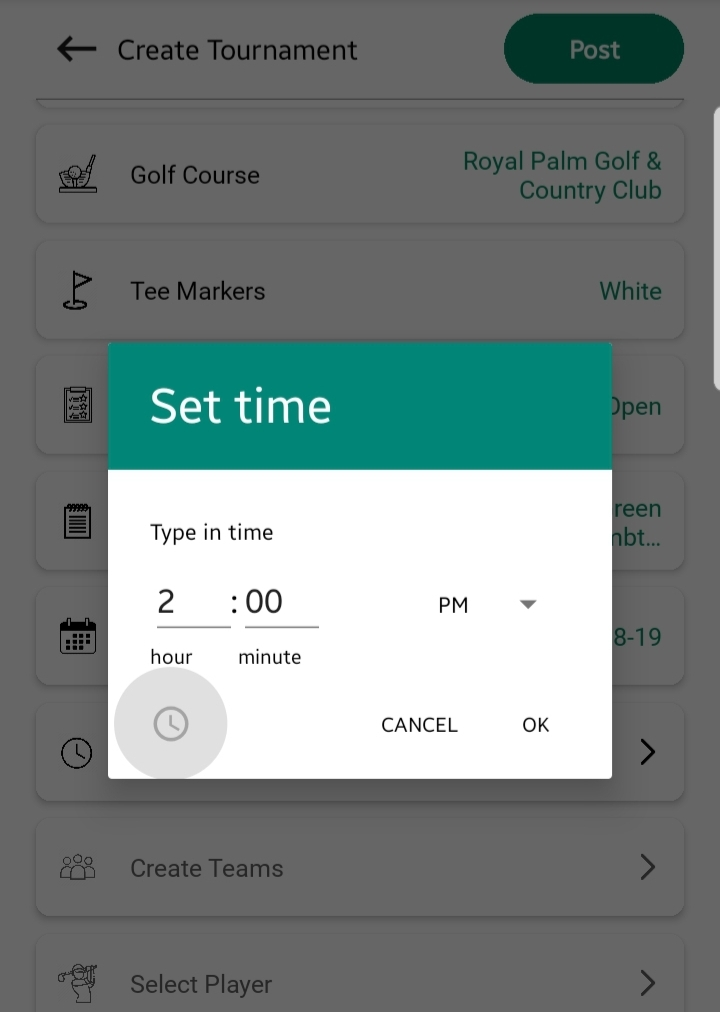
Date & Time
Choose the official date and time at which the tournament will commence.
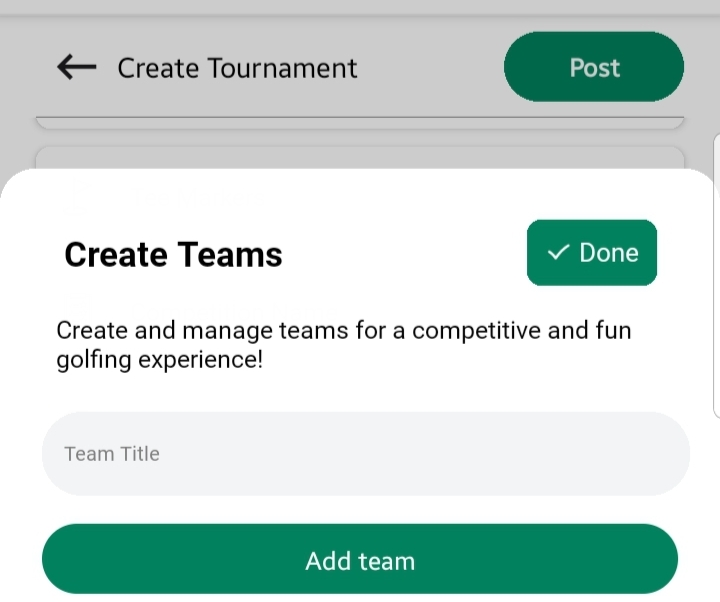
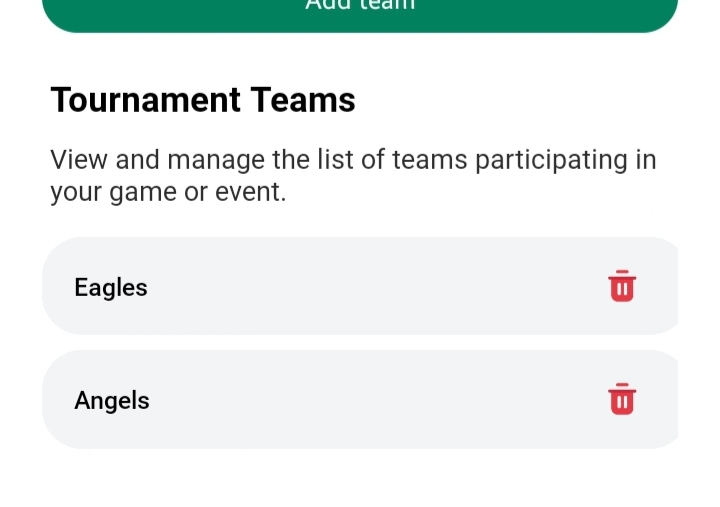
Create Teams
You can create teams and add players in those teams. This field is required if your Scoring Method is Scramble or Best Ball. You can add as many teams as you want.
Select Players
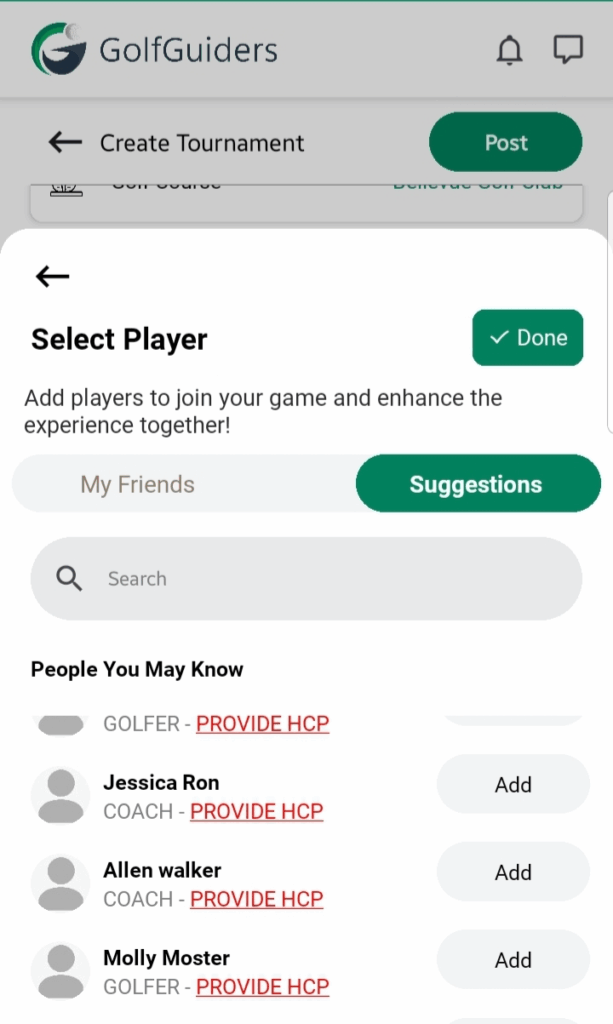
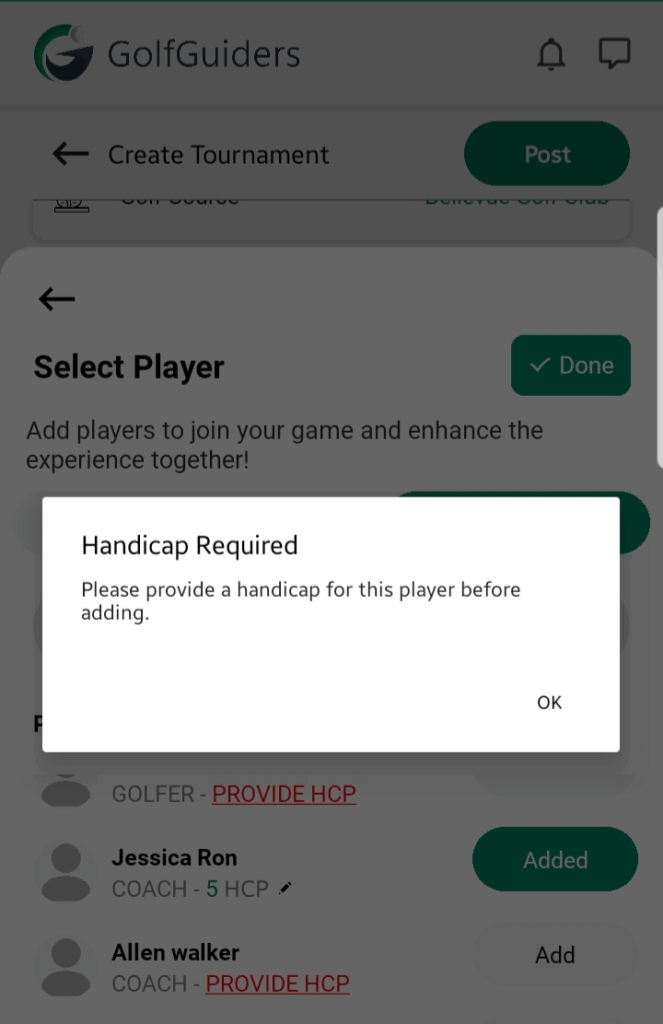
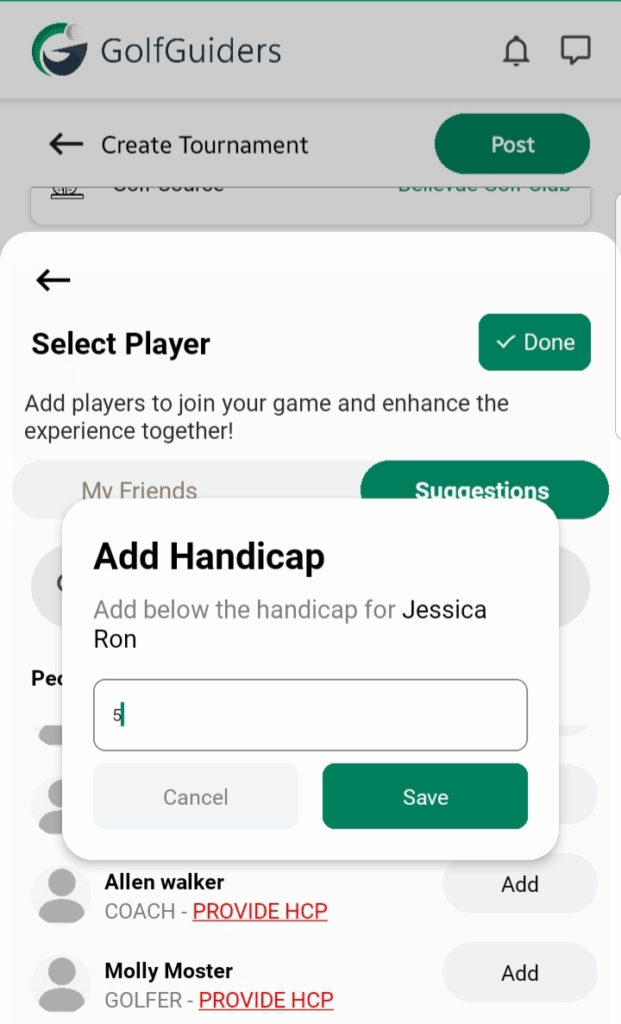
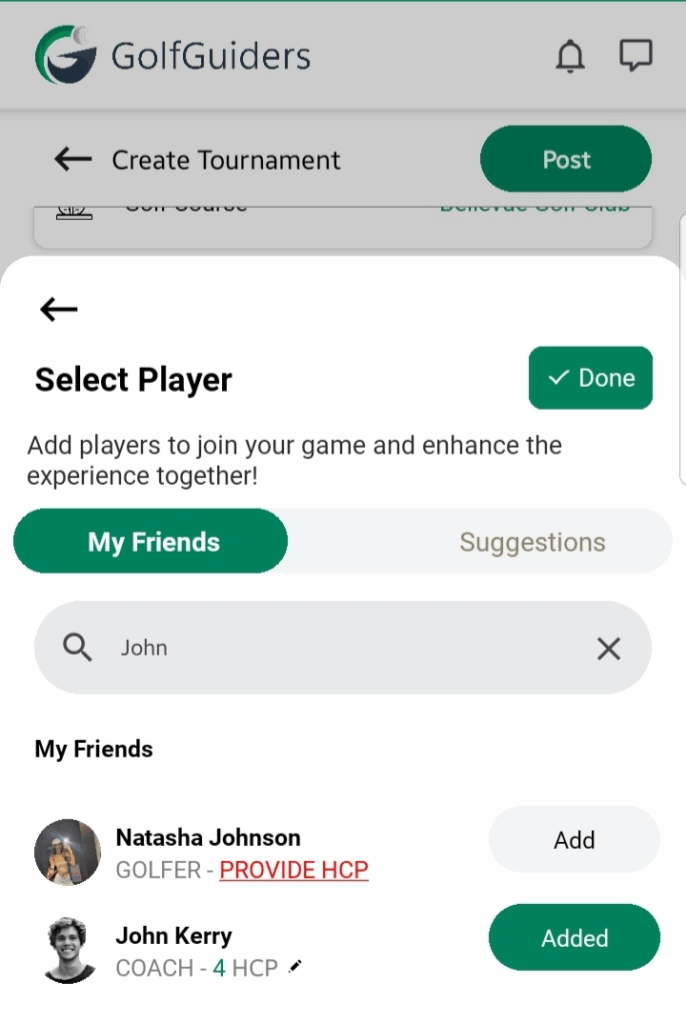
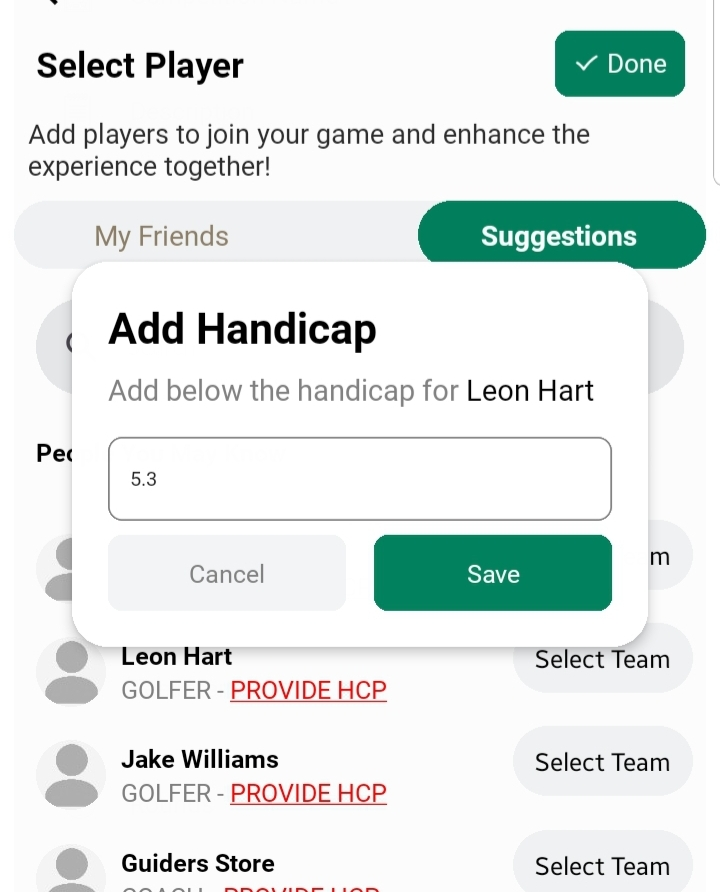
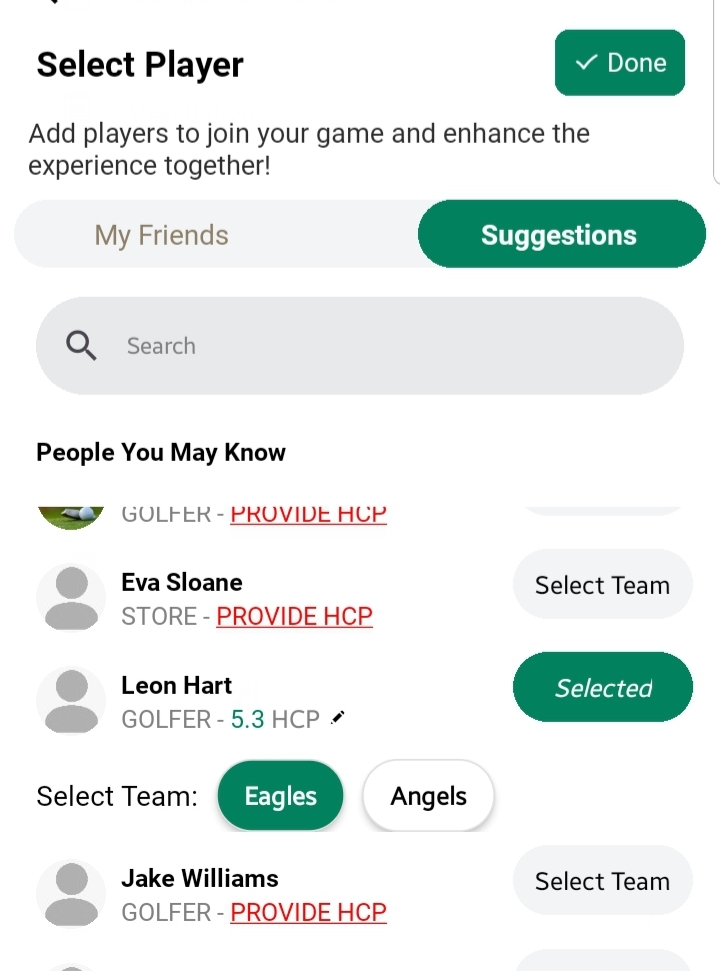
You can add players in your tournament individually as well as in teams (if available). Opens player selection sheet with Friends and Suggestions tabs.
Tap a user to add them, then:
- Assign HCP (Handicap) value via Provide HCP.
- If teams exist, tap Select Team and choose the appropriate team.
- If no teams, tap Add to include them individually.
Atleast two players are required for each team
Add Individual Players
Add Players as Teams
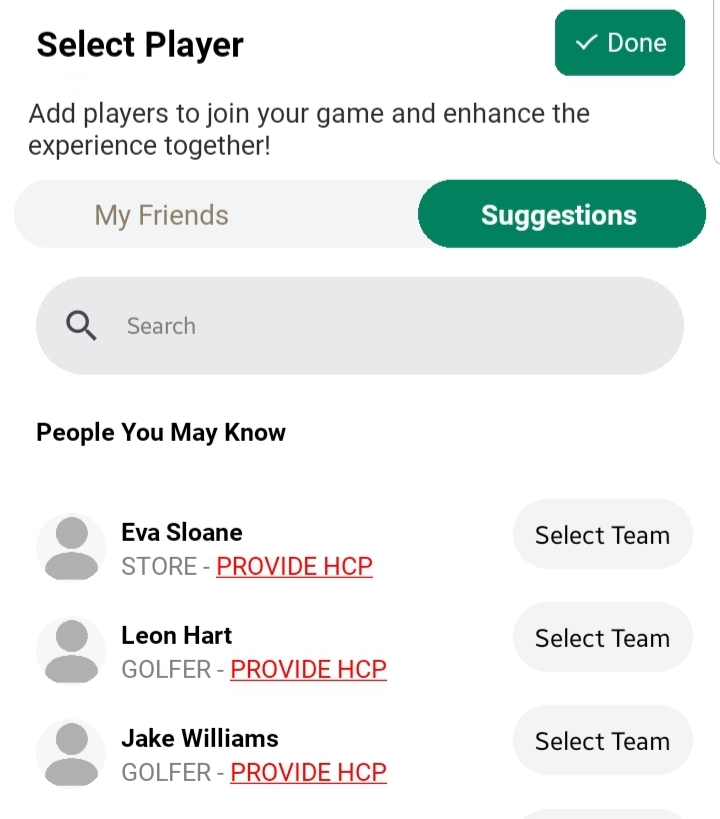
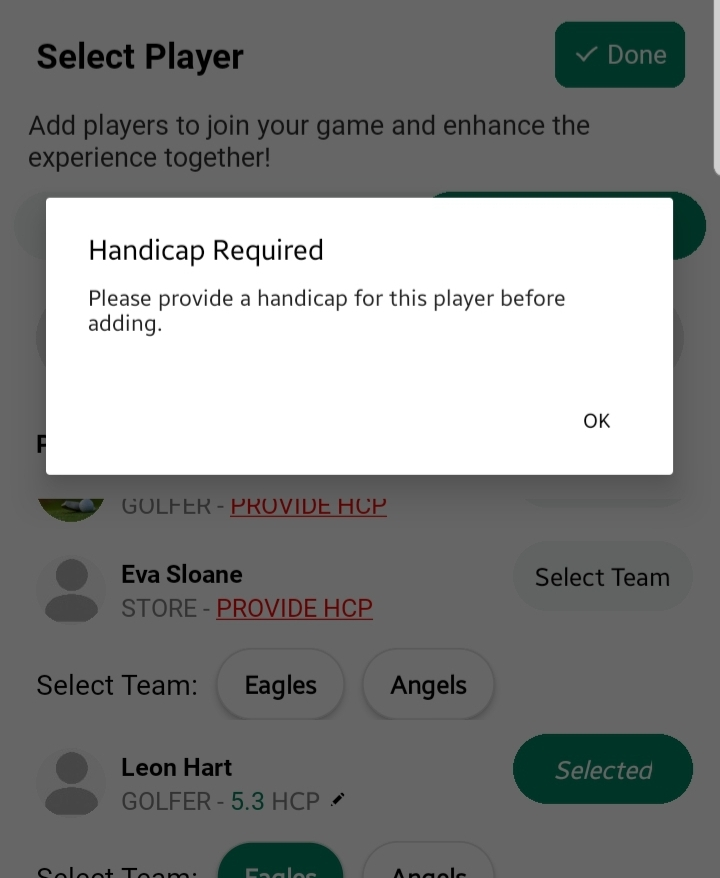
Tee Intervals
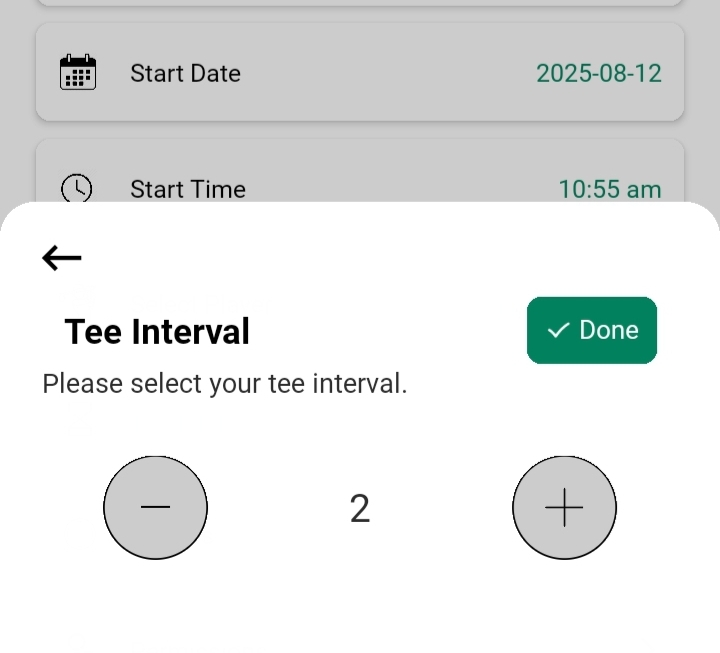
Tee intervals is the gap between group tee-offs. You can adjust tee intervals in your tournament (minimum intervals is 2 minutes).
Rounds
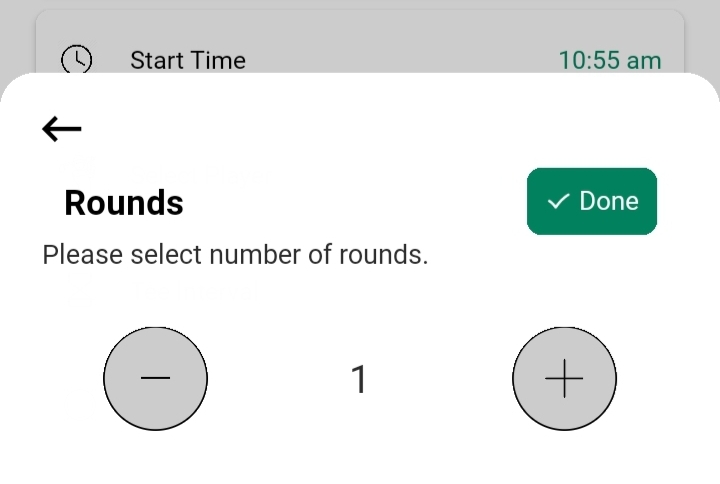
Tournaments are incomplete without rounds. You can adjust rounds in your tournament (min 1 round, max 18 rounds)
Permissions
Organizer can assign permissions allowing a player to add scores for another specific player.
Two fields:
– Pick a Player (who will add scores i.e Jessica).
– Choose a Player (whose scores will be added i.e John).
Tap “Grant Permission” to give access to player for adding score i.e Jessica will add score for John
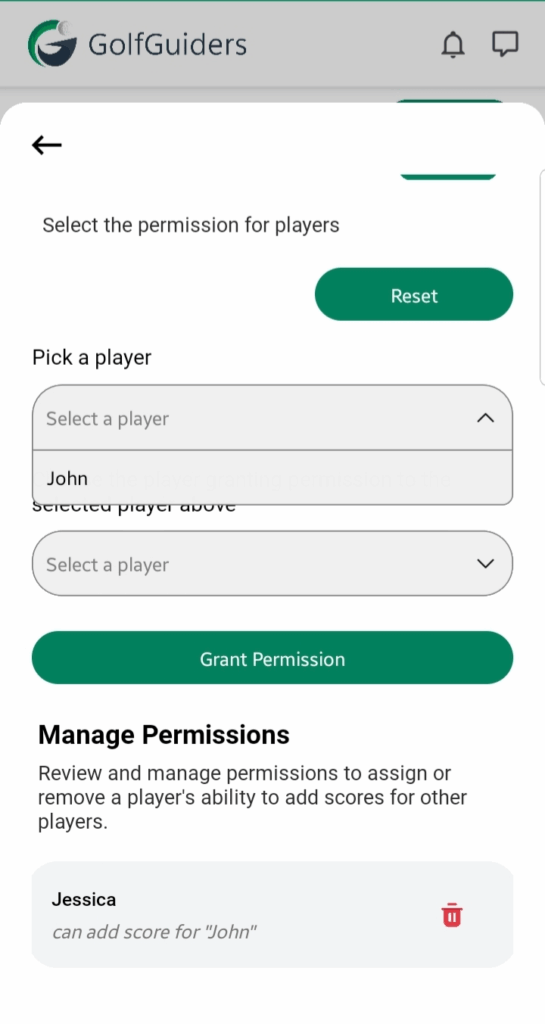
if Player A have permission to add score for Player B, then Player B can only add score for Player A and can’t add their scores / can’t play the tournament
Actions
- Post (top-right): Creates the tournament, sends invitations, and finalizes the setup.
- Back Arrow (top-left): Discards the setup without saving.
Notes & Best Practices
- Ensure scoring method matches the skill level of participants.
- Double-check player HCP values for fair competition.
- Once Tournament started, no further edits are allowed — verify all details before starting time.
- Use co-organizers effectively to manage scoring and communication during the event.