
The Orders and Fulfillment section enables store owners to manage all incoming orders, track their progress, update fulfillment statuses, and communicate with customers regarding order activity. It is divided into two parts:
- Manage Orders
- Returns and Refunds
Manage Orders
This section provides a streamlined interface to view, process, and update customer orders.
Order Tabs
Upon opening the Manage Orders screen, you’ll see multiple tabs, each representing a stage of order processing:
- In Progress – Orders that have been placed and are pending shipment
- Partially Shipped – Orders that have been partially fulfilled
- Shipped – Orders that have been fully dispatched
- Completed – Successfully delivered orders
- Cancelled – Orders that were cancelled before fulfillment
📌 Orders are organized under their respective tabs for easy tracking and management.
Search Function
A search bar is provided at the top of the screen to help filter orders by order number. Please note:
- The search only applies to the currently selected tab
- To find an order outside the selected tab, switch to the relevant tab and search again
ℹ️ This helps maintain performance and context within each order status.
Order Cards
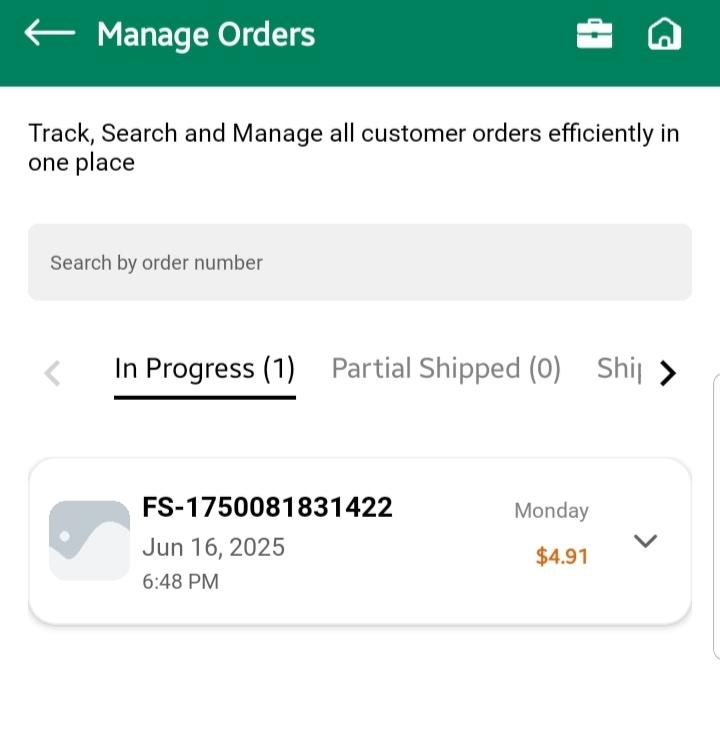
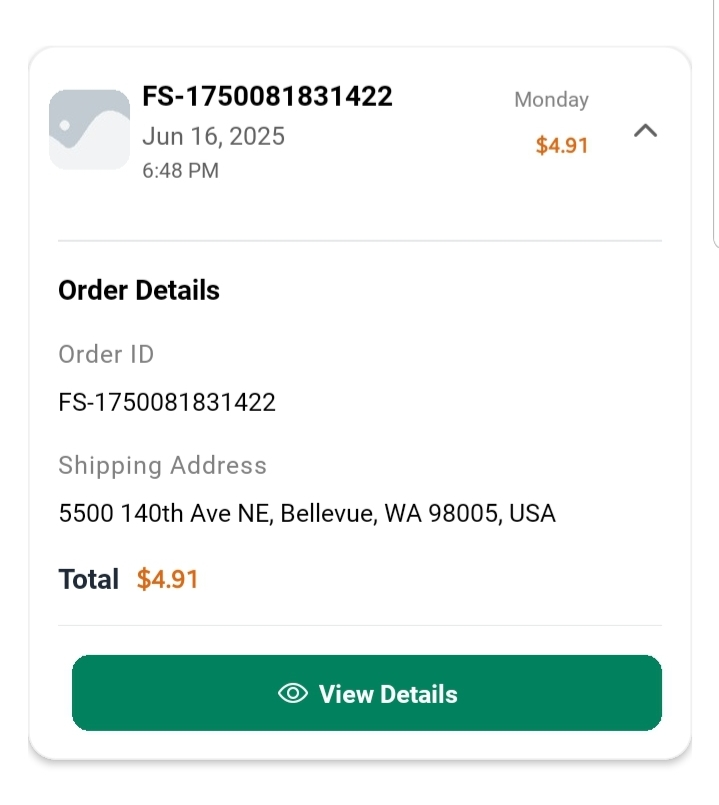
Each order is displayed as a card showing the following information:
- Order Number
- Date, Time, and Day
- Total Price
- Order Thumbnail Image
- Arrow-down Icon (▼) to expand the card
Tapping the arrow icon expands the card to display brief Order Details, including:
- Order ID
- Shipping Address
- Total Amount
- A “View Details” button
Order Details Screen
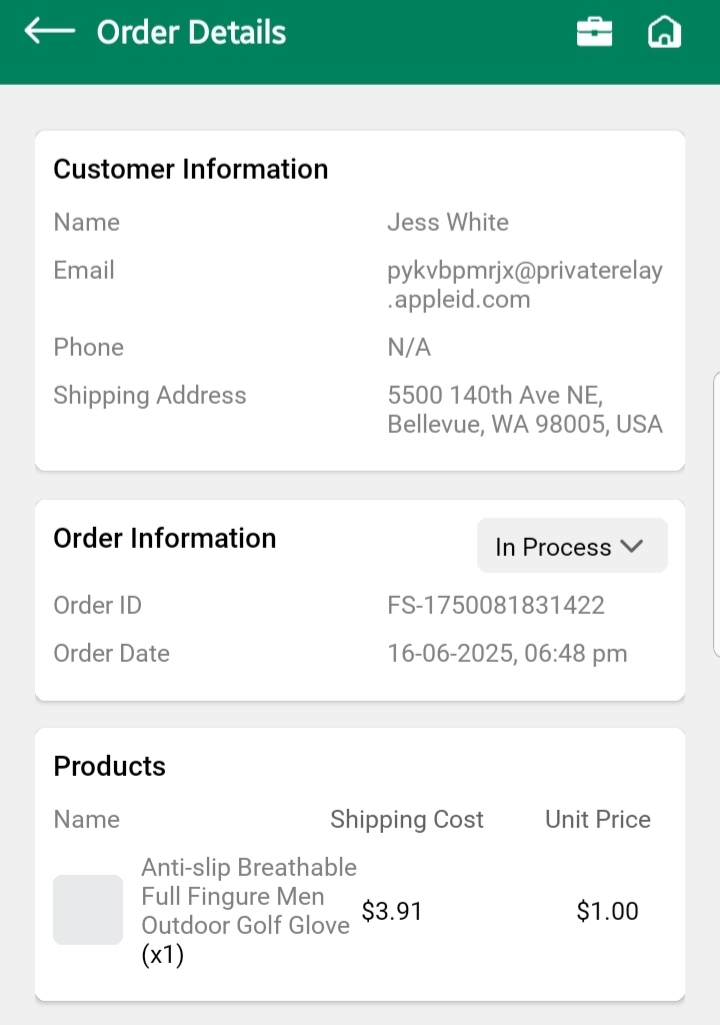
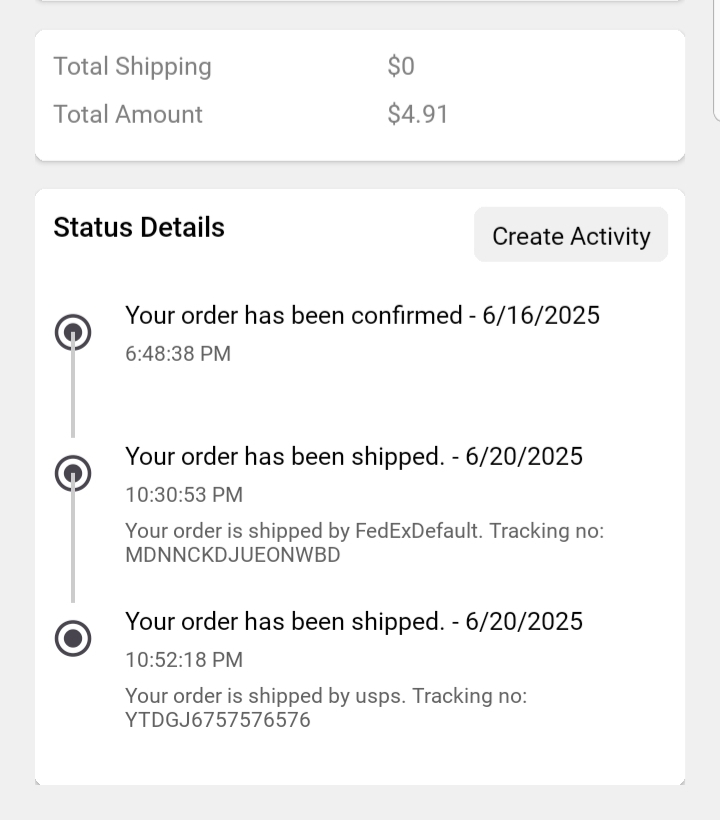
When you tap “View Details”, a dedicated screen opens with full order information, including:
Customer Information
- Customer name, contact, and shipping address
Order Information
- Products ordered, quantities, and total price
- Current order status
You can update the order status from:
- In Progress → Shipped → Delivered
- You may also choose to Cancel the order at any point before it’s completed
⚠️ Status changes are irreversible. Once an order is marked as Shipped or Delivered, it cannot be moved back to a previous status.
Status Details (Order Activity)
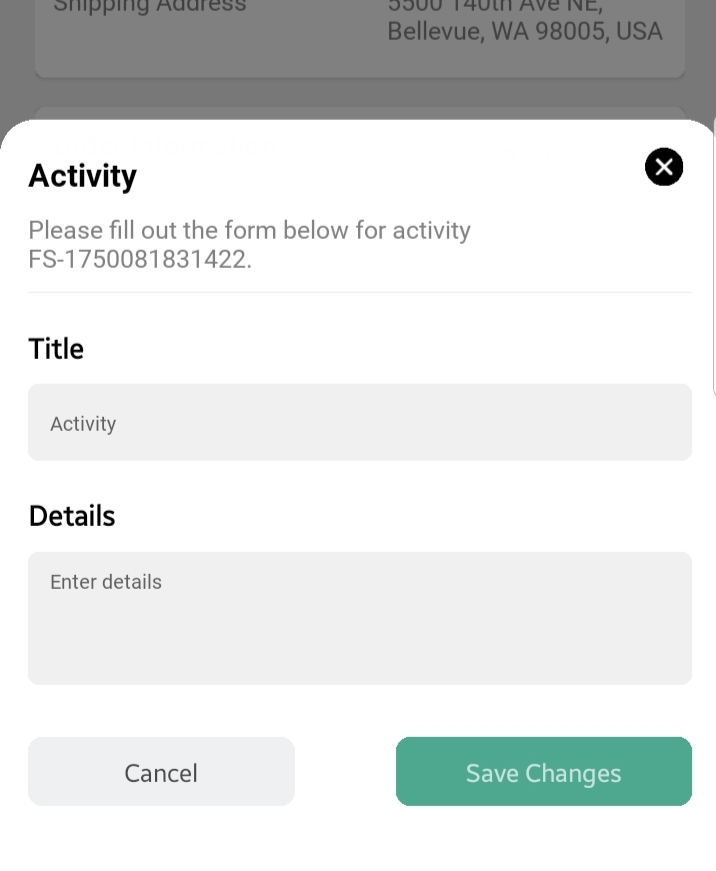
This section allows you to record updates and messages that reflect the progress of the order. These activities are visible to the buyer and help them stay informed.
To add a new status update:
- Tap “Create Activity”
- Fill in the fields:
- Valid Title (e.g., “Order Confirmed”, “Shipped via FedEx”)
- Valid Description (e.g., “Your order has been shipped and will arrive in 2–3 business days.”)
- Tap “Save” to post the activity
- Tap “Cancel” to discard if needed
All saved activities will appear in the Status Details section for the buyer to view.
🛎️ This feature enhances communication, builds trust, and improves buyer satisfaction by keeping them informed in real-time.
Returns and Refunds
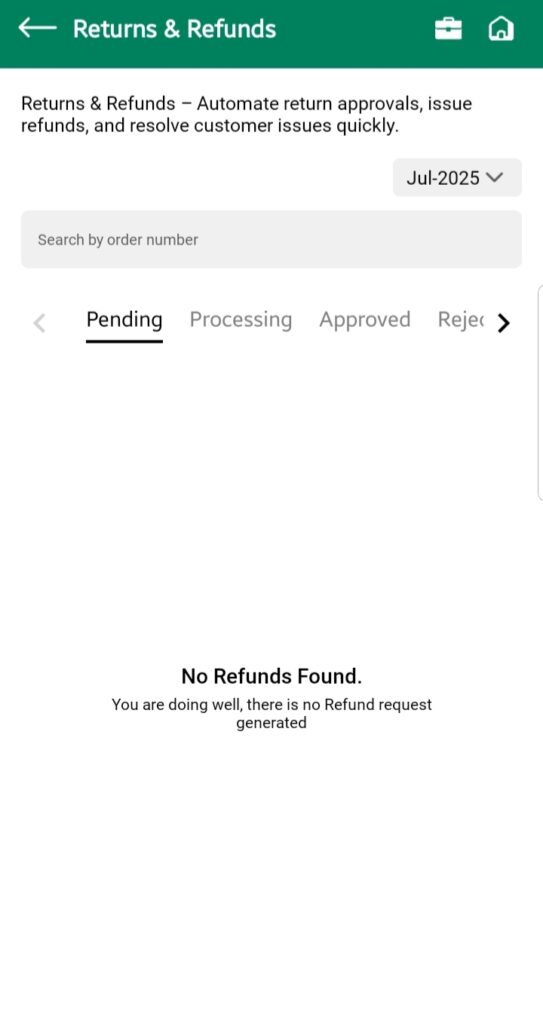
The Returns and Refunds screen mirrors the structure and user experience of the Manage Orders section, designed specifically for managing post-order customer service.
Status Tabs
Return requests are sorted under:
- Pending – Request submitted, awaiting review
- Processing – Under evaluation or in progress
- Approved – Return/refund approved by the store
- Rejected – Request declined with reasons (if any)
Filter & Search
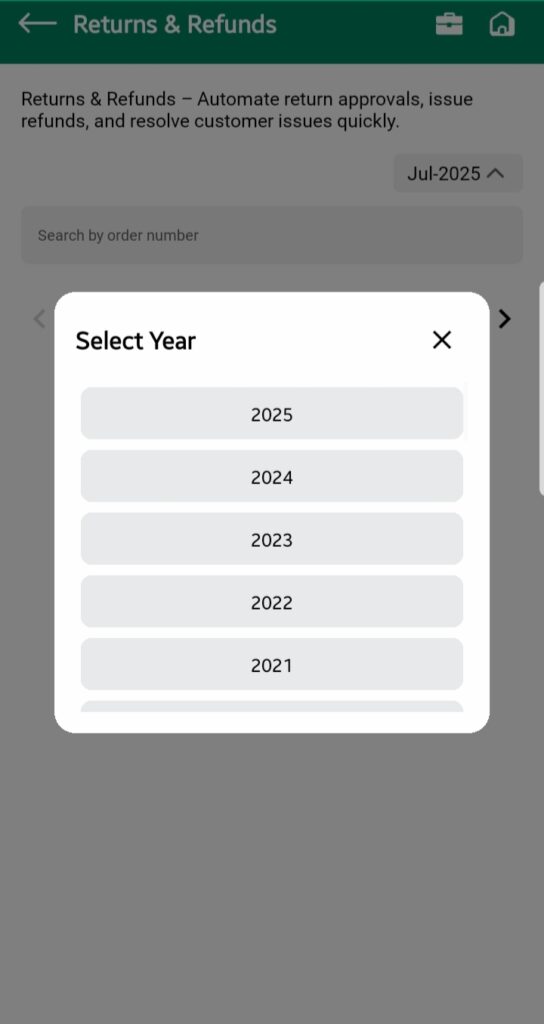
- A Month/Year filter dropdown helps isolate return requests by time period
- A search bar below filters request data within the currently selected tab only
Return Request Cards
Each return/refund request is displayed as a card showing:
- Request Number
- Submission Date and Time
- Requested Refund Amount
- Thumbnail (if available)
- Expand (▼) to view:
- Request Summary
- Return Reason
- “View Details” button
In the details screen, store owners can:
- Review item condition and reason
- Update request status (Approve/Reject)
- Add notes or activity logs (if needed)
📌 Always follow your store’s return policy when processing requests.