
This module allows sellers to view and manage all customer orders, track their statuses, and update shipping details. It includes real-time order analytics, status-wise grouping, and a detailed update flow for each order.
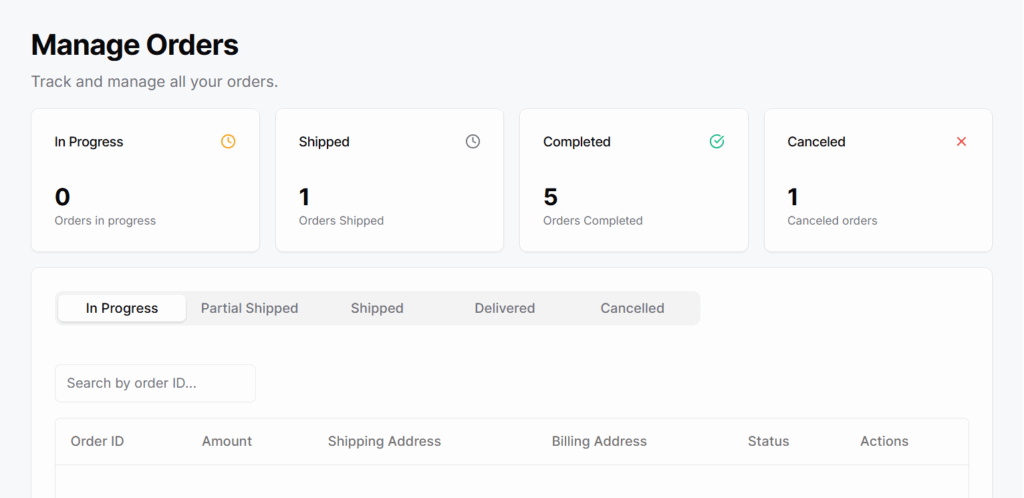
Top Summary Cards
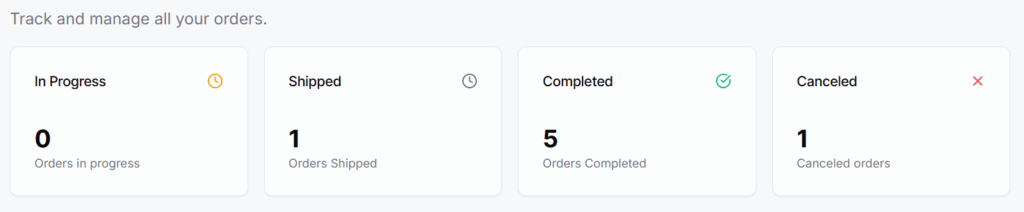
Cancelled— Orders that were cancelledIn Progress— Total orders currently being processedShipped— Orders that have been dispatchedCompleted— Successfully delivered orders
Order Tabs
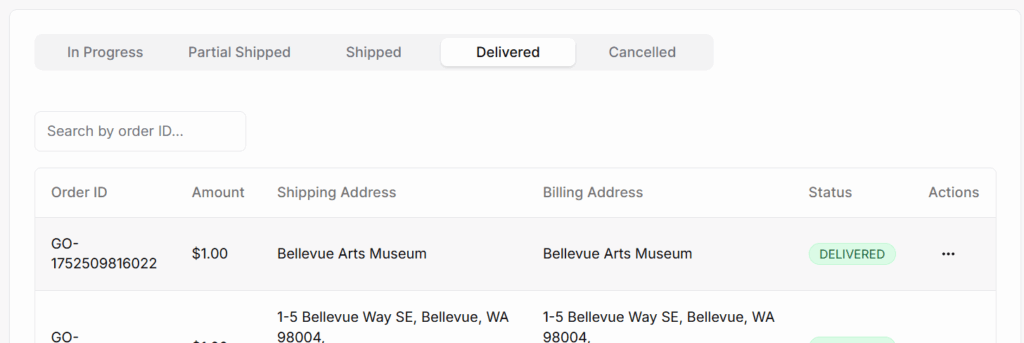
Below the summary, there’s a tab panel with the following status-based tabs:
- In Progress
- Partial Shipped
- Shipped
- Delivered
- Cancelled
Search & Table Block
Each tab shows a searchable and paginated table with these columns:
- Order ID
- Amount
- Shipping Address
- Billing Address
- Status
- Actions
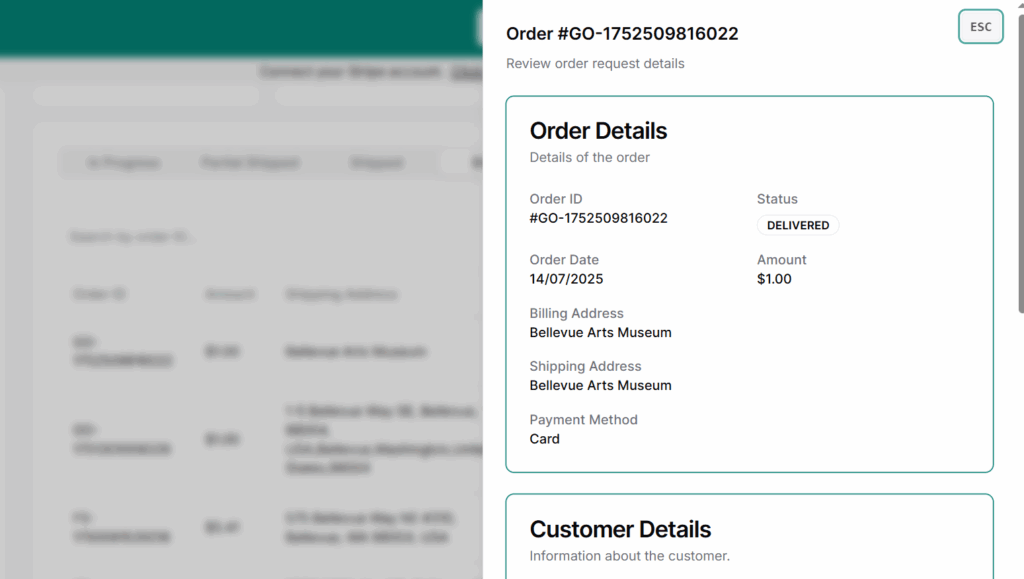
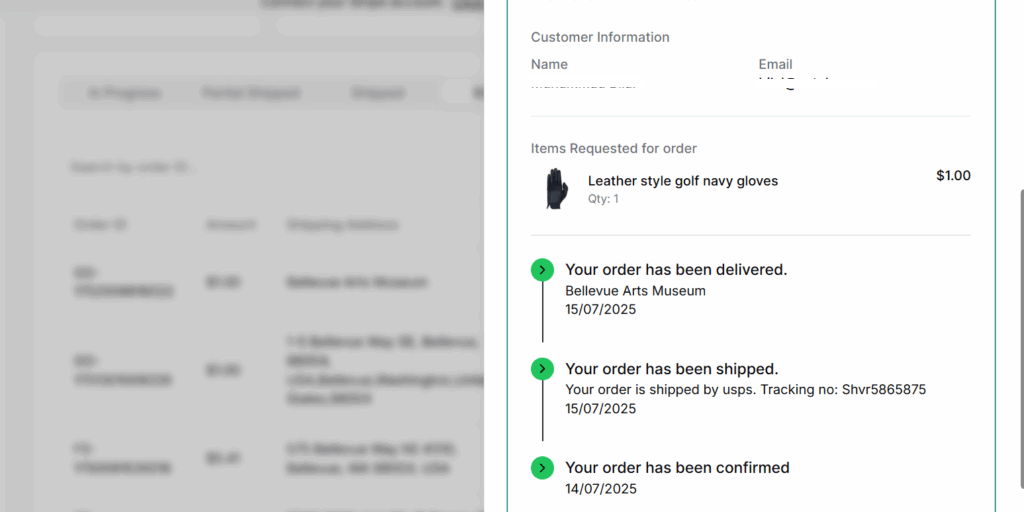
View Details – action
Opens a detailed summary of the selected order, including product list, quantities, customer info, payment method, and shipping details. Helps in verifying and tracking individual order history.
Update Status
Allows you to change the current status of an order. You can select a new status, choose a shipping partner, enter a tracking number, and add activity notes. Some status changes are restricted once an order is marked as delivered or cancelled.
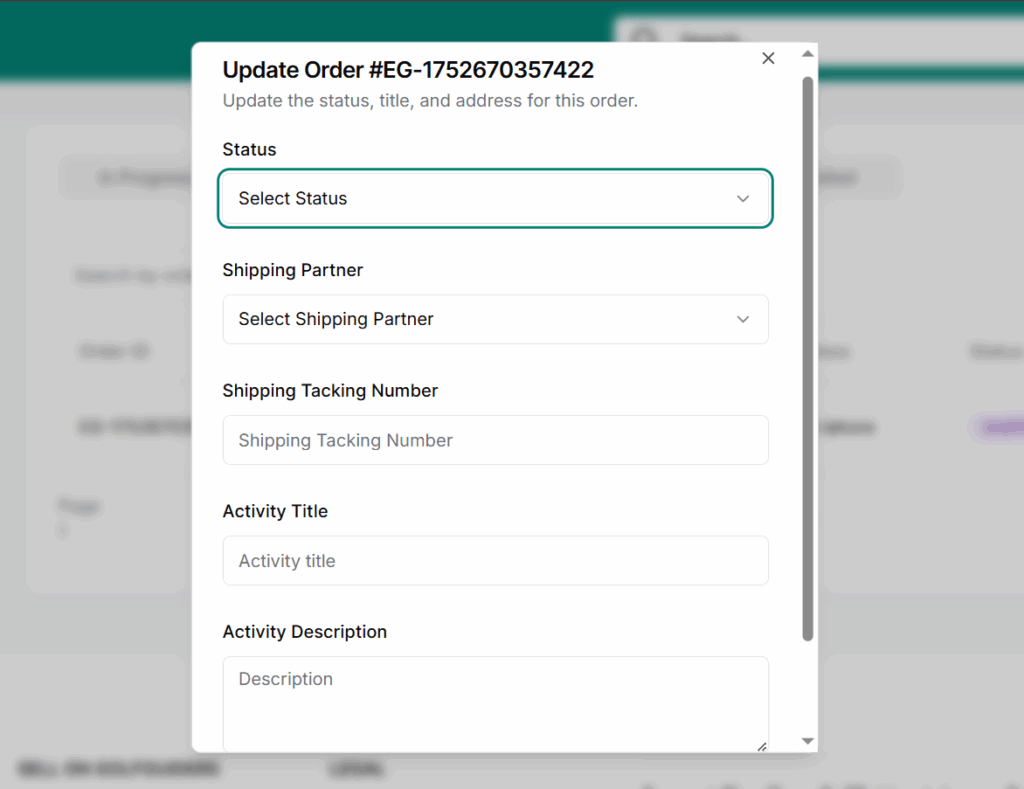
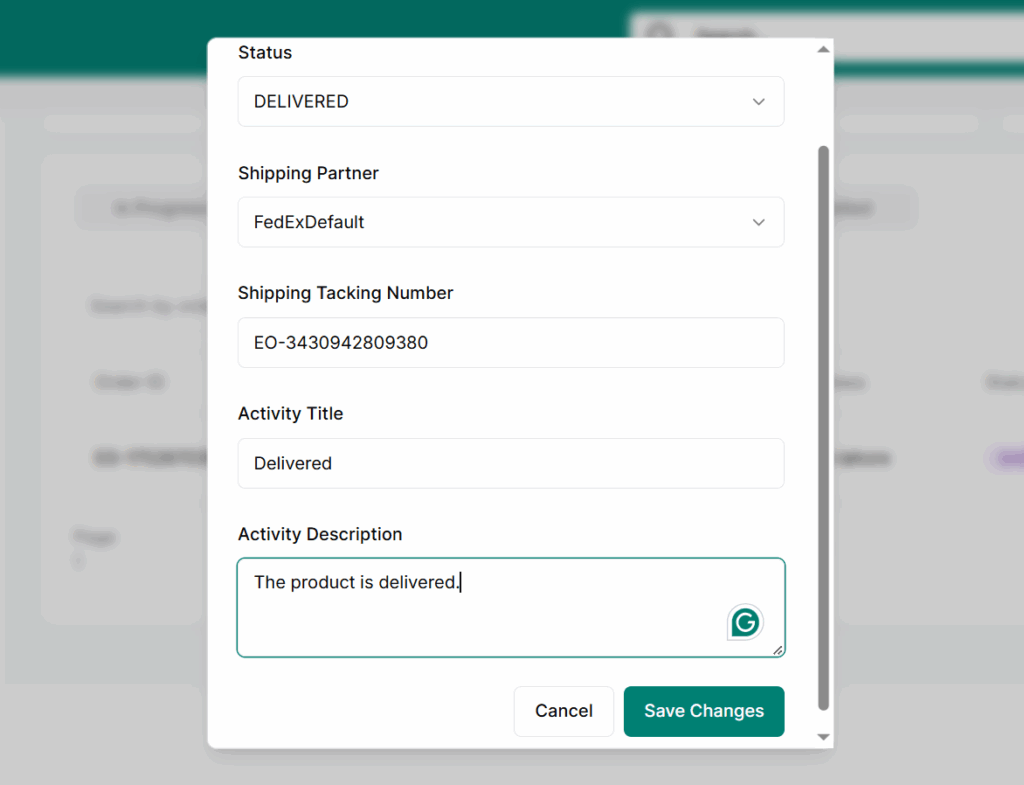
- Select New Status – Options depend on current status
- Shipping Partner –
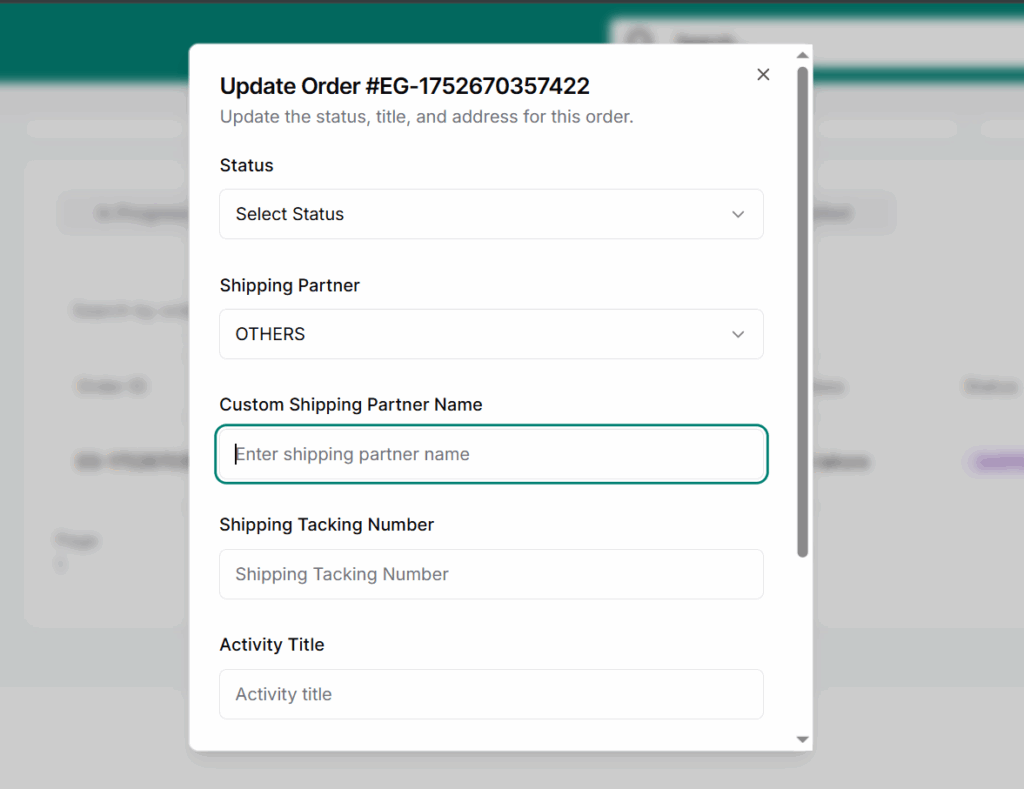
USPS,FedExDefault, orOthers
(if “Others” is selected, a new field appears to enter custom name) - Tracking Number – Required if shipping is selected
- Activity Title – Brief title for the update
- Activity Description – Optional notes for logs
- Save Changes – Updates the order and logs the activity
Best Practices
- Avoid marking orders as Delivered manually unless you’re 100% sure.
- Always double-check the shipping partner before marking an order as shipped.
- Use clear activity titles (e.g. “Shipped via FedEx”) to track order history.
- If using “Others” as a shipping partner, always fill in the custom name for clarity.
- Regularly monitor Partial Shipped tab to ensure timely follow-ups.