
The Products section allows sellers to manage all store inventory — including adding, editing, deleting, and previewing individual products.
This interface ensures you can easily control product visibility, pricing, categorization, and packaging details, all from a centralized dashboard.
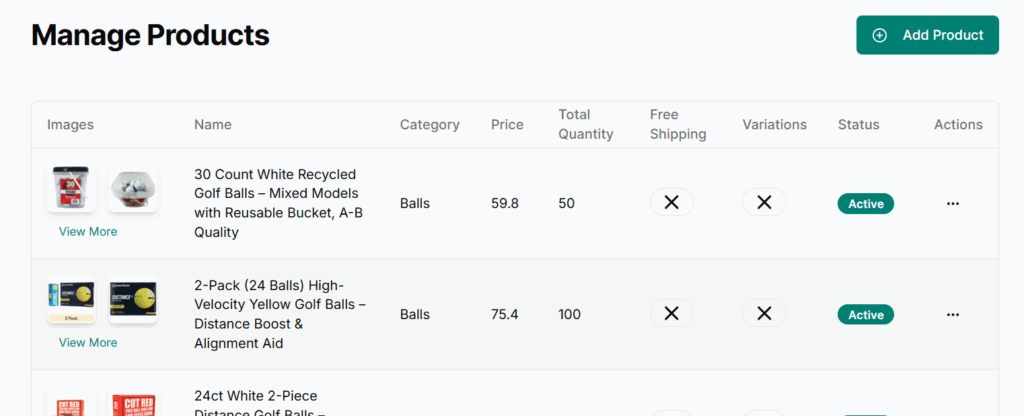
Product List Table
- Displays all existing products added to your store.
- Each row contains product name, price, quantity, and status.
- Add Product
- Click the “Add Product” button in the top-right corner above the table.
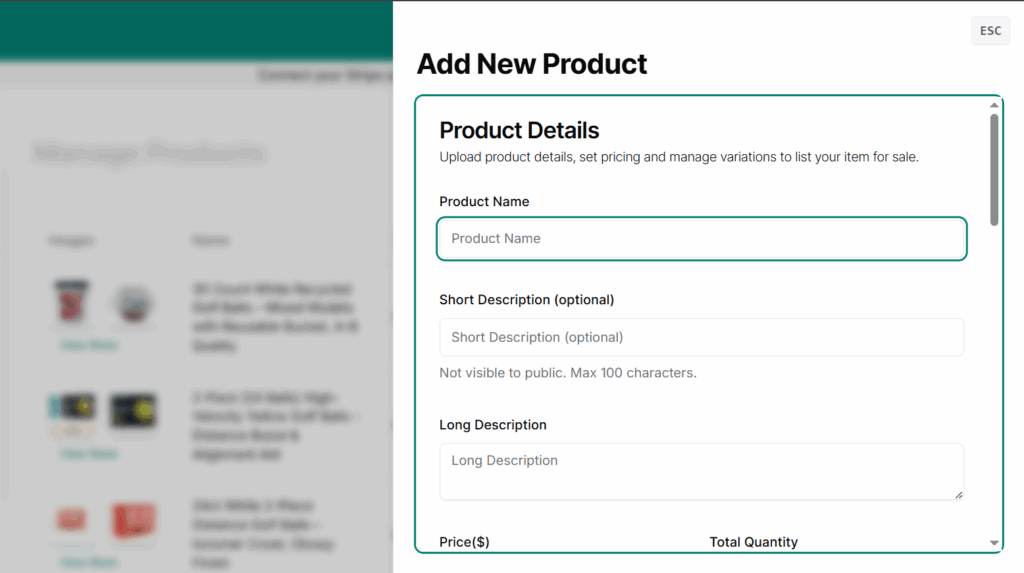
- A side panel will open from the right with a detailed form.
- Product Actions
Available through the three-dot menu in the last column:- Edit – Opens the product form with existing values filled in.
- Delete – Removes the product after confirmation.
- View – Opens a public-facing product detail page, allowing you to preview the product as a customer.
Add / Edit Product
Clicking Add Product or Edit opens a form in a right-side panel. The fields include:
Basic Information
- Product Name (Required)
- Short Description (Optional, max 100 characters – internal use only)
- Long Description (Visible to customers)
Pricing & Stock
- Price (USD)
- Quantity
Categorization
- Main Category
- Dropdown of platform-wide categories (e.g., Apparels, Gear)
- Your Store Page
- Dropdown list of your custom store pages (e.g., Wearables)
- Page Category
- Dropdown of subcategories within the selected store page (e.g., Shirts)
🧩 These fields help customers filter and find your products efficiently.
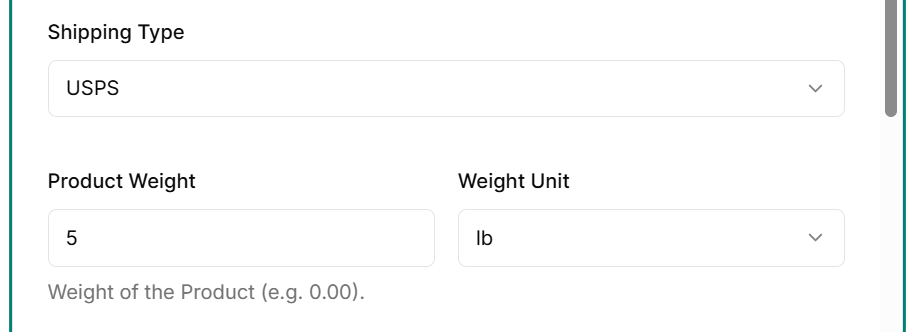
Shipping & Package Details
Shipping Type (Dropdown: USPS, FedEx Default)
Product Weight + Weight Unit (oz, lb, g, kg)
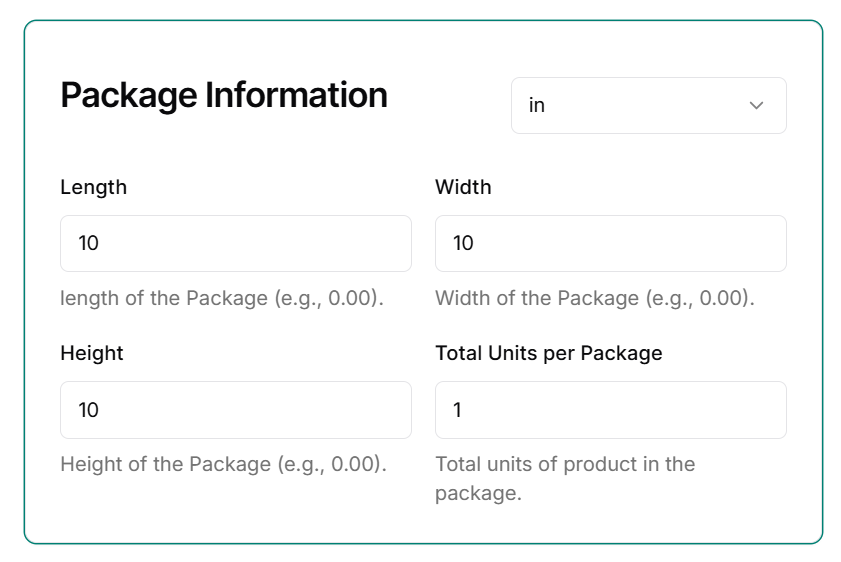
📐 Package Information
Unit (in, cm, m, mm, ft)
Length, Width, Height
Total Units per Package (How many products in one shipment)
Additional Options
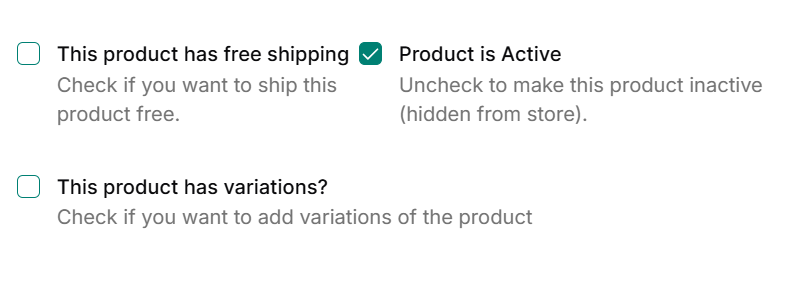
Free Shipping
Product is Active (hide/show from/to customers)
Variations enables the Variation Groups section
Variations Management
Add Group
Click “Add Group” to define a new variation type. You can create multiple groups such as Color or Size.
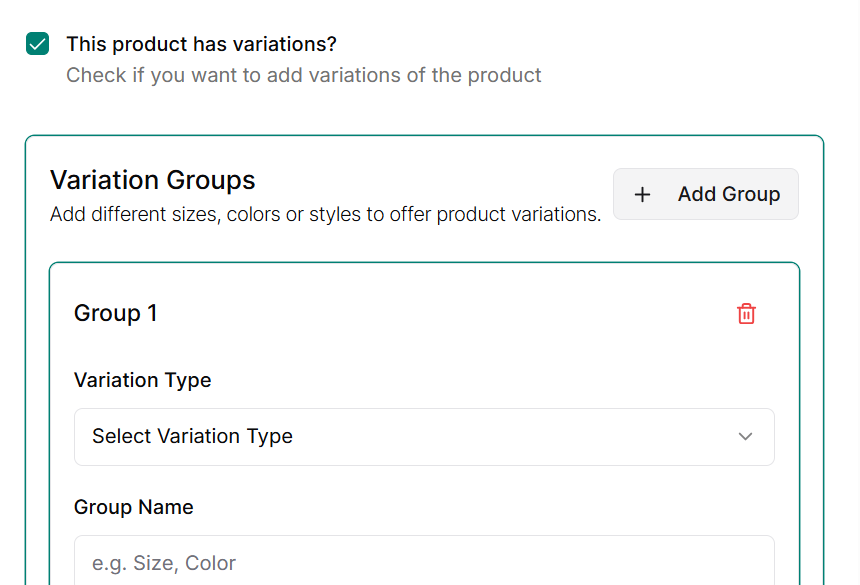
Add Variation Group
Each variation group includes:
- Group Name – Seller-defined label (e.g., “Size” or “Color”).
- Group Type – Choose between:
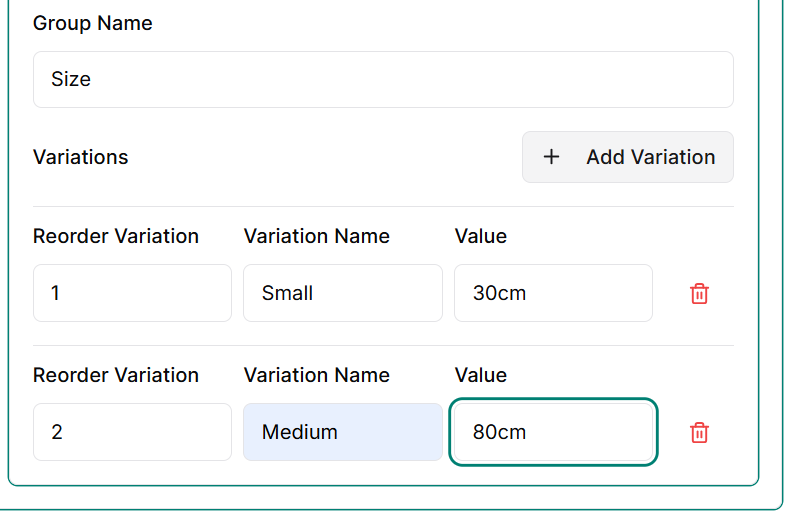
- Size – Text-based values (e.g., Small, Medium).
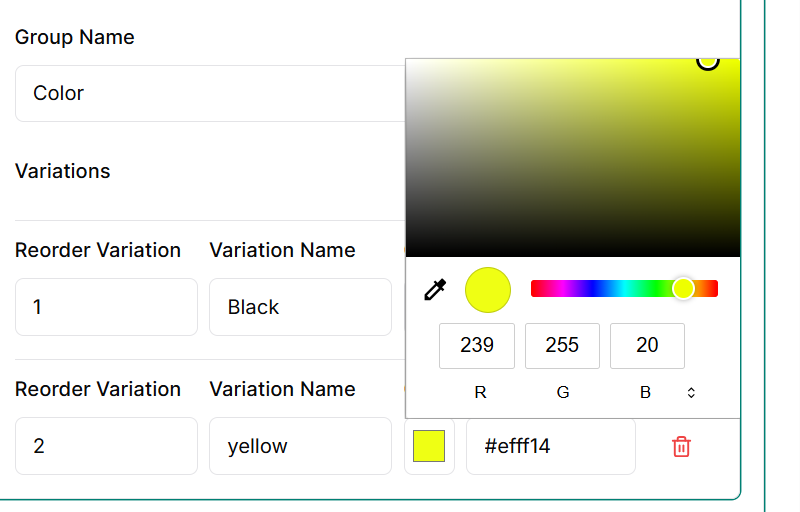
- Color – Color picker interface with optional custom color name.
After setting a group, sellers can add individual variation options.
For Size, sellers can define custom text-based values and optional additional info (e.g., length or weight).
For Color, sellers select colors via a palette and optionally assign color names. The value field is auto-generated.
Variation Pricing
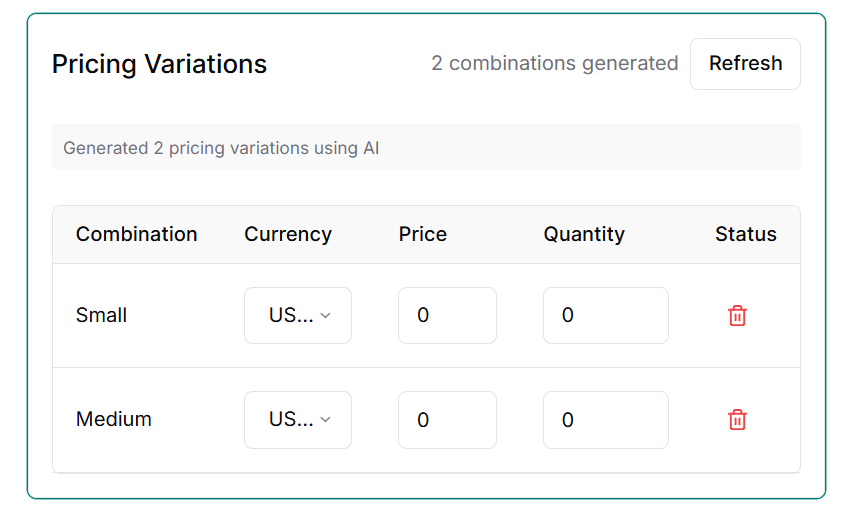
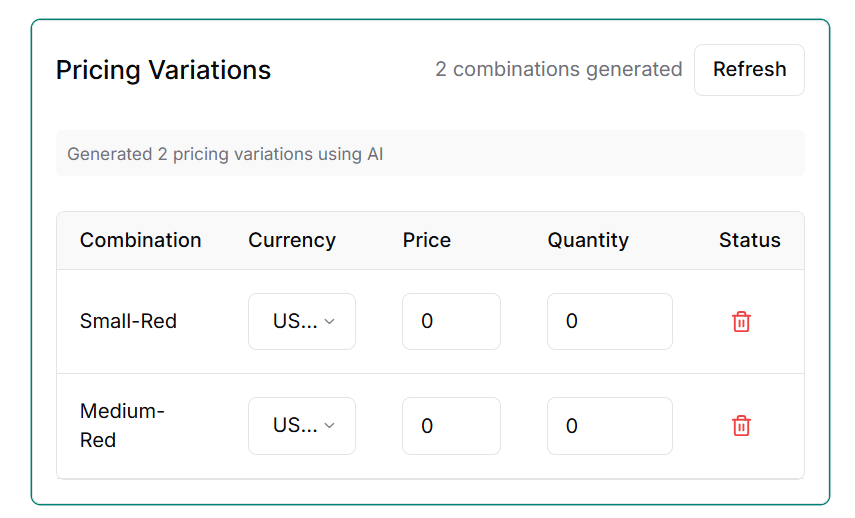
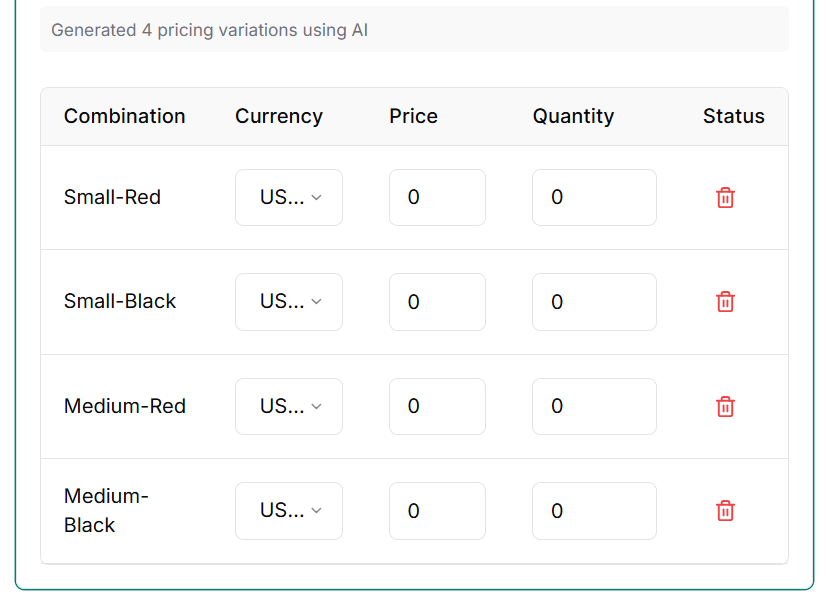
Once more than one variation option is added, the system auto-generates all possible combinations using AI.
Each combination appears as a row under the Variation Pricing section with editable fields:
- Combination Name – Auto-generated (e.g., Small-Red).
- Currency – Default set to store’s base currency.
- Price – Editable price for each variation.
- Quantity – Stock count for the variation.
- Actions – Option to delete a specific combination.
Examples:
If only “Size” group has values Small, Medium, two pricing rows will appear.
If both “Size” and “Color” are added, all combinations (e.g., Small-Red, Medium-Yellow) are generated automatically.
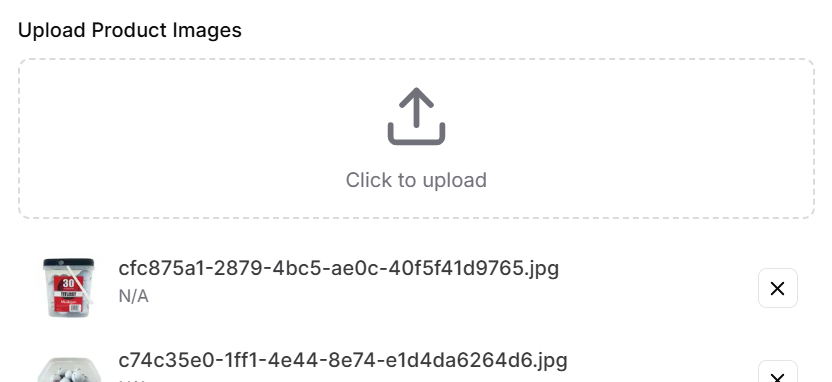
Upload Product Images
Sellers can upload up to 15 images per product. Images should be clear, high quality, and accurately represent the product.
Submit Product
Once all fields are filled and variations are set (if applicable), the product can be submitted for publishing in the store.
Best Practices
- Use consistent naming for products and variations to improve searchability.
- Use long descriptions to highlight product features and benefits.
- Make sure categories are selected—products without categories will not be visible in the store.
- Always double-check pricing, quantity, and variation details before saving.