
The Settings module allows users to manage their GolfGuiders profile and preferences — whether they are store owners, regular customers, or general community members. Changes made here apply globally across the entire GolfGuiders ecosystem, including Golf Store, Golf News, Golf Feeds, and more.
Accessing Settings
Users can access settings by clicking their avatar in the top navigation bar. A dialog menu will appear with the following options:
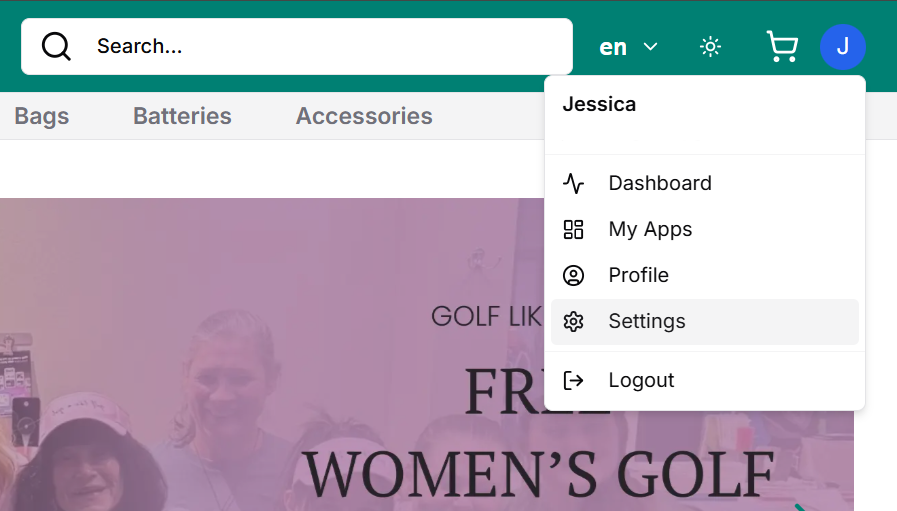
- Dashboard
- Customers → Customer Panel
- Store Owners → Seller Central
- Profile
- Redirects to Settings > Profile
- Settings
- Opens the complete Settings panel, where you can manage
General Settings
Control basic preferences for your experience across GolfGuiders.
- Theme Mode
- Choose between Light and Dark modes.
- Changes are applied instantly across all GolfGuiders interfaces.
- Language
- Select preferred platform language (if multiple languages are available).
- Useful for regional access and better comprehension.
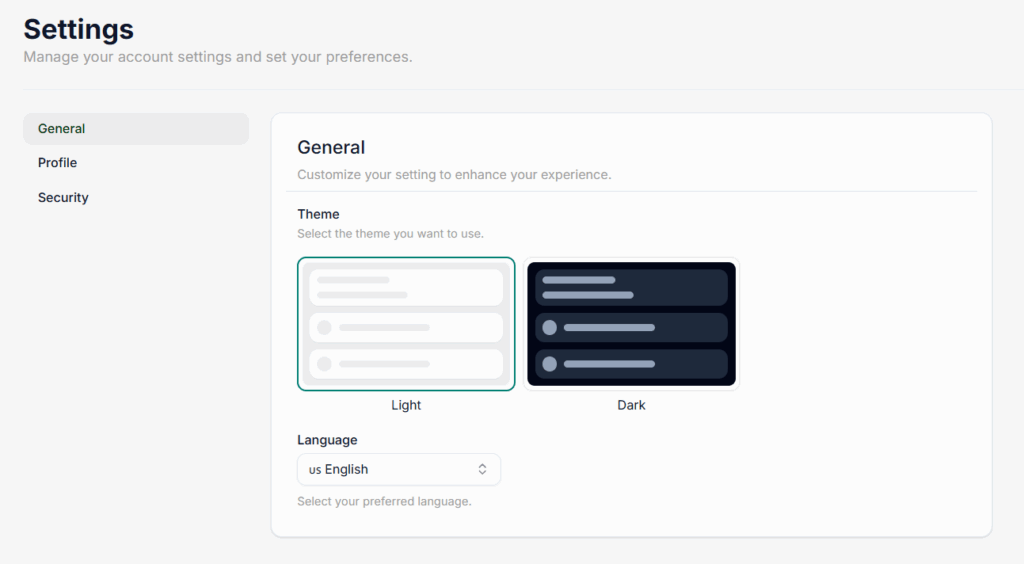
💡 Theme and language preferences are stored per user and persist across all devices when logged in.
Profile Settings
Personalize your public and community-facing identity. Any changes here will reflect across all GolfGuiders services.
- Cover Photo – Upload a wide banner-style image for Golf feeds.
- Profile Photo – Your main display picture (avatar).
- First Name / Last Name – Editable name used platform-wide.
- Gender – Optional, used for personalization.
- Email – Must be unique; used for login and notifications.
- Optional Info:
- Bio – A short description about you.
- Handicap – For golfers who want to showcase their level.
Your golf handicap shows your skill level—e.g., a handicap of 10 means you usually score 10 over par. It’s optional but helps personalize your golfing profile. - Hobbies – Type a hobby and press
Enterto add. Hobbies appear as removable badges.


🔄 All changes made in the Profile tab are reflected globally (e.g., name updated from Golf Store reflects instantly in Golf News).
Security Settings
Manage account protection and password changes.
- Change Password
- Current Password (for verification)
- New Password
- Confirm Password
🔐 Passwords must meet platform security standards and should be updated regularly for better safety.
Notes
- Any setting change is synced across the platform in real-time.
- If you’re logged into multiple GolfGuiders services (Store, News, Feeds), updates will appear immediately across all.
- You can always revisit and update settings from any GolfGuiders module.
Best Practices
- Keep profile information updated, especially name and email for smoother communication.
- Use a clear profile photo and meaningful bio to improve trust in the community (especially useful for sellers).
- Regularly update your password and avoid using the same one across multiple platforms.
- Choose a theme that matches your environment (Dark Mode is ideal for low light).
- Review hobby badges periodically — they shape how other users see your profile.