
The Discounts module in Seller Central allows sellers to create and manage promotional discounts for their entire store or for individual products. Discounts help drive sales and attract customers by offering time-limited price reductions.
Accessing Discounts
- Navigate to the Discounts section from the left-side menu in the Seller Panel.
- You’ll see a list of all currently active or previously created discounts in a tabular view.
Creating or Editing a Discount
Click on the Add Discount button at the top-right of the page to open the discount drawer, or use the Edit option from the Actions menu of any existing discount.
The drawer opens from the right side and contains the following form fields:
Discount Form Fields
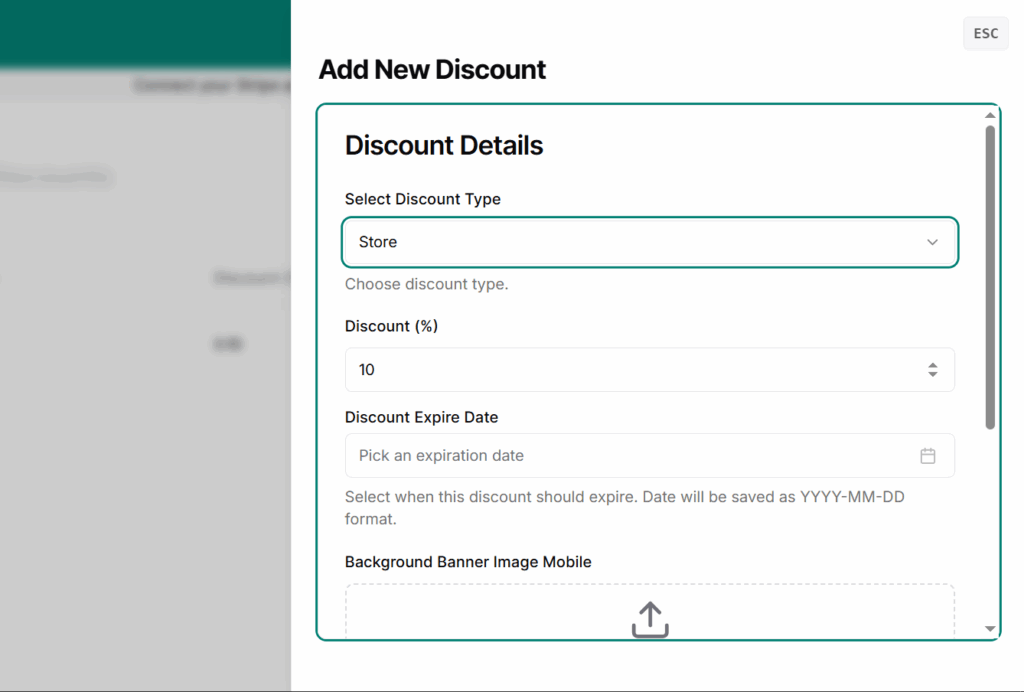
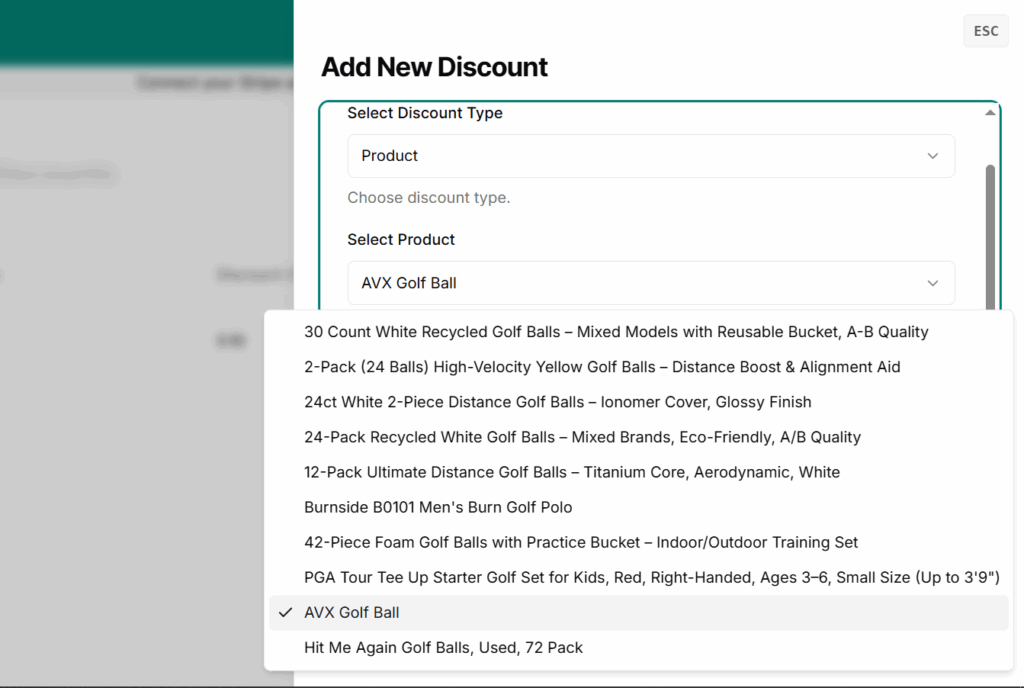
- Discount Type
Store: Applies the discount across the entire store.Product: Applies the discount to a specific product (enables additional field).
- Select Product(only shown when type is Product)
- Dropdown showing all products in the seller’s store.
- Discount (%)
- Input range:
1% – 100% - Required field.
- Input range:
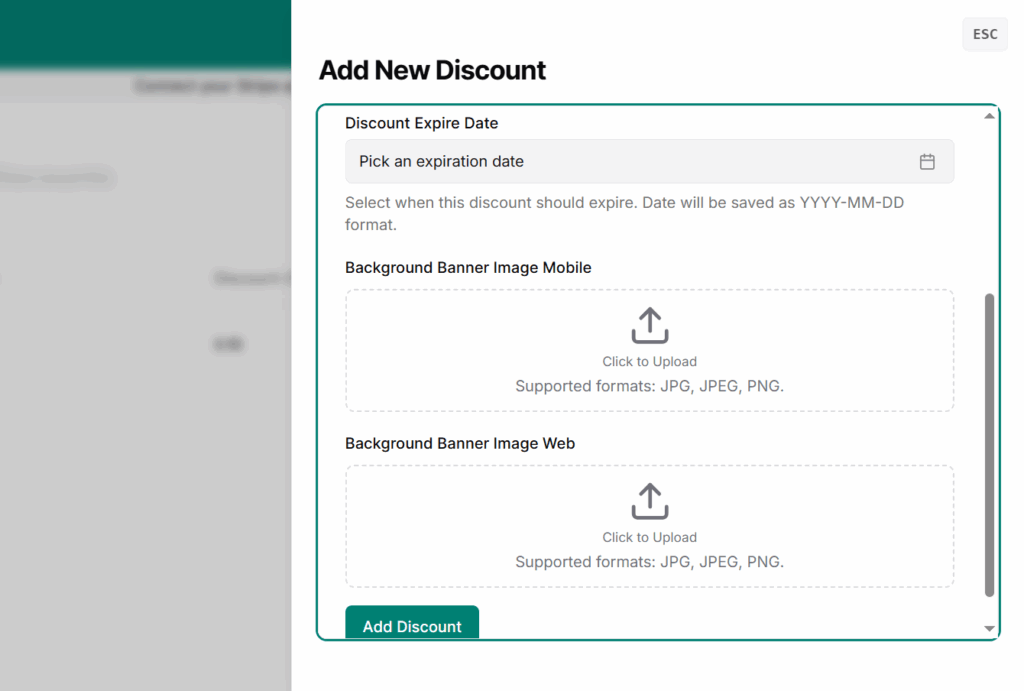
- Discount Expiry Date
- The date when the discount automatically expires and is removed from the product or store.
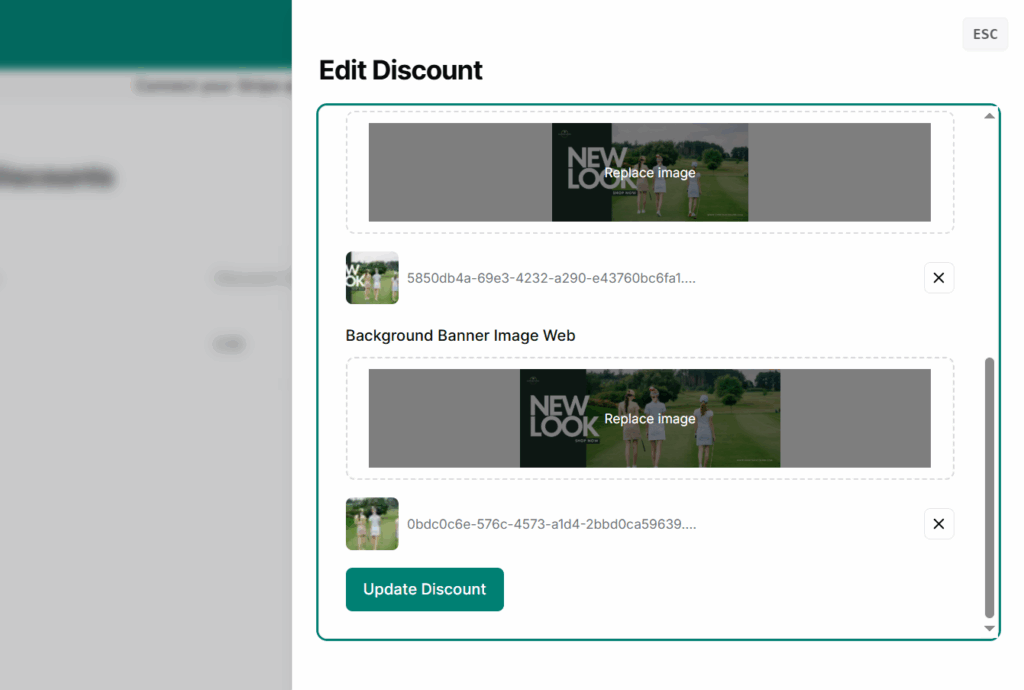
- Background Banner Image (Mobile)
- Required visual banner for mobile layout.
- Background Banner Image (Web)
- Required visual banner for web layout.
After filling out the form, the seller can Save to add or update the discount.
Notes
- Only one discount per product/store can be active at a time.
- Once a discount expires, it is automatically removed and will no longer apply to the relevant product/store.
Discount Listing Table
All existing discounts are displayed in a table with the following columns:
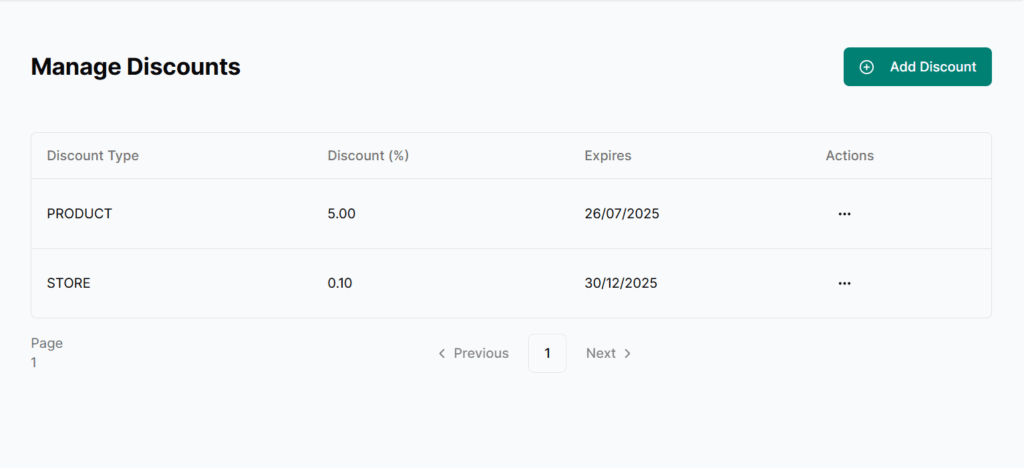
| Discount Type | Discount (%) | Expires On | Actions |
|---|---|---|---|
| Store/Product | % Value | Date | Edit / Delete |
Edit: Opens the discount drawer pre-filled with existing data.
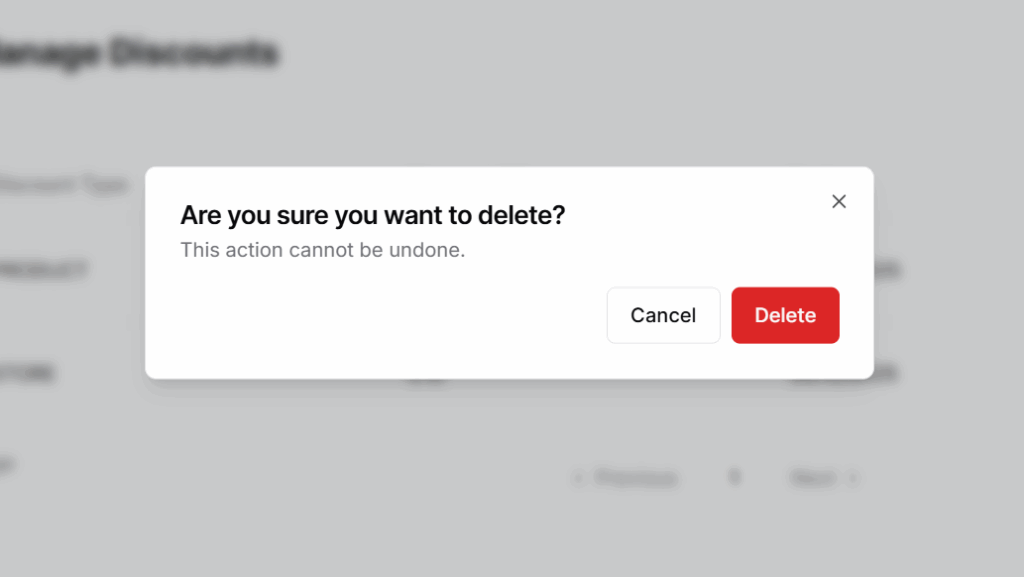
– Delete: Prompts a confirmation before removing the discount permanently.
Best Practices
- Use product discounts for specific promotions → Great for clearing stock or highlighting new arrivals.
- Avoid 100% discounts unless it’s a giveaway → Prevents misuse or accidental free orders.
- Set realistic expiry dates → Avoid too short or too long discount durations.
- Add banners for better visibility → A well-designed banner boosts engagement and clicks.
- Don’t overlap discounts on the same product → The system allows one active discount at a time, so plan wisely.
- Review performance regularly → Analyze which discounts work and adjust strategies accordingly.