
This guide walks you through the Store Customization and Warehouse sections of your seller dashboard. These settings help you shape your store’s visual identity and manage your fulfillment location effectively.
- Use Store Customization to personalize your storefront—upload banners, logo, and define your brand’s look with custom colors and a store description.
- Set up your Warehouse location accurately to ensure smooth inventory handling and delivery operations.
By keeping both sections updated and aligned with your brand and logistics, you’ll offer a more reliable and engaging experience to your customers.
Store Details
Update your basic store information to reflect your brand’s personality and make it easier for customers to recognize and connect with you.
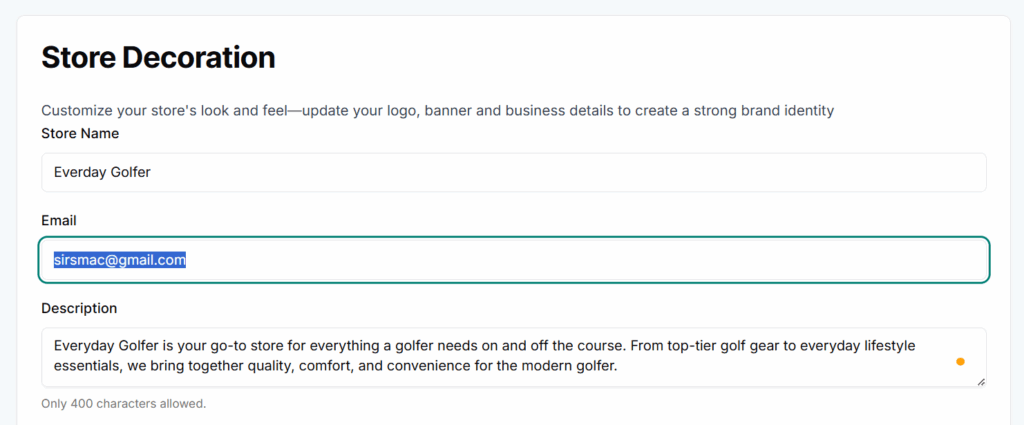
- Store Name:
E.g., Everyday Golfer - Email:
Store contact email for customer inquiries. - Store Description:
Short summary describing your store’s focus and offerings. Limit: 400 characters.
💡 Keep it concise but meaningful. Focus on what sets your store apart.
Mobile Branding
Upload up to 5 mobile cover images to visually enhance how your store appears on mobile devices.
- Recommended file types: JPG, PNG
- Ensure the visuals reflect your branding and target audience.
Web Branding
Upload up to 5 web banner images to create a strong first impression on desktop browsers.
Maintain consistent branding with your mobile uploads.
Store Logo
Upload a high-quality logo that represents your brand identity.
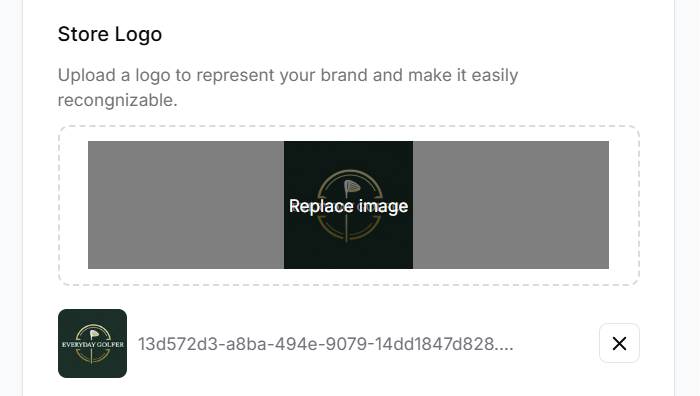
- Logos should be clear and scalable.
- Avoid blurry or stretched images.
Store Colors
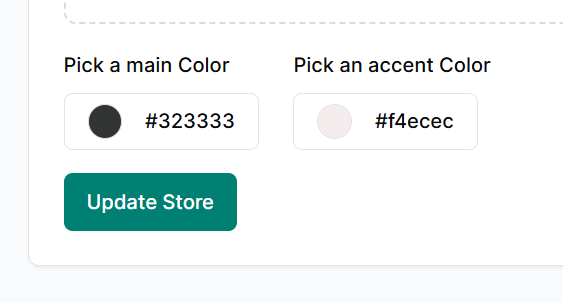
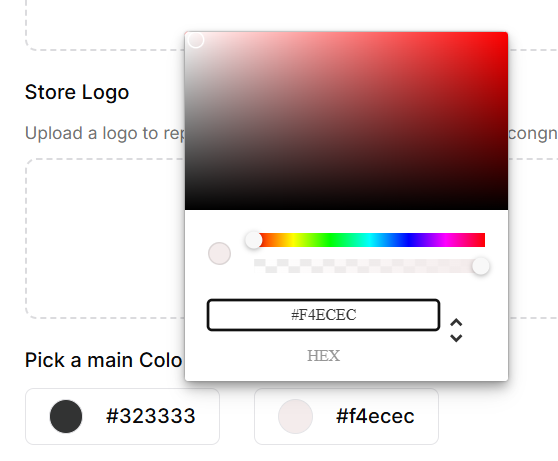
Define your brand’s color theme using:
- Main Color: (e.g.,
#323333)
Used for headers, titles, and core elements. - Accent Color: (e.g.,
#f4ecec)
Used for highlights, buttons, or UI accents.
💡 Choose colors that reflect your brand tone (e.g., professional, playful, luxury).
Update Store
Once you’ve added or changed the above of any field(s), click “Update Store” to save changes.
Best Practices: Store Decoration
- Use High-Quality Images:
Upload clear, brand-consistent visuals for logos and banners (both mobile and web). - Stick to Branding:
Choose colors that align with your logo and product theme. Keep it simple and professional. - Write a Clear Store Description:
Keep it short, keyword-rich, and customer-focused. Use all 400 characters wisely. - Preview on Mobile & Web:
Make sure your design looks good on both screen types. Consistency builds trust. - Avoid Frequent Changes:
Update branding only when necessary to maintain familiarity and recognition.
Warehouse
The Warehouse tab allows sellers to set the location of their store’s fulfillment center. This address is used for managing inventory, calculating shipping zones, and verifying store origin.
ℹ️ Each store can have only one warehouse address at a time.
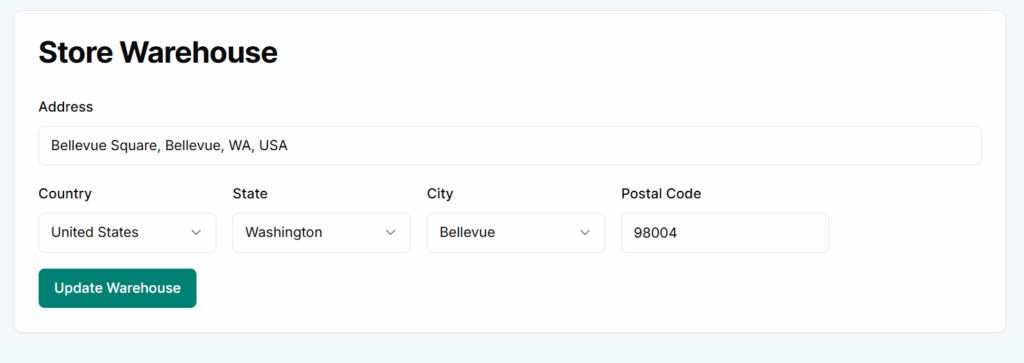
Address Fields
- Address (Text Field)
- Enter the full physical address of your warehouse.
- This can be a street address, building number, or location name.
- 🧩 Tip: Be specific to avoid delivery issues.
- Country (Dropdown)
- Select your country from the provided list.
- This ensures accurate regional settings for shipping and currency.
- State (Dropdown)
- Appears after selecting a country.
- Choose the appropriate state or province for your warehouse.
- City (Dropdown)
- Filtered based on selected state.
- Choose the city where your warehouse is located.
- Postal Code (Text Field)
- Enter your ZIP/postal code to complete the location.
Update Warehouse
After entering all the required fields, click “Update Warehouse” to save your warehouse location.
- You cannot add multiple warehouses.
- If you move your warehouse, return to this tab to update the details.
Best Practices: Warehouse
- Enter Accurate Address:
Use a complete, deliverable address to avoid shipping errors and delays. - Use Dropdowns Carefully:
Always select country, state, and city from the dropdowns—don’t type manually. - Keep It Up to Date:
If your warehouse location changes, update it immediately. - One Warehouse Only:
Plan wisely—you can set only one warehouse, so choose your primary fulfillment point. - Match with Delivery Zones:
Ensure this address aligns with your delivery or logistics partners.