
The Store Pages section allows sellers to manage and organize custom menu pages within their storefront—such as category-specific menu pages or promotional menus.
This interface offers an intuitive way to add, organize, and categorize new pages to enhance store navigation and user experience.
Page List Table
The main screen displays a table listing all existing store pages.
Each row in the table includes:
– Page Name
– Display Order
– Page Status (active/inactive)
– Actions (Edit, Delete)
– Add Page Button
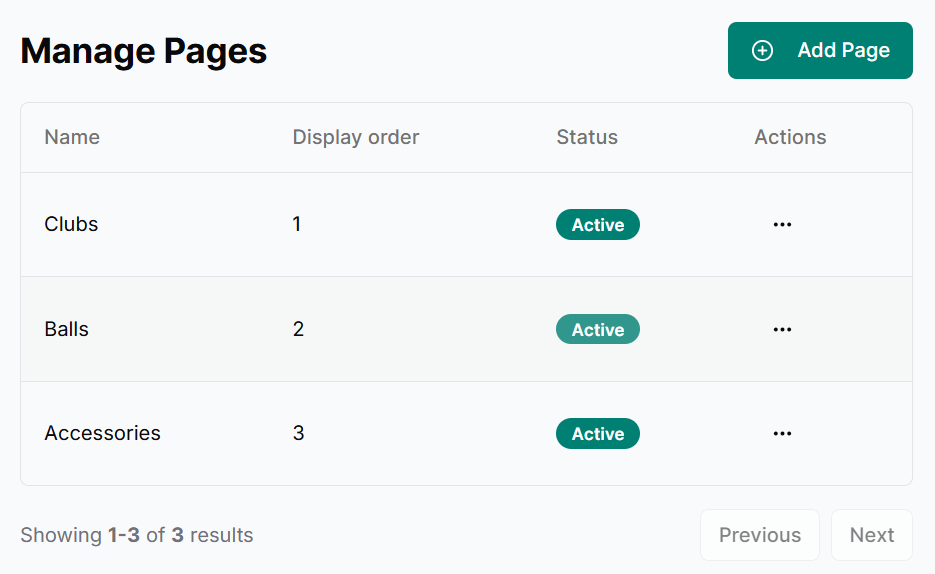
The “Add Page” button (just above the table) opens a page creation form in a right-side sliding panel.
Add New Page
The right panel form includes the following fields:
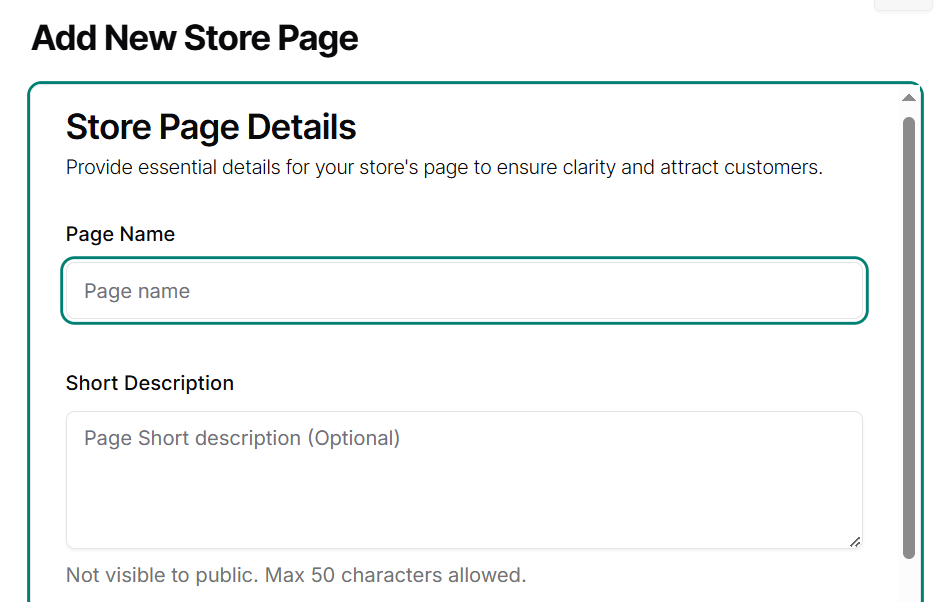
- Page Name(Required)
- This will be publicly visible on the storefront.
- Keep it short and relevant (e.g., Clothing, Golf Gear).
- Short Description(Optional)
- Internal-only field (not shown to customers).
- Max 50 characters.
- Useful for internal notes or clarifications.
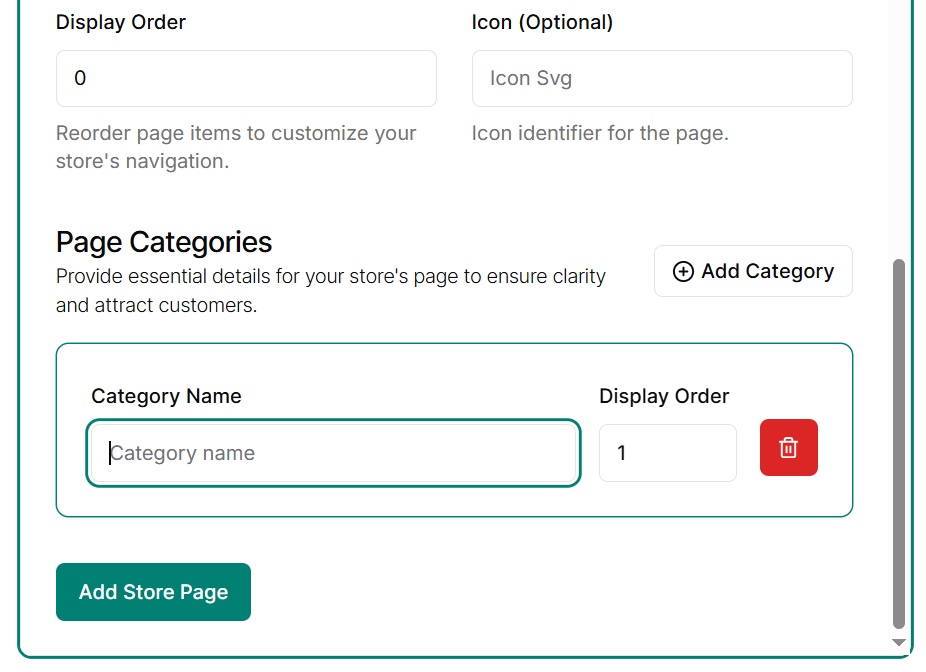
- Display Order
- Determines the order in which the page appears on the storefront.
- Lower numbers appear first.
- Page Categories
- Use the “Add Category” button to create subcategories within a page.
- Every time the button is clicked, a new row appears with:
- Category Name
- Category Display Order
🧩 Example Use Case:
Creating a page titled “Clothing”, with categories like Shirts, Gloves, Socks, etc.
Each page listed in the table includes an actions menu (three-dot icon) in the final column. From here, you can choose to Edit or Delete a page.
Edit Page
- Click the “Edit” option from the actions menu to open the Page Editor in a right-side panel.
- The form is pre-filled with the current page values including:
- Page Name
- Short Description
- Display Order
- All existing categories (if any)
- Make the necessary changes and click “Update Page” to save.
🧩 Tip: You can add or remove categories while editing the page.
Deleting a Page
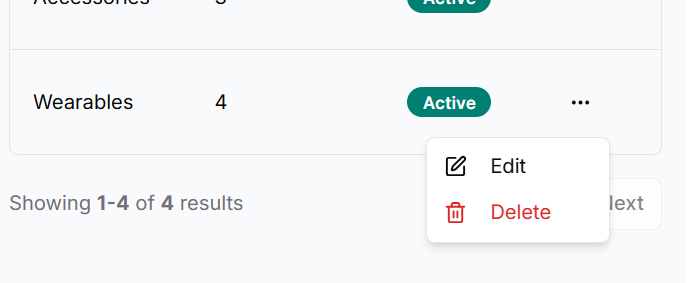
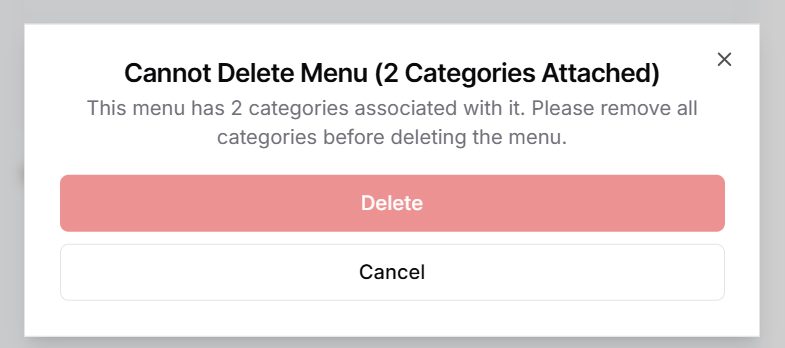
- Click “Delete” from the actions menu to open a confirmation dialog.
- If the page contains categories, the dialog displays a warning: “This page has 3 linked categories. Please remove all categories before deleting the page.”
- The delete action is blocked until all linked categories are removed from the page.
📝 Note:
Removing a category will not delete the products linked to it.
However, the category will be unlinked from those products, and any product that has no category assigned will not be displayed in the store.
Best Practices
- Use clear, SEO-friendly page names to improve discoverability.
- Keep display orders consistent across pages and categories.
- Use internal descriptions to stay organized, especially for large catalogs.
- Group related items under one page using categories to improve customer navigation.